
How the account screen is laid out #
Member accounts are split into multiple sections, such as Account and Billing. Each section contains related functions. To navigate between sections, scroll down the page or click the icon for the section you want from the left sidebar.
Header bar #
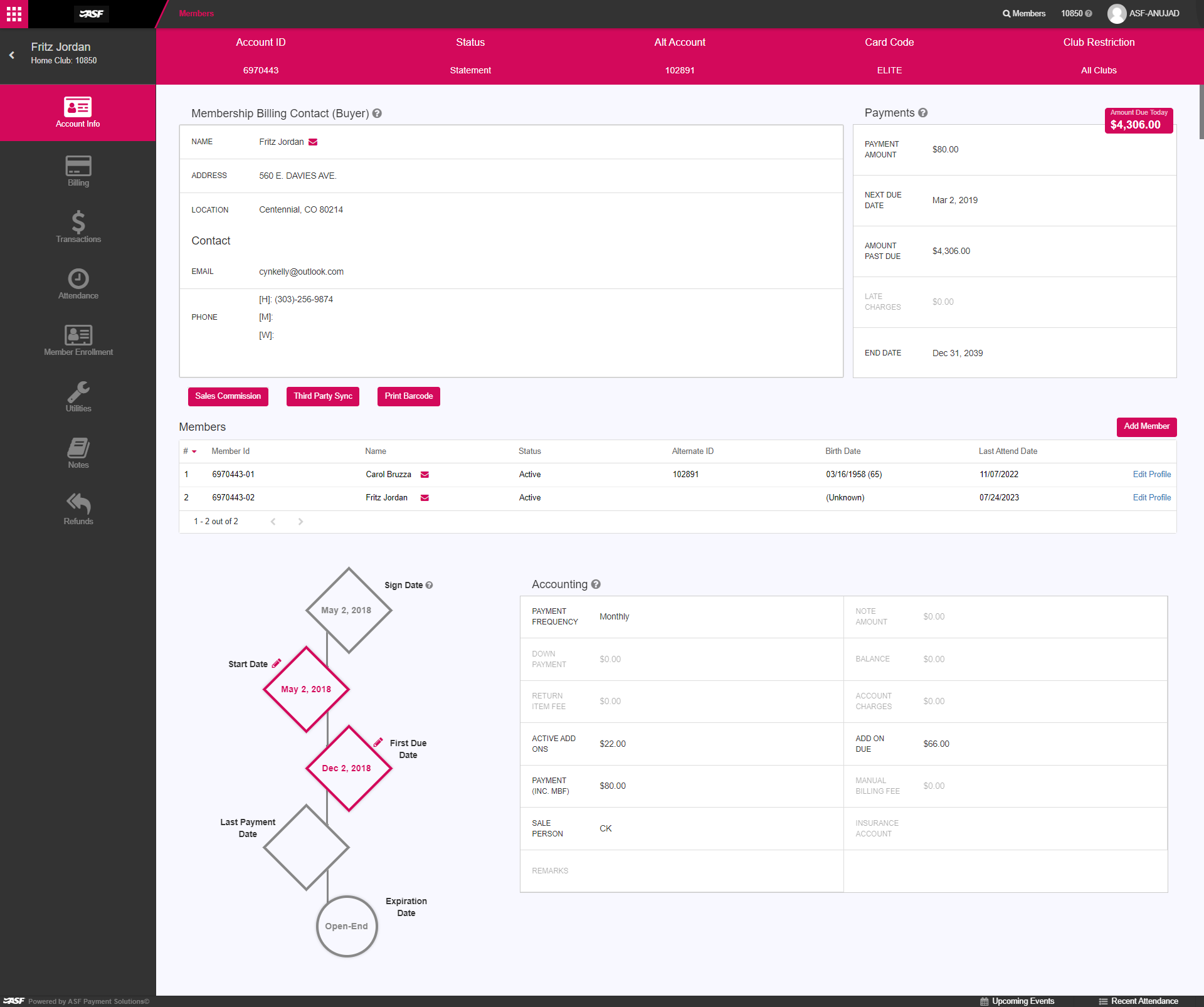
The bar at the top of the account page holds at-a-glance information that stays visible as you scroll:
- Name: the member's name plus their home club location. Useful when you are viewing a member from a reciprocal club.
- Account ID: the member's account number. This does NOT display the member's alternate account number if there is one.
- Status: the member's current account status. Indicates whether the member is on a Statement account, whether the agreement is open-ended or term, whether the account is paid in full (PIF), or whether the account has been returned. If a returned account has been sent to a third-party collections agency, that is indicated here too.
- Alt Account: the member's alternate account number, if they have one.
- Card Code: the offer code associated with the member's current offer.

Account Info #
The Account Info section holds basic information about the account and the members on it.
Billing #
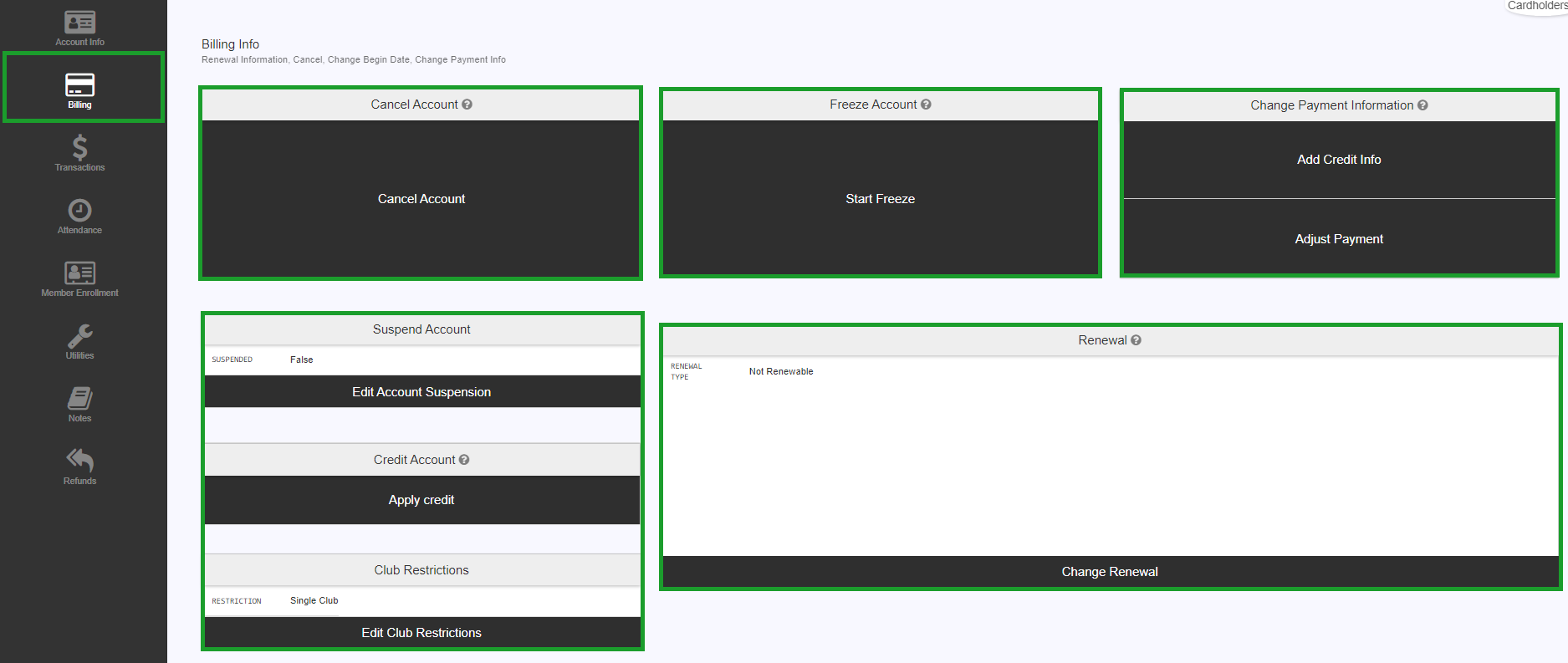
The Billing section displays functions related to altering the billing on the account: cancelling, freezing, and changing payment information. This is also where you find and edit information on the member's renewal.
Transactions #
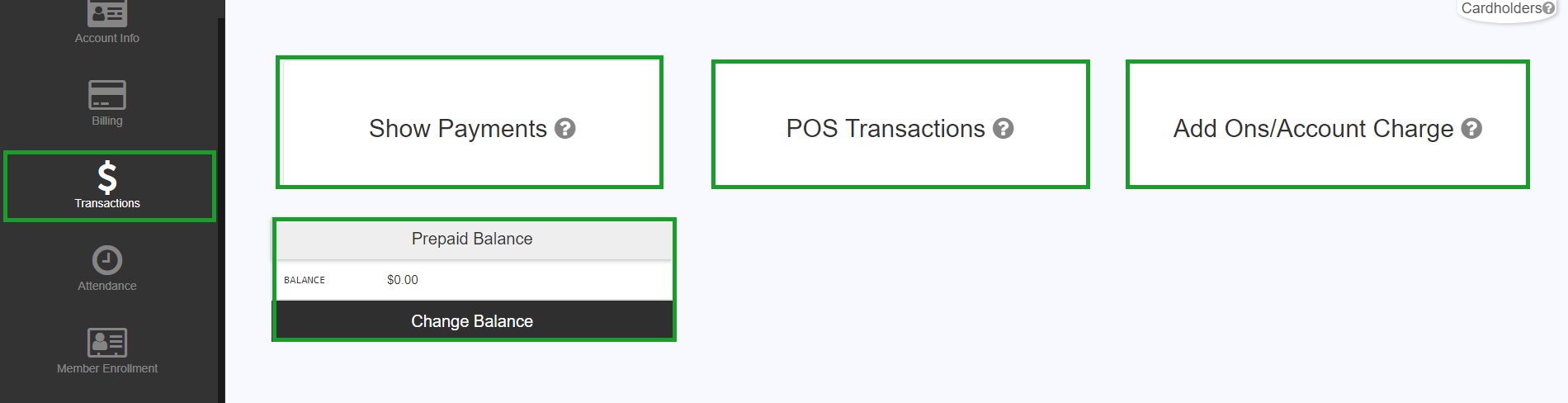
The Transactions section is where you find information on this account's transactions and add-ons. See Add-ons and charges for adding, editing, cancelling, and removing add-ons.
Attendance #
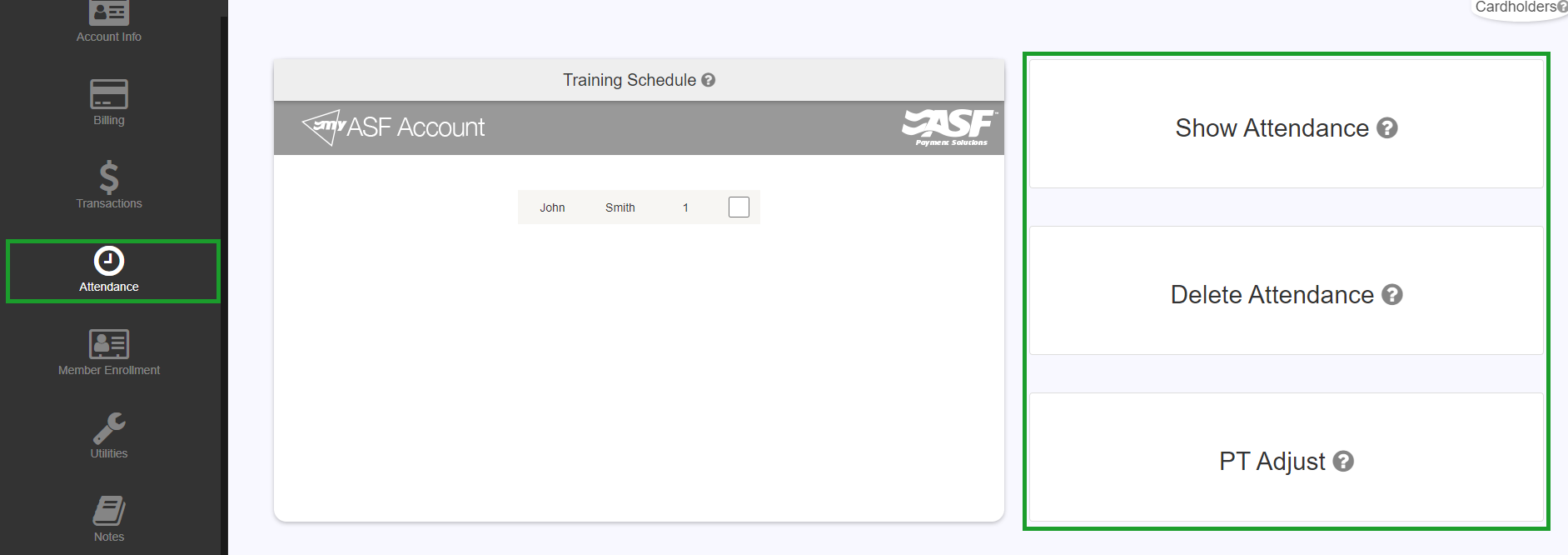
The Attendance section is where you find information on the member's attendance. You can also manually delete attendance records from here if needed.
Member Enrollment #
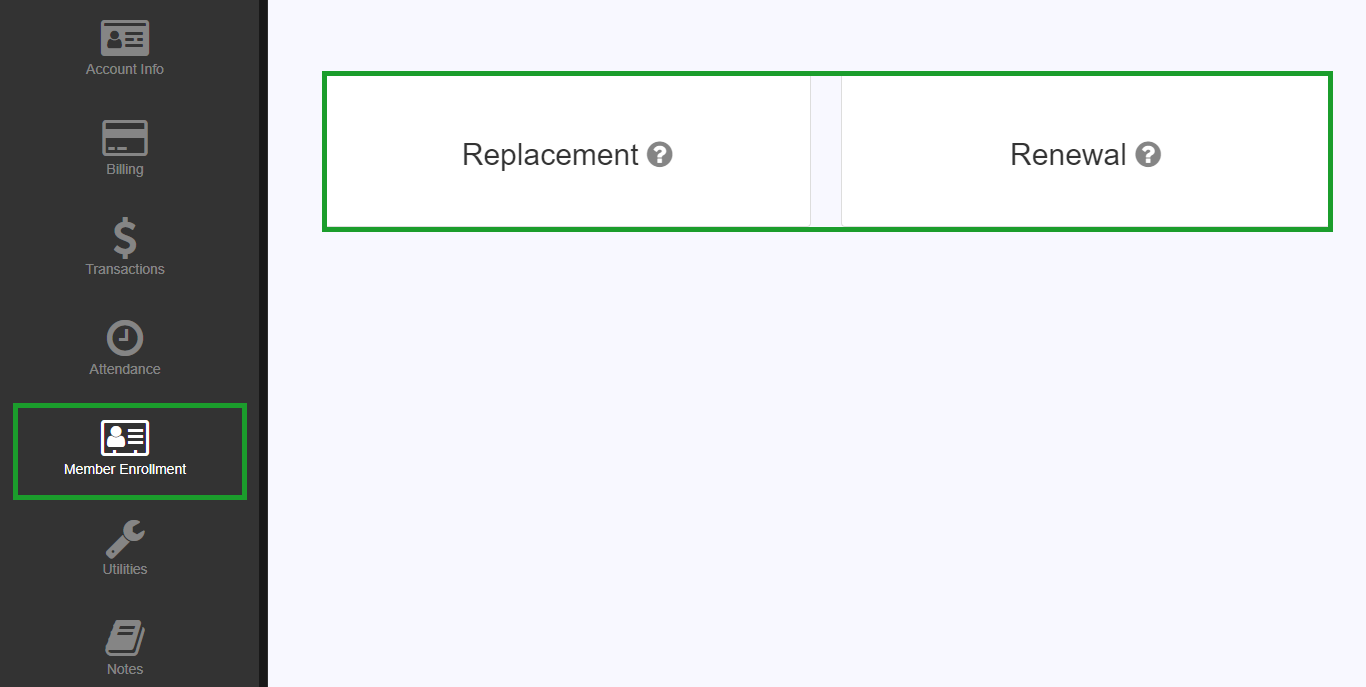
The Member Enrollment section is used to replace or renew the member's account. See Renew a membership and Replace a membership for the full procedures.
Utilities #
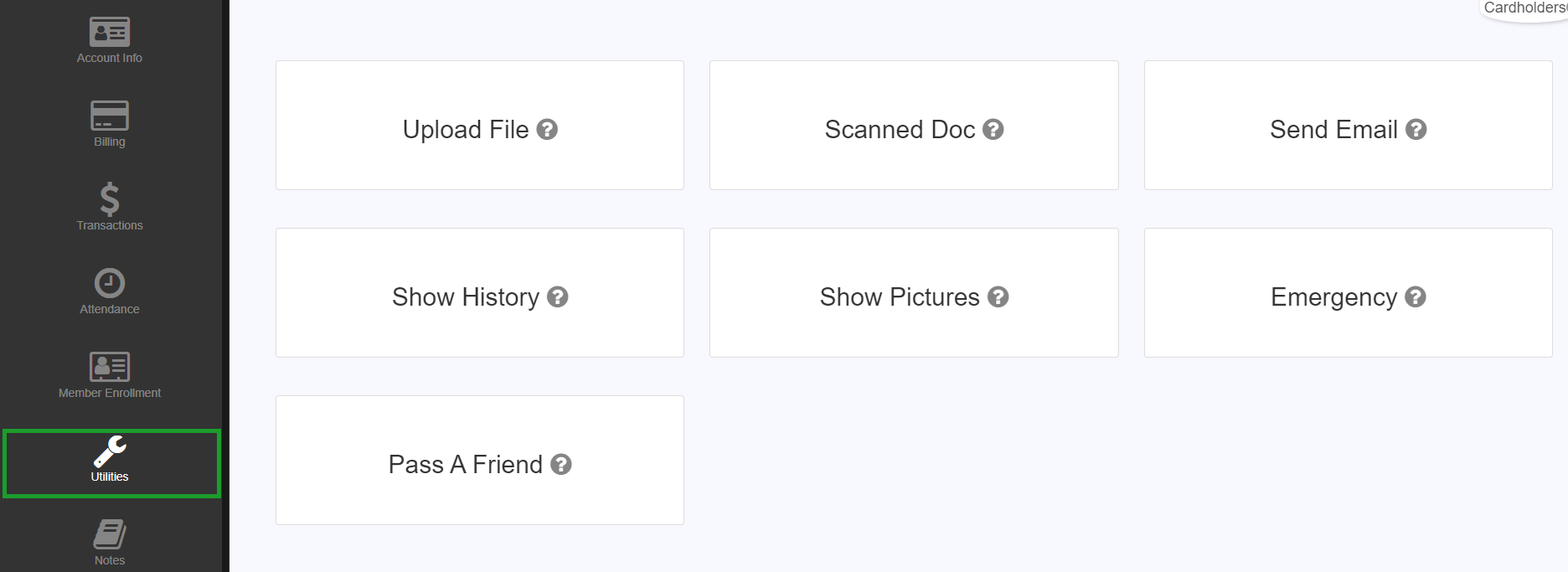
The Utilities section holds smaller additional functions that make changes to the member account, such as uploading a document or adjusting emergency contact information.
Notes #
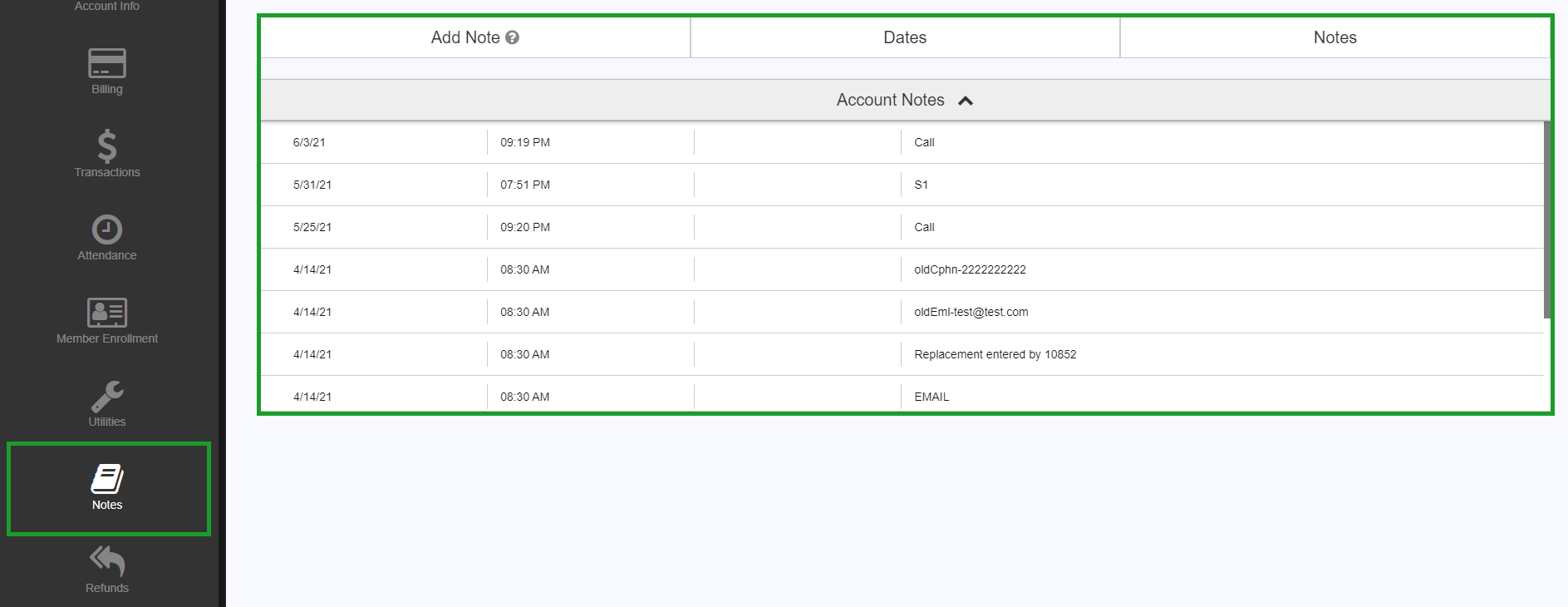
The Notes section displays notes for every account change. This is where you find records of changes made by you or your staff, plus records of the member's contact with ASF Customer Service.
Refunds #
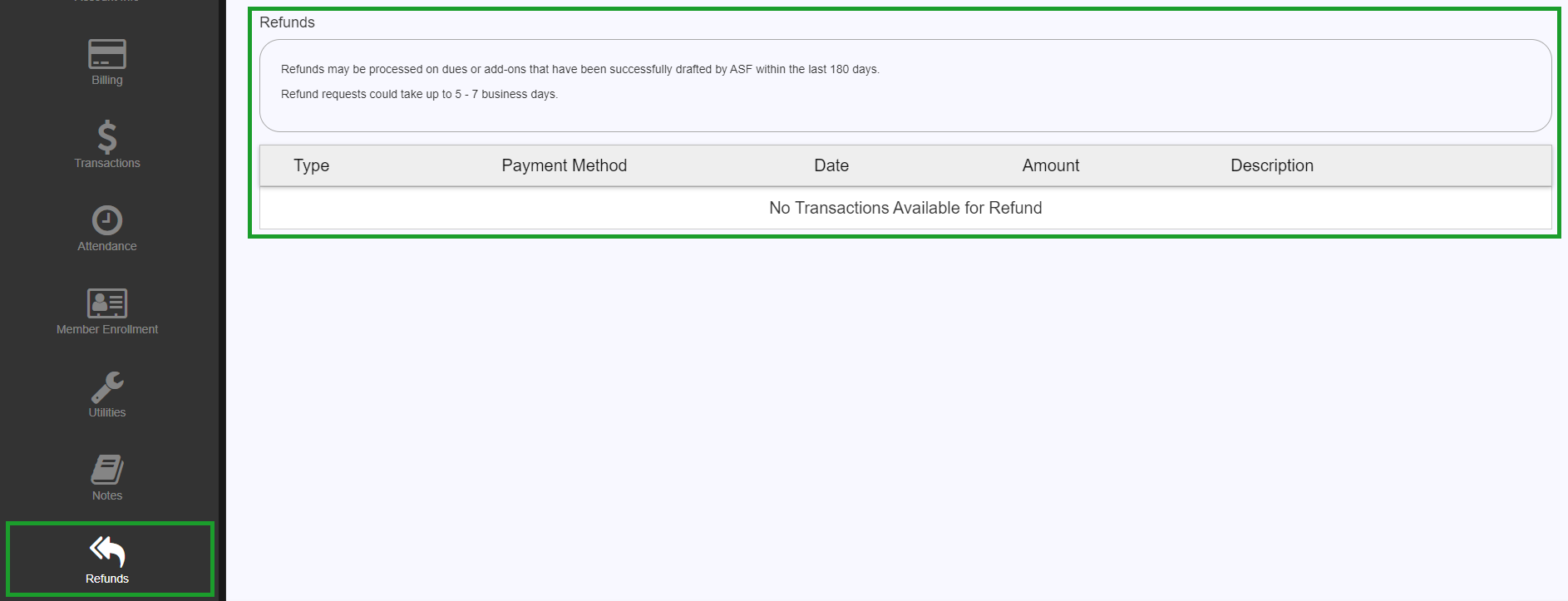
The Refunds section lets you issue refund requests for certain payments made on the member's account. Not all payments can be refunded this way. For returned-payment handling, see Account returns.
Need help? #
Contact your ASF account manager at clientsupport@asfpaymentsolutions.com.