
What the Member Profile panel does #
The Member Profile window is used to quickly access and manage members from anywhere without requiring you to disrupt your current flow to open the full Member Management application. You access it via the Quick Member Search in the top right corner.
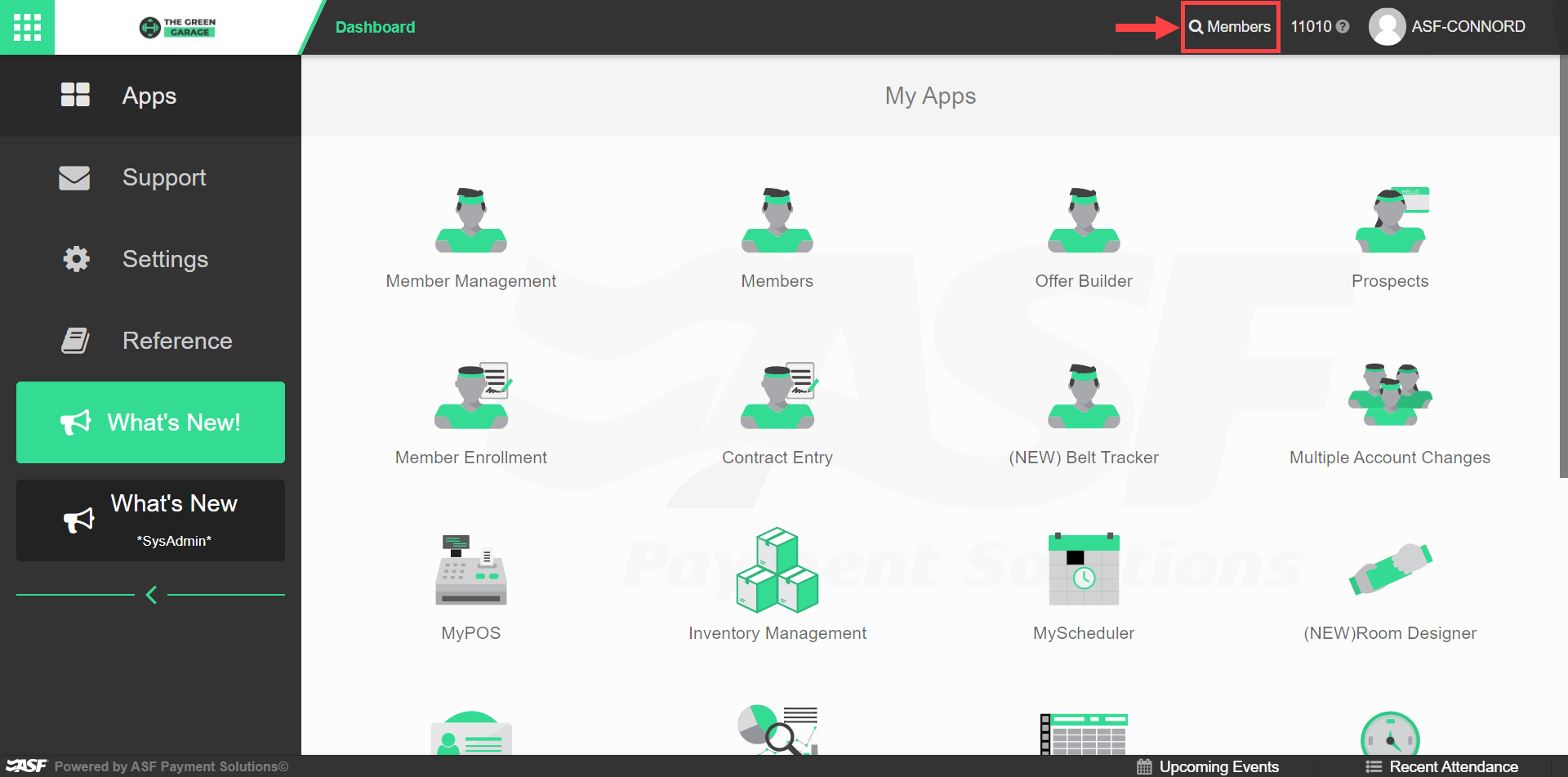
Search options #
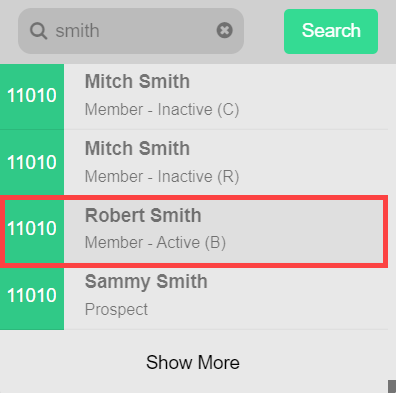
Members can be located using:
- Account Number: includes cardholder sequence number and alternate ID or barcode.
- Phone Number: home, mobile, or work numbers.
- First Name
- Last Name
Member Profile panel components #
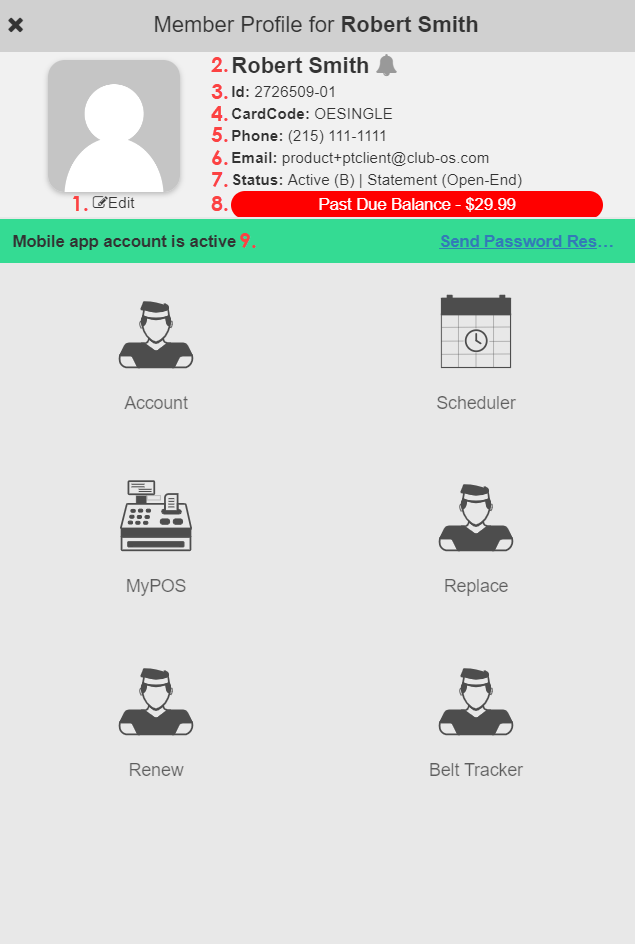
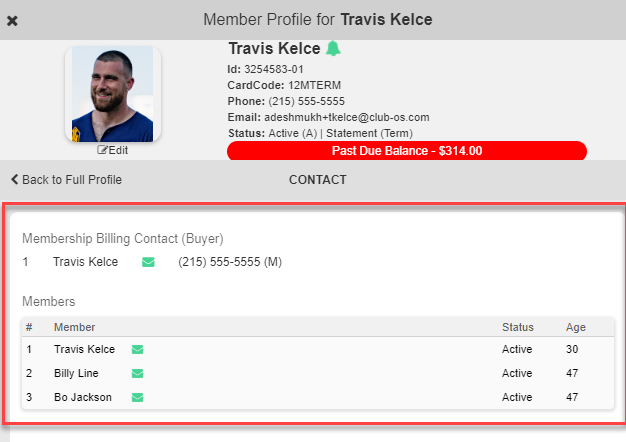
The display includes these key elements:
- Edit option for profile picture.
- Member's name with an alert bell icon if notes exist.
- Member ID with a sequence number indicating primary or secondary holder status.
- Card Code field showing the offer code.
- Phone number.
- Email address.
- Account status: Statement, open-ended, term, PIF, or returned.
- Past-due balance, if applicable. Selectable for payment.
- Mobile app status and password-reset option, if the ASF Branded Mobile App is enabled.
Apps #
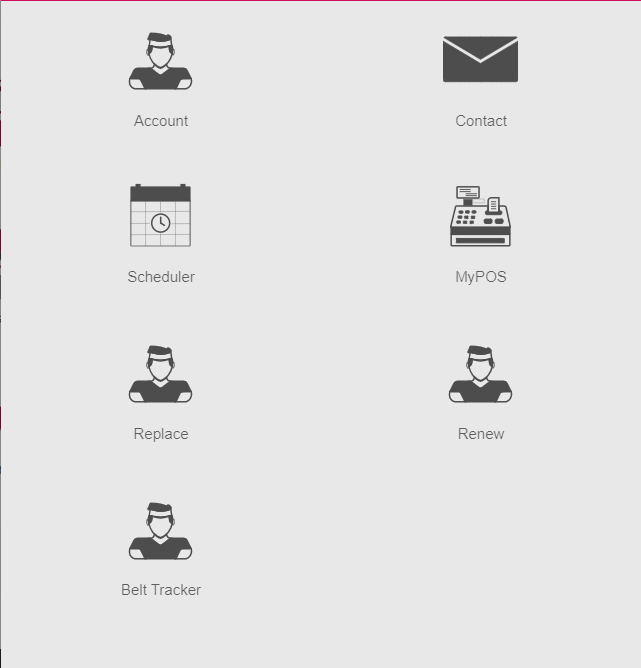
The Apps section gives quick access to the major actions you can take on the member from the panel.
- Account: direct link to the member's account in Member Management.
- Contact: displays the billing contact and account members.
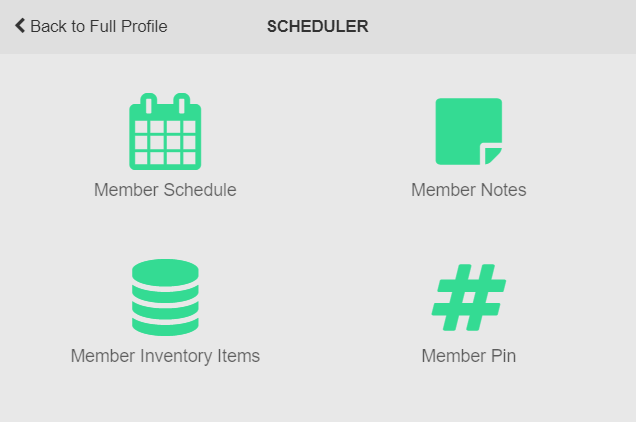
- Scheduler: view the member schedule, manage notes and alerts, view member inventory items, and add a member PIN.
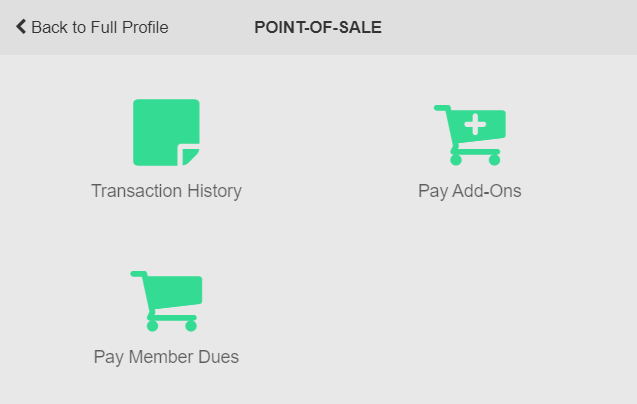
- MyPOS: review transaction history and process returns, launch payments for add-ons, launch payments for member dues.
- Replace: initiates account replacement in Member Enrollment. See Replace a membership.
- Renew: initiates account renewal in Member Enrollment. See Renew a membership.
- Belt Tracker: displays program enrollment information.
Need help? #
Contact your ASF account manager at clientsupport@asfpaymentsolutions.com.