
Cardholders overview #
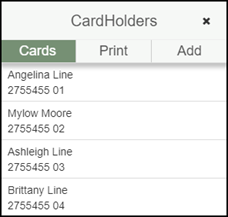
You access cardholders by clicking the Cardholders button on the lower right of the header. This gives you the ability to complete the following tasks for each cardholder, including the buyer:

- Edit cardholders
- Reprint membership cards
- Activate cardholders
- Deactivate cardholders
- Print temporary membership cards
- Add cardholders
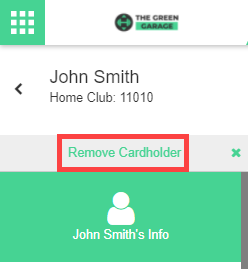
Once you have finished editing the cardholder, close the cardholder information by selecting the Remove Cardholder option from the navigation panel to the left.
Edit cardholders #
When editing a cardholder, you have access to three blocks of information: the Profile, the Attributes, and Sessions Per Payment.
To begin editing a cardholder:
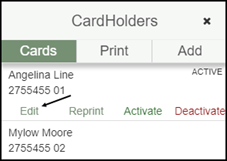
- Click the Cardholders tab.
- Click on the cardholder you want to edit.
- Click Edit.
Profile
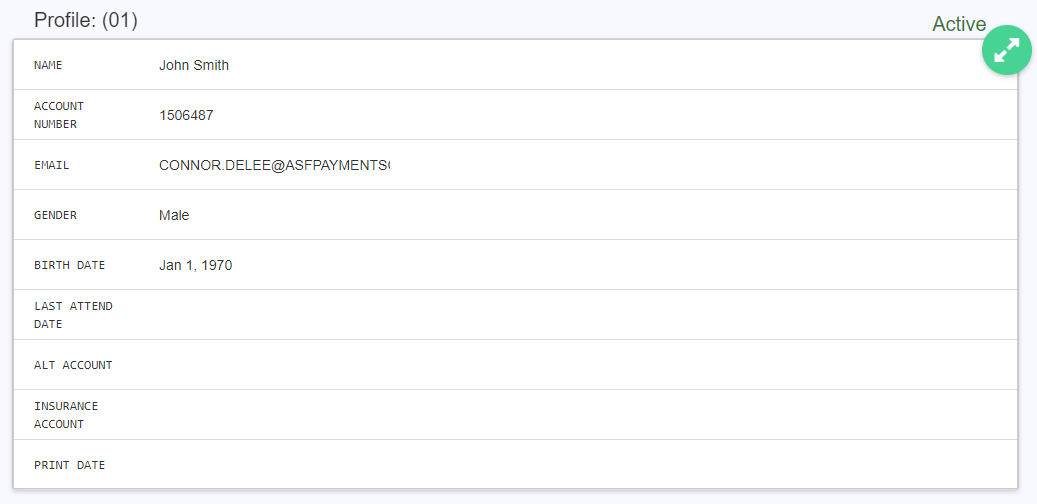
The cardholder profile holds basic information such as name, birthday, and email address. Expand the Profile window to edit:
- First Name: the cardholder's first name.
- Last Name: the cardholder's last name.
- Email: the email address for the cardholder. Not required.
- Birth Date: the cardholder's birth date. Not required.
- Gender: select the cardholder's gender.
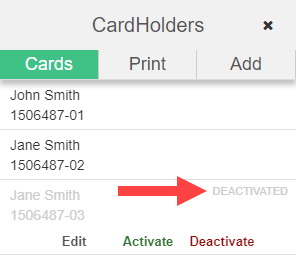
- Status: reflects whether the cardholder has access to the club. Active (green) means the cardholder has access for the same type of membership as the buyer. Inactive (red) means the cardholder no longer has access. If the cardholder's card is used to check in, ASF's Online Check-In application directs the cardholder to see an attendant. Active cardholders show in bold under Cardholders; inactive cardholders are greyed out.
- Insurance Account #: if the club is participating in an insurance program (for example a Silver Sneakers-type program), enter the cardholder's insurance account number here.
- Alt Account: the cardholder's membership card number. If the club uses physical membership cards, this MUST match the number on the card. Leave blank if the club does not use physical cards.
Attributes
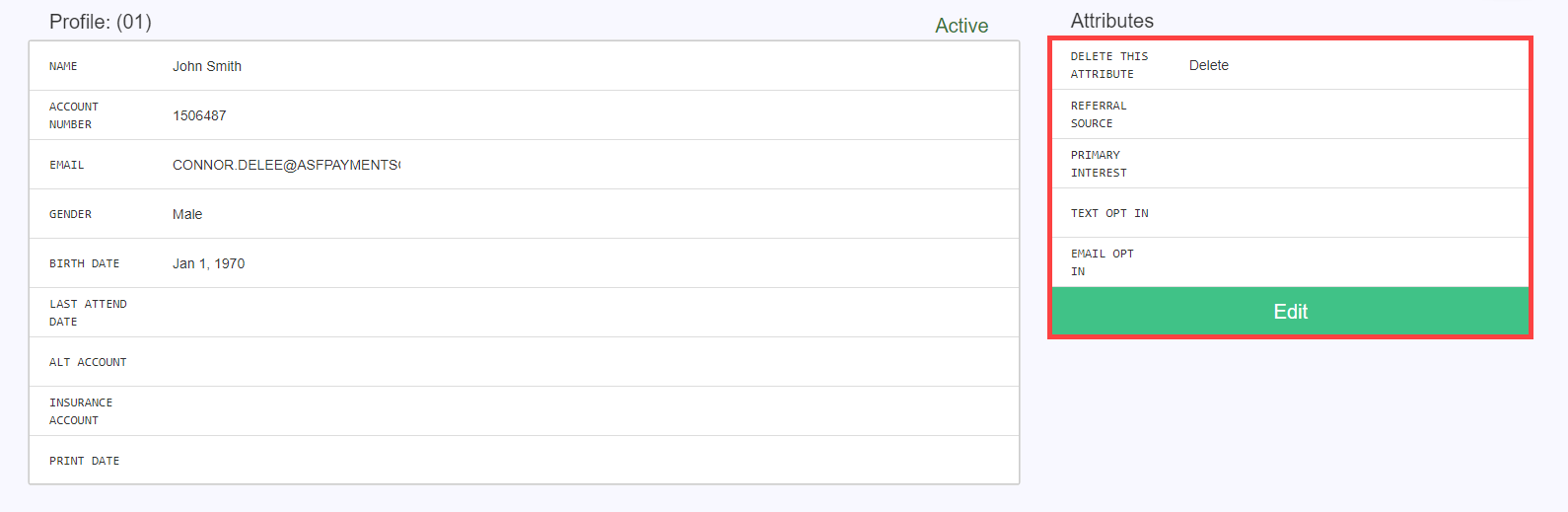
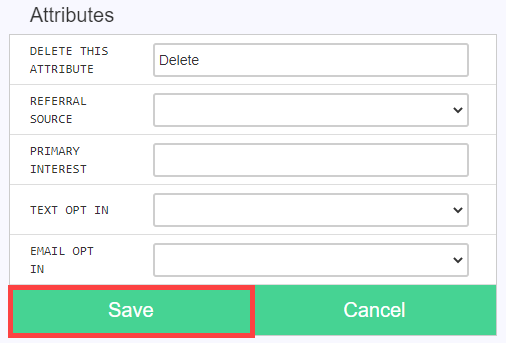
The Attributes screen is where you find any Member Attributes associated with the cardholder. These appear to the right of the cardholder's profile. Click Edit to change attribute values, then click Save.
Sessions Per Payment
The Sessions Per Payment screen only appears if the account was set up with included PT or class sessions during signup. It displays and edits the sessions each cardholder receives each time the account's dues are paid.

To edit sessions per payment for the selected cardholder:
- Select the Sessions Per Payment window to expand it.
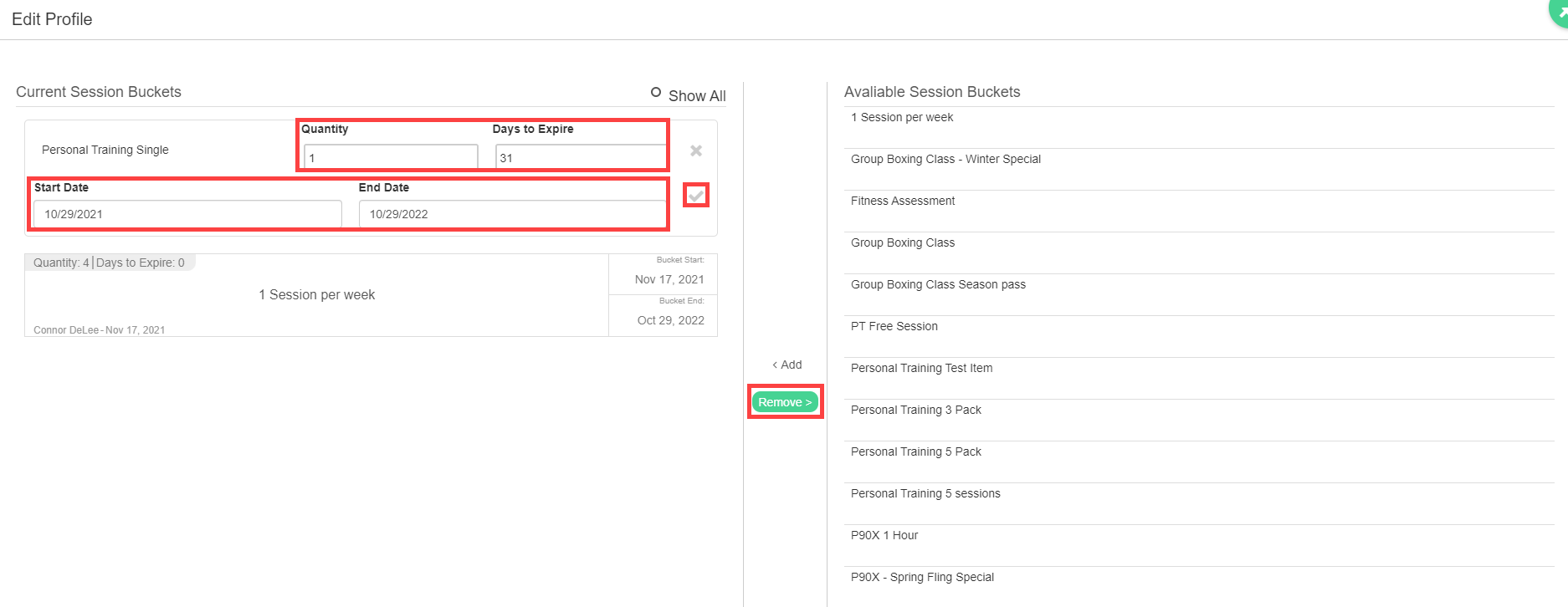
- On the left you find the Current Session Buckets; on the right you find the Available Session Buckets that can be added to the account.
- Selecting any session from the left and clicking Remove removes the session item from the account. This is also where the Quantity, Days to Expire, Start Date, and End Date can be edited. After making any adjustments, click the check mark to save.
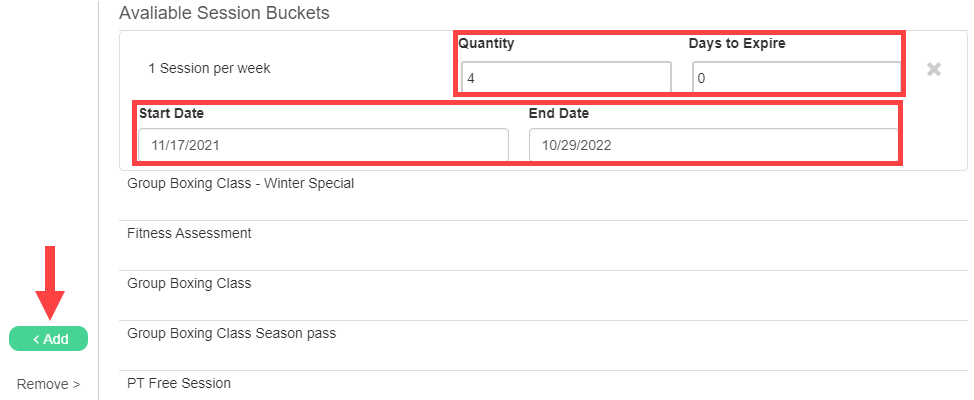
- To add a new session bucket, select the item from the list to the right. Set Quantity, Days to Expire, Start Date, and End Date. These default from the item set up in Inventory Management, but can be changed.
- Click Add to add the item.
Activate or deactivate a cardholder #
To deactivate or activate a cardholder on an account:
- Click Cardholders.
- Click the cardholder's name.
- Click Activate or Deactivate. If deactivating, the name appears greyed out and Deactivated appears in the upper right of the cardholder screen.
Print temporary membership cards #
If a member has misplaced their membership card and the club is on ASF's membership card program, you can print temporary membership cards for one or more cardholders:
- Click Cardholders.
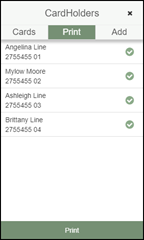
- Click Print.
- Select or unselect the correct cardholder(s), then click Print.
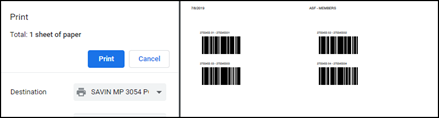
- The selected cardholders' barcodes appear on a print page. Follow the instructions to print.
Add a cardholder #
To add a cardholder to a member's account:
- Click Cardholders.
- Click Add.
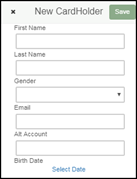
- Fill in the following information:
- First Name: type the cardholder's first name.
- Last Name: type the cardholder's last name.
- Gender: select the cardholder's gender.
- Email: enter the cardholder's email. If they do not have one, enter the buyer's email.
- Alt Account: if the club uses ASF membership cards or does not use cards, enter "0". Otherwise, enter the number on the card they are using.
- Birth Date: click Select Date and navigate the calendar to enter the date (if needed).
Note: If you need to associate an insurance account number with a cardholder, add the cardholder first, then edit them to add the insurance account number.
Related workflows #
To change the payment method or amount on the account, see the Billing section. To add an add-on for an individual cardholder, see Add-ons and charges.
Need help? #
Contact your ASF account manager at clientsupport@asfpaymentsolutions.com.