
What featured events do #
Marking an event as featured causes it to appear at the top of the home screen in the Member Account app whenever a member logs in. Only one event can be featured at a time. This is a useful tool for promoting a high-priority class, a special session, or a limited-enrollment event to all members.
For more on the Member Account app and how members interact with your schedule, see Member Account app setup.
Setting a featured event #
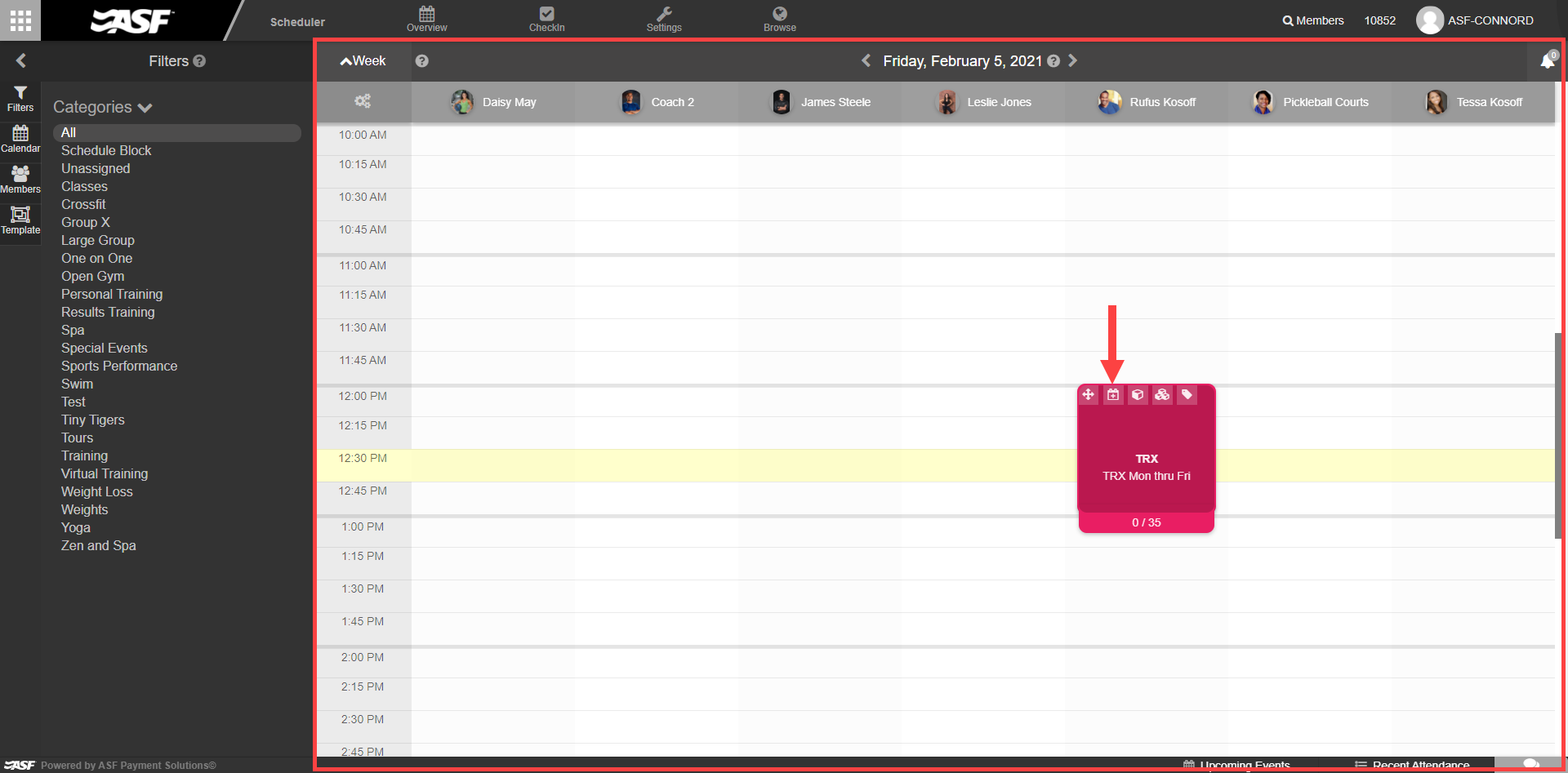
- Navigate to the event in the Overview section of My Scheduler.
- Hover over the event tile to reveal the action controls.
- Select View Event.
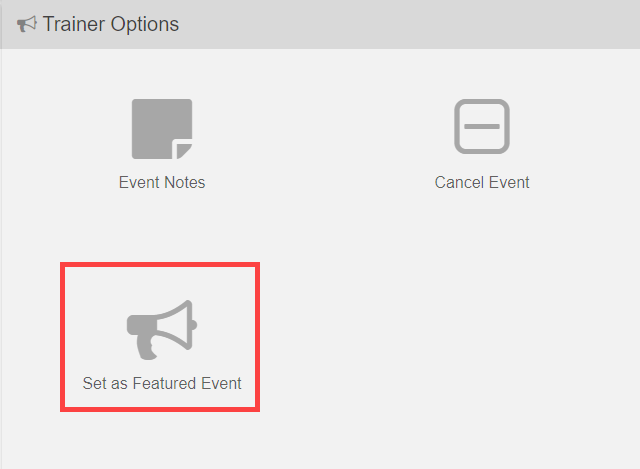
- In the event settings, choose Set Featured Event.
The selection takes effect immediately. If another event was previously featured, it is replaced by the new selection.
Removing the featured event #
To clear the current featured event:
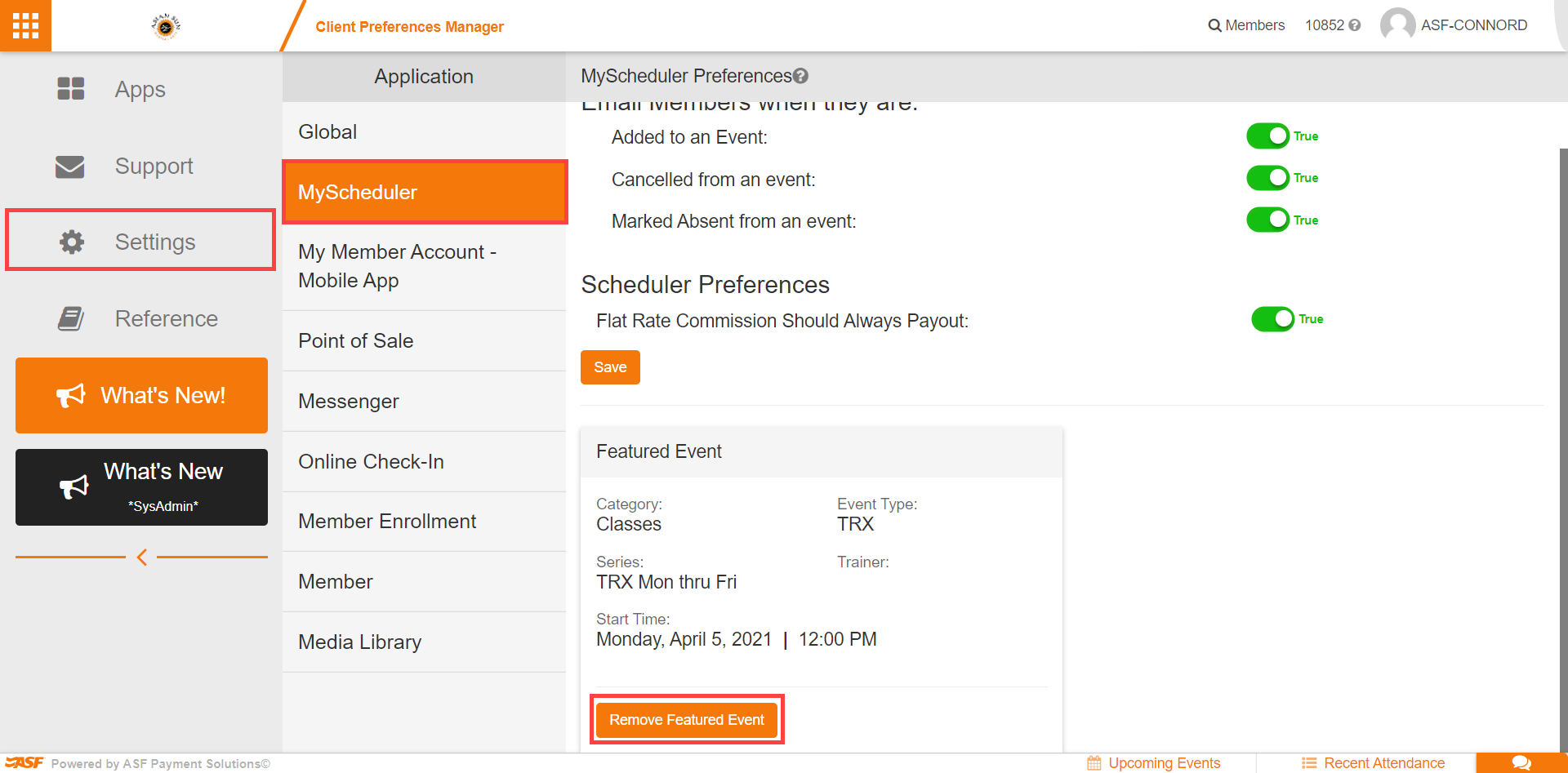
- Open Client Preferences under My Scheduler settings.
- Locate the currently active featured event in the preferences panel.
- Select Remove Featured Event.
Where to go next #
- To configure what members see in the Member Account app, see Member Account app setup.
- To promote events externally, see Public Calendar.
Need help? #
Contact your ASF account manager at clientsupport@asfpaymentsolutions.com.