
How to start a freeze #
Freezing an account temporarily suspends billing and, depending on your settings, facility access. The membership term resumes after the freeze ends, so the freeze duration is added to the contract end date.
Pull up the member's account in Member Management and scroll down to the Billing section. The Freeze Account section is near the top in the first row of the Billing section. Click Start Freeze to begin setting up the account freeze.
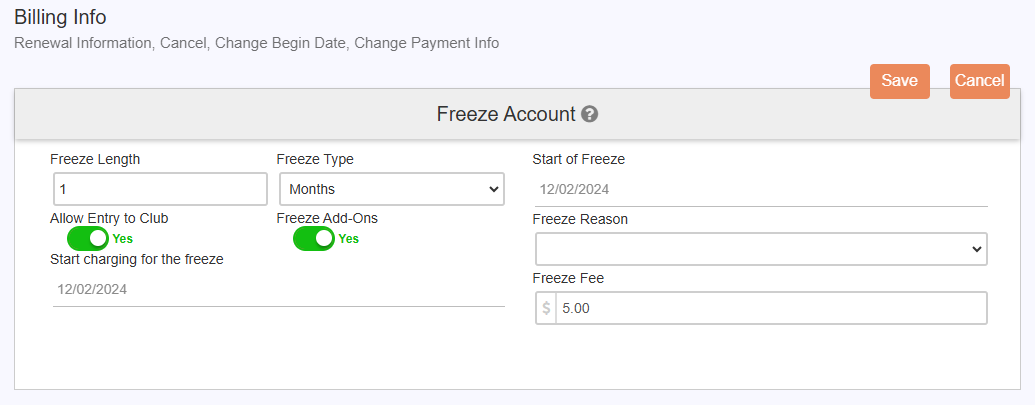
Freeze fields #
- Freeze Length and Freeze Type: set the length of the freeze for a number of weeks, months, or payments.
- Allow Entry to Club: indicates whether the member is still allowed to check in using Online Check-In.
- Start Charging for the Freeze and Freeze Fee: sets up a freeze fee for the member to pay while their account is frozen.
- Start of Freeze: determines the start date of the freeze.
- Freeze Reason: the reason for the freeze. For consistent reporting, set up a predefined drop-down list of freeze reasons rather than relying on free-text entries.
Once everything is filled in, click Save.
Cross-reference: billing pause and freeze mechanics #
For the billing-side mechanics of pausing dues invoices, managing facility access during a freeze, and handling proration and term-extension preferences under invoice-based billing, see Pause billing and freeze access.
Need help? #
Contact your ASF account manager at clientsupport@asfpaymentsolutions.com.