
How trainer commissions work #
Trainer commissions are configured per trainer, per event type. When a trainer checks a member into an event that matches their configured event type, a commission entry is recorded automatically and appears in the Trainer Commission Detail report. Trainer-level commission settings override any default commission configured on the event type or series.
Accessing a trainer to set commission #
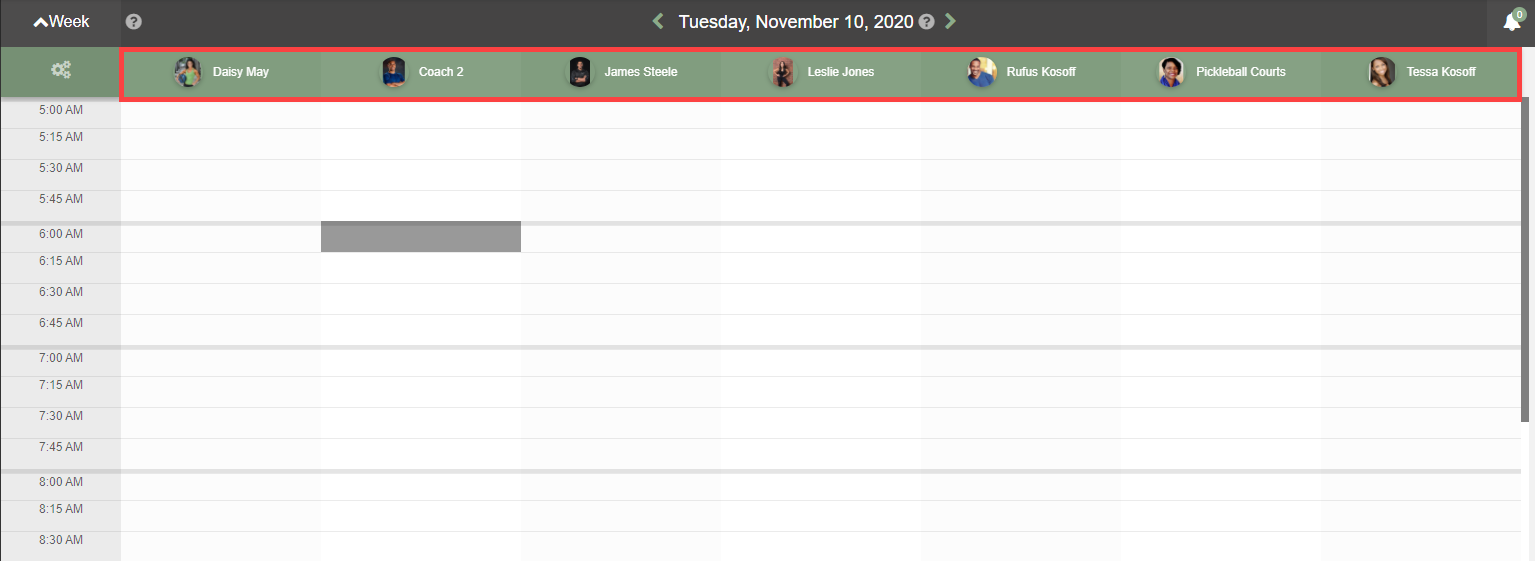
You can reach a trainer's profile in two ways:
- From the Overview: click the trainer's column header to open their profile.
- From Browse: select Trainers from the Browse menu, then select the trainer.
Configuring a commission #
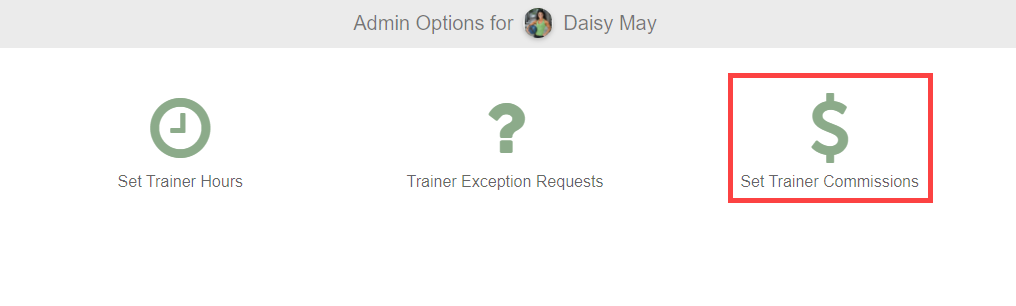
- On the trainer's profile, click Set Trainer Commission.
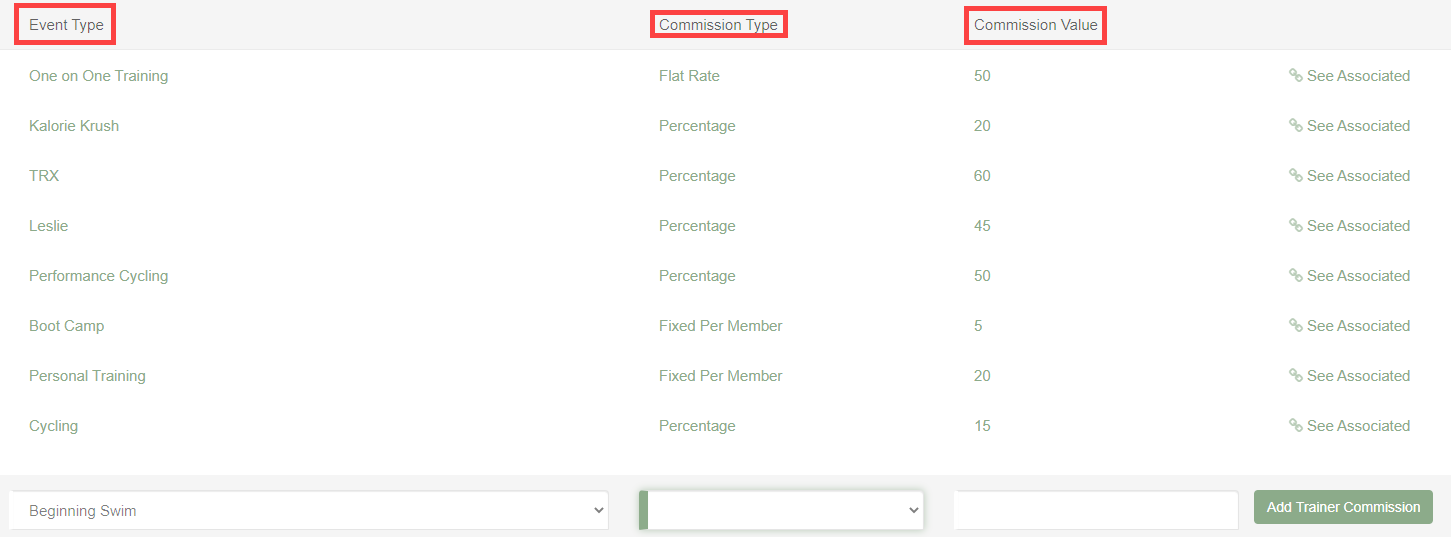
- Select the Event Type this commission applies to.
- Choose the Commission Type:
- Fixed Per Member: a set dollar amount per member checked in.
- Percentage: a percentage of the session or event revenue.
- Flat Rate: a fixed amount per event, regardless of attendance.
- Enter the Commission Value.
- Click Add Trainer Commission to save.

Flat rate commission behavior #
By default, flat-rate commissions only appear in the Trainer Commission Detail report when at least one member has been checked into the event. A separate setting in Client Preferences under the My Scheduler section, called Flat Rate Commission Should Always Pay Out, changes this behavior: when enabled, flat-rate commissions are recorded and appear in reports even if no members were checked in.
Viewing commission earnings #
Commission earnings are tracked in the Trainer Commission Detail report, accessible from the Scheduler Reports section on the main dashboard. The report shows commissions by trainer, event type, and date range. For a full list of available reports, see Reports.
Where to go next #
- To set up trainer profiles before adding commissions, see Instructors and trainers.
- To view commission reports, see Reports.
Need help? #
Contact your ASF account manager at clientsupport@asfpaymentsolutions.com.