
What the check-in view shows #
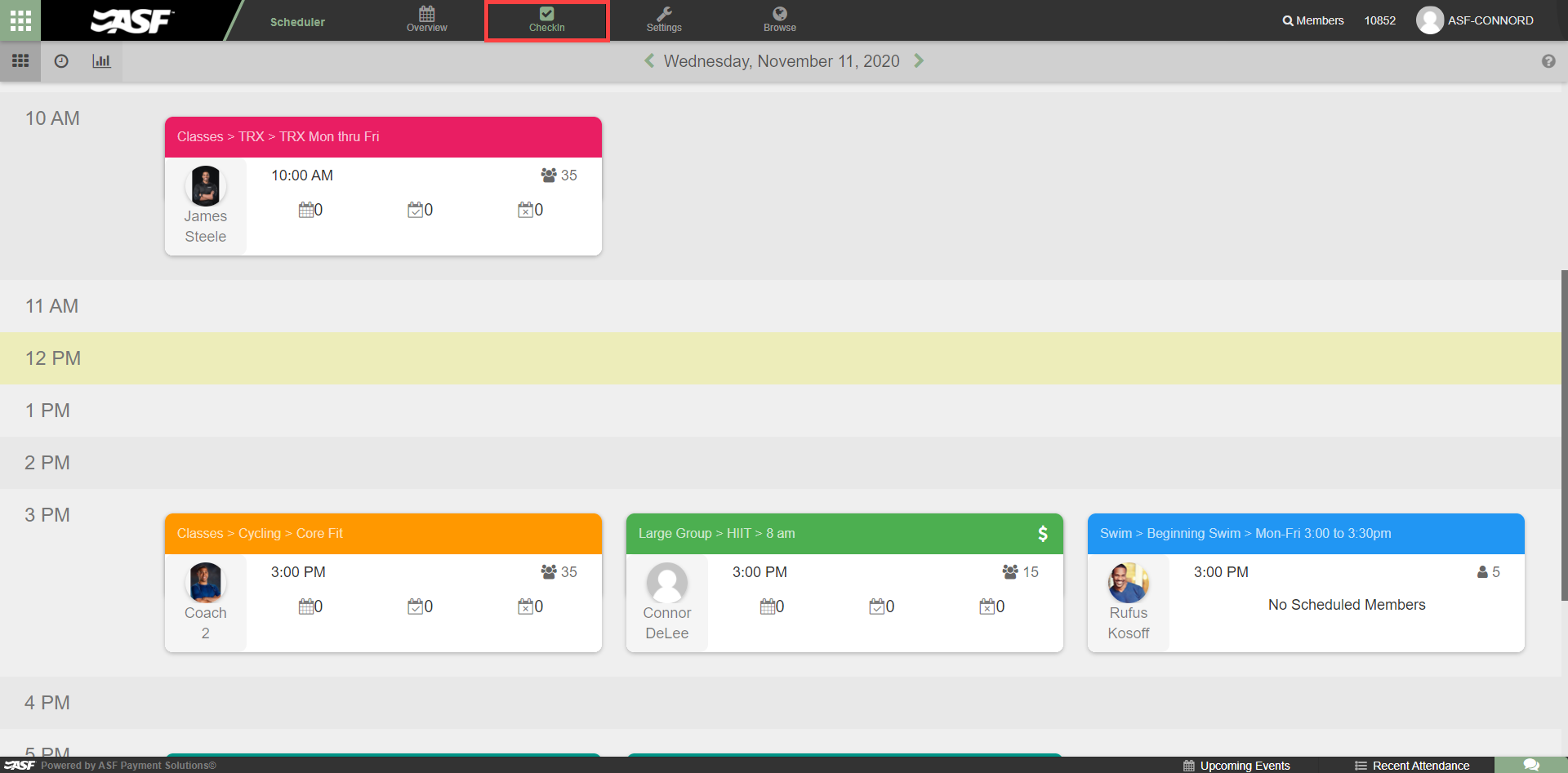
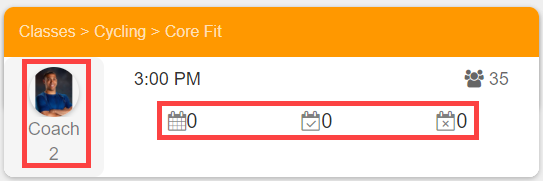
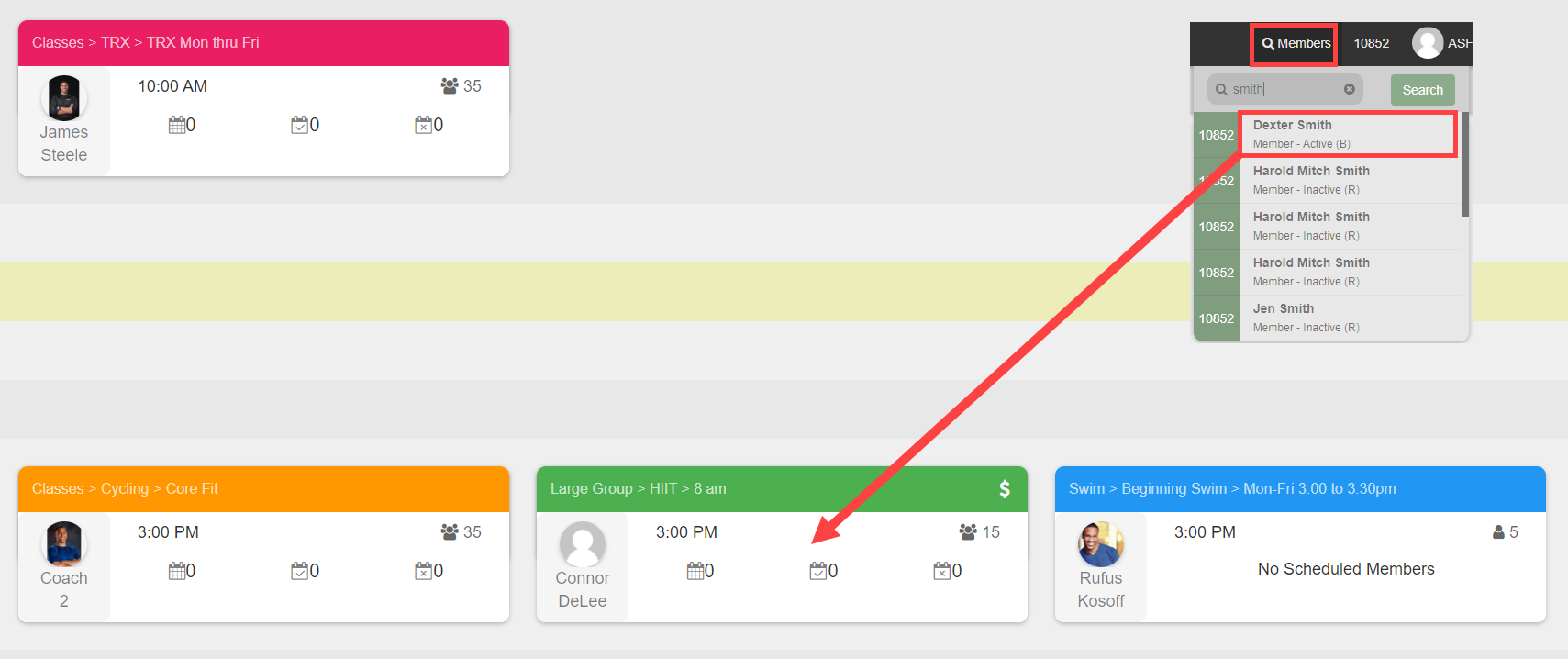
The CheckIn tab in My Scheduler is the front-desk tool for managing event attendance. It displays each event scheduled for the current day, along with a count of members scheduled, checked in, and marked absent. Selecting an event opens the full member roster for that event.
Checking a member in #
Each member on the roster shows two attendance metrics:
- 30 Day: the number of events the member has checked into in the past 30 days.
- Lifetime: the total events checked into since the member joined.
To check a member in, select the check mark icon next to their name. For session-based events (those configured to deduct from a session balance), you will be prompted to select which session package to draw from.
Check-in alerts #
When check-in alerts are enabled in Client Preferences, colored alerts appear during check-in for members with account issues:
- Yellow: the member has a flag on their account but is still permitted to attend.
- Red: the member's account status prevents access and they should not be checked in.
Absence options #
If a member does not attend, use the three-dot menu next to their name to select from three absence options:
- Free Absence: marks the member absent without deducting from their session balance.
- Paid Absence: marks the member absent and deducts one session from their balance.
- Cancel Member: removes the member from the event entirely without deducting a session.
Members marked absent receive an email notification that includes a link to the Public Calendar if that feature is active.
Assigning equipment #
For events where specific equipment is configured (for example, numbered bikes in a spin class), staff can assign members to particular slots:
- Select Set Equipment from the member's row.
- Choose the equipment slot to assign to that member.
- To reassign, drag the member's entry from one equipment slot to another.
Where to go next #
- To require a PIN at check-in, see Member PINs.
- To understand how check-ins deduct sessions, see Sessions and POS integration.
Need help? #
Contact your ASF account manager at clientsupport@asfpaymentsolutions.com.