
How sessions connect to POS #
Session packages are sold through the ASF point of sale (POS) and then consumed when members are checked into session-based events in My Scheduler. This integration means that every check-in against a session event automatically tracks usage against the member's purchased balance, and reports like Session Liability and Zero Availability reflect that data in real time.
Note: If the Training Schedules tab in the member portal appears empty, it typically means the club has not enabled ASF Scheduler. Contact your ASF account manager to confirm your configuration.
Viewing a member's scheduled sessions #
Members access the Training Schedules tab from their member account to view upcoming personal training sessions and classes. Staff can view the same data from the member's account record in the back office.
- Select the cardholder to display sessions purchased under that account.
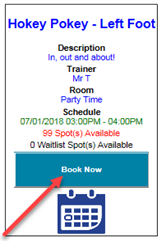
- Available classes appear with details including location and remaining capacity.
- To register, select Book Now next to the desired class.

Purchasing sessions #
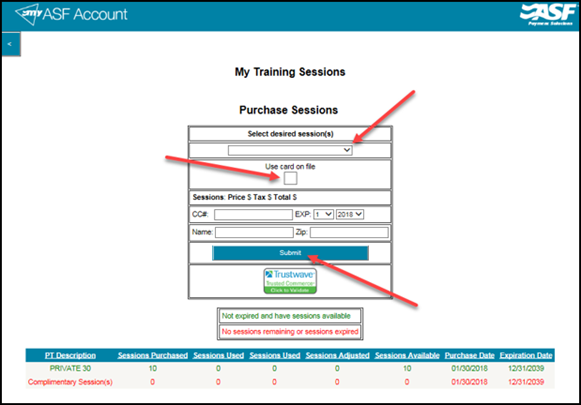
When a member does not have available sessions, a prompt appears to Purchase Sessions. This redirects to the My Training Sessions page where the member or staff can select a package from a dropdown and complete payment.
- Members set up on automatic billing can use the Use card on file option to charge their stored payment method.
Viewing purchased packages and balances #
The My Training Sessions page shows the member's complete session inventory:
- Available sessions: the number of sessions remaining in each purchased package.
- Purchase date: when the package was bought.
- Expiration date: when the sessions expire. Packages without an expiration show a date of 12/31/2039.
Viewing and modifying the schedule #
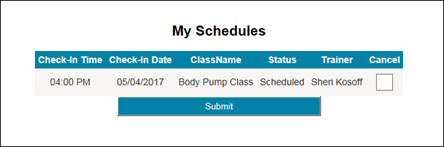
The My Schedules tab shows the member's current and upcoming scheduled sessions. From this tab, sessions can be viewed and cancelled where the club's cancellation policy permits.
Where to go next #
- To check members into sessions and deduct from their balance, see Check-in view.
- To track remaining session balances across all members, see Reports.
Need help? #
Contact your ASF account manager at clientsupport@asfpaymentsolutions.com.