
What the multi-event editor does #
The multi-event editor lets you search for a group of scheduled events using specific criteria, then apply changes to all matching events at once. This is useful when a scheduling change affects many instances, such as moving a class time forward across several weeks or swapping a trainer for an entire series.
How the search criteria work #
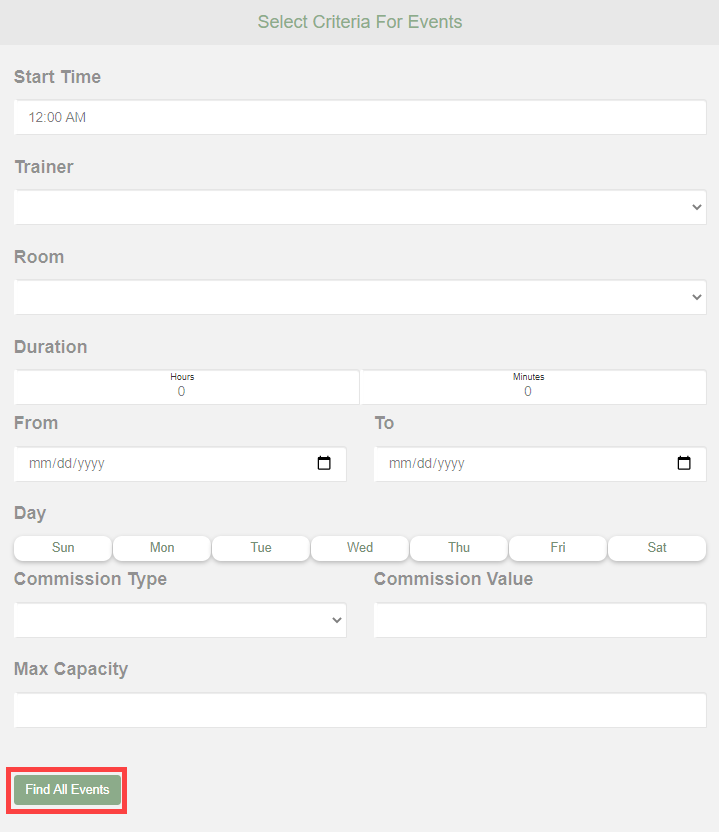
The criteria you set in the search determine both which events are returned and which fields you will be able to change. For example, if you search by Start Time (8:00 AM), you can then update Start Time for all matching events. Choose your criteria based on what you need to modify.
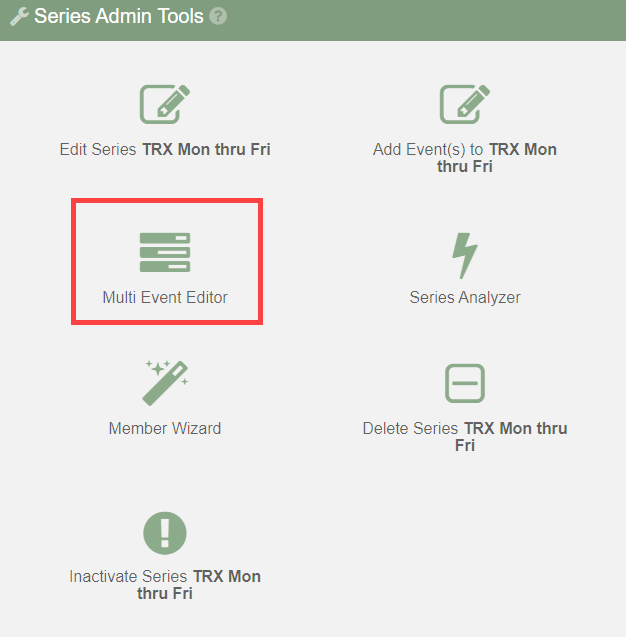
Editing multiple events #
- Set your search criteria to identify the events you want to modify.
- Click Find All Events. A list of matching events populates below.
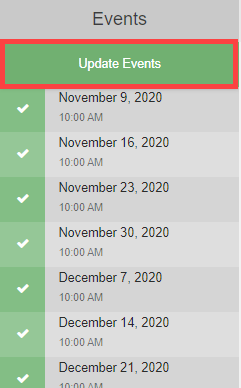
- Review the results to confirm the right events are selected.
- Make the necessary changes in the edit fields.
- Click Validate Changes to check for any scheduling conflicts before applying.
- After validation passes, click Update Events to apply all changes.
Additional options #
- Clear Search: Resets all search criteria so you can start a new query.
- Delete All Selected Events: Removes all events in the current result set. Use this with care; deletions are immediate.
Where to go next #
- To create new events instead of editing existing ones, see Schedule events.
- To understand the organizational tiers behind events, see Categories, event types, and series.
Need help? #
Contact your ASF account manager at clientsupport@asfpaymentsolutions.com.