
What the media library does #
The Media Library stores video content that members can view through the Public Calendar. Adding a video from YouTube makes it available to members who log into the Public Calendar, supporting on-demand and online class access.
Step 1: Get the YouTube video link #
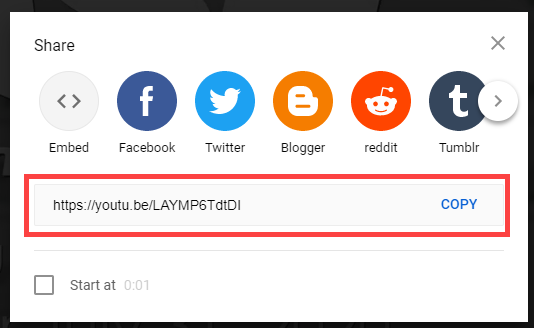
On YouTube, navigate to the video you want to add. Click the Share button below the video and copy the link provided. The shared link typically looks like this:
https://youtu.be/LAYMP6TdtDI
Step 2: Convert the URL to embed format #
The copied YouTube share link must be reformatted before it can be used in the Media Library. Change the URL structure as follows:
- Original format:
https://youtu.be/LAYMP6TdtDI - Required format:
https://youtube.com/embed/LAYMP6TdtDI
Replace youtu.be/ with youtube.com/embed/ and keep the video ID (the string after the slash) unchanged.
Step 3: Access the Media Library #
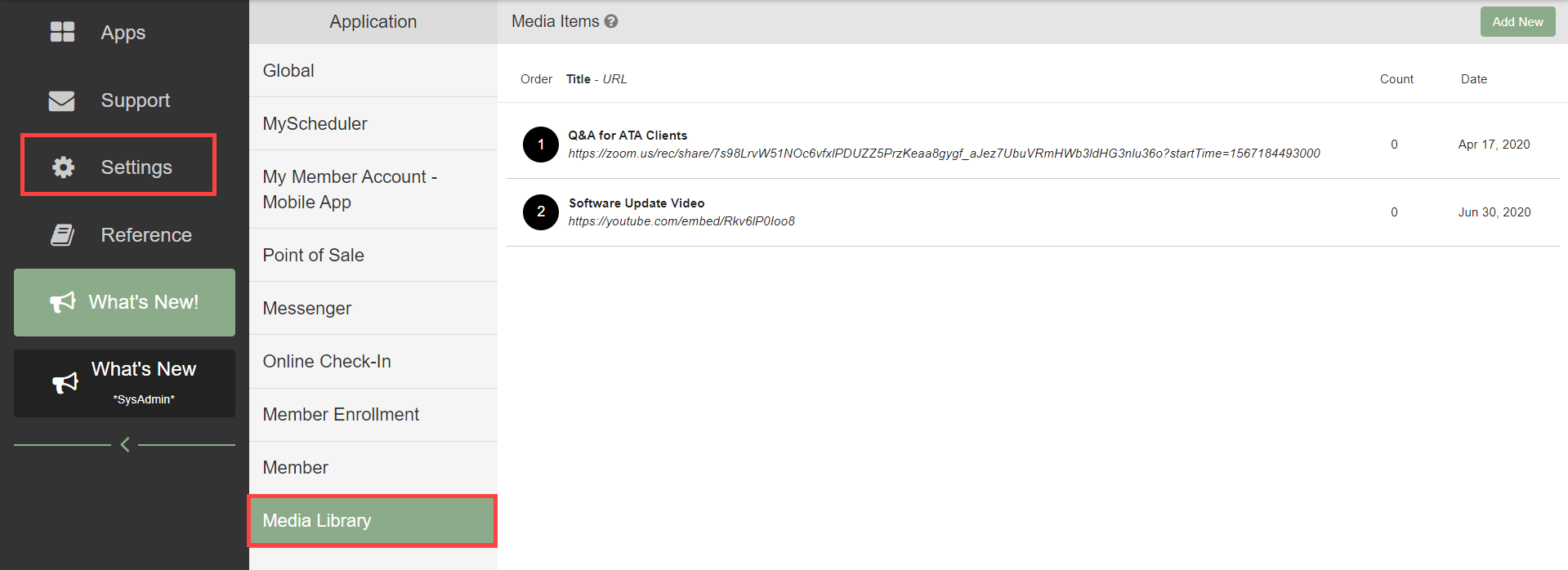
The Media Library is located inside Client Preferences:
- Go to Settings on the My Apps page.
- Open Client Preferences.
- Select the Media Library tab.
Step 4: Add the video #
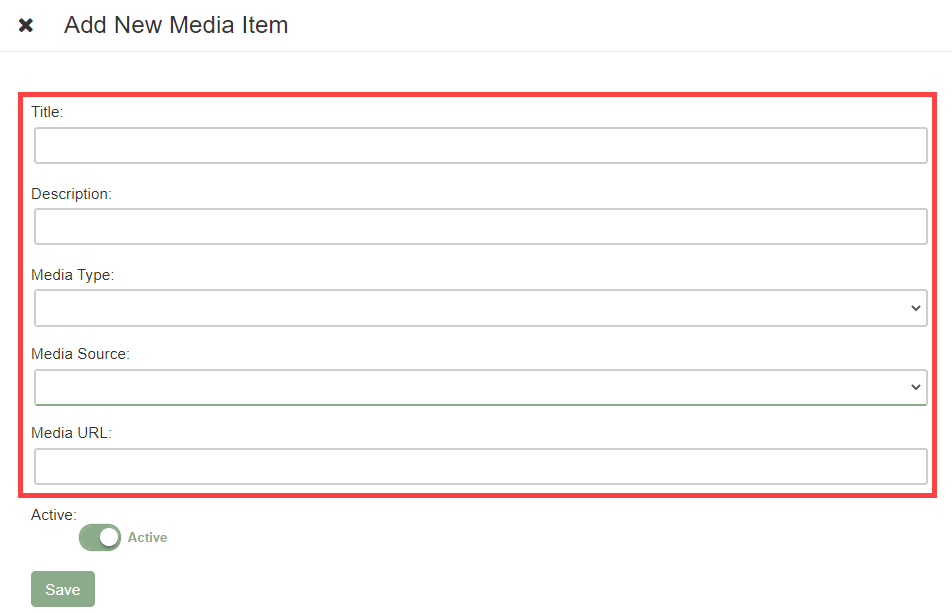
- Click Add New.
- Enter a Title for the video.
- Add an optional Description.
- Select the Media Type and Source from the available options.
- Paste the converted embed URL into the Media URL field.
- Click Save.
Where to go next #
- To share videos with members externally, see Public Calendar.
- To mark an event as an online class linked to video content, see Categories, event types, and series.
Need help? #
Contact your ASF account manager at clientsupport@asfpaymentsolutions.com.