
What hours of operation controls #
Hours of operation defines the time window during which events can be scheduled each day. Setting these hours correctly ensures that the scheduler grid reflects when your facility is actually open and prevents scheduling outside those windows.
Accessing hours of operation #
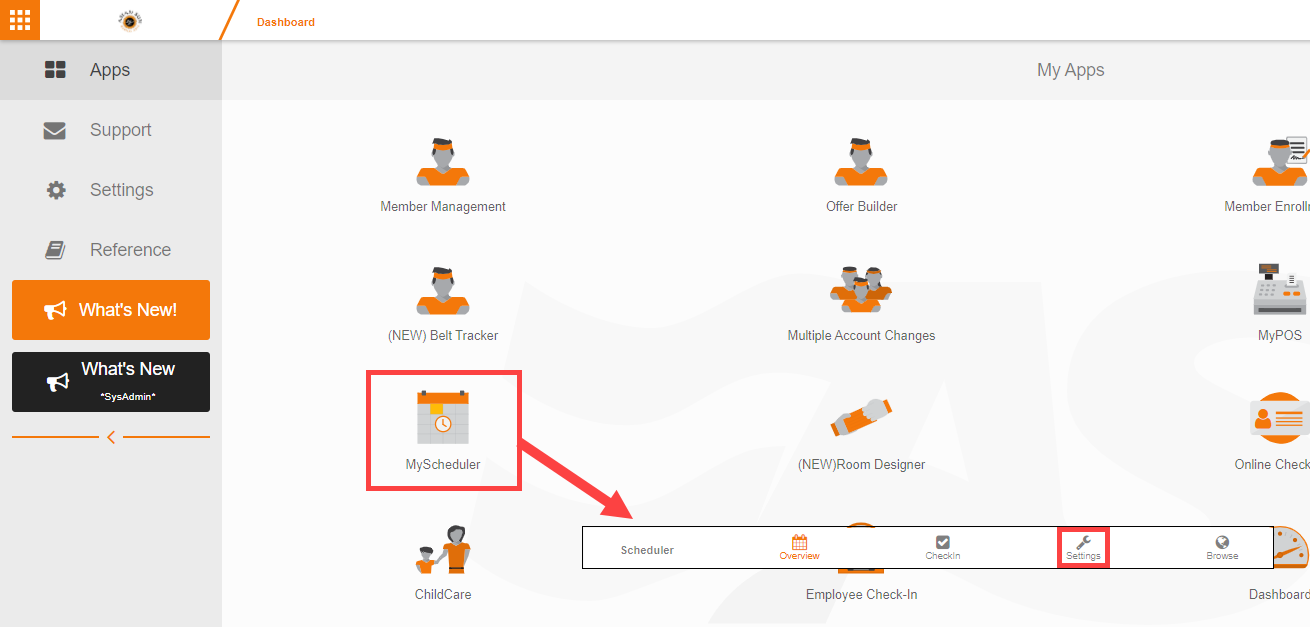
- Open My Scheduler from the My Apps page.
- Select Admin Options at the top of the page.
- Choose Hours of Operation.
Configuring hours for each day #
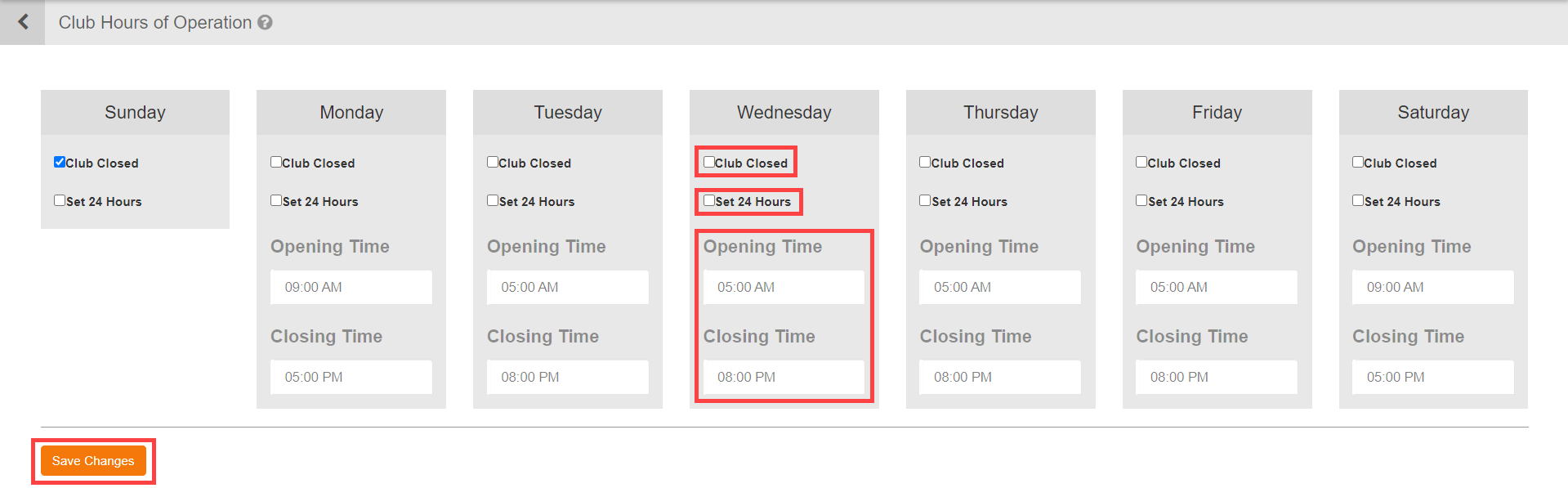
The Hours of Operation screen shows a row for each day of the week. For each day you can:
- Set the opening time and closing time using the time fields.
- Toggle 24 Hours to make the facility available around the clock on that day.
- Toggle Club Closed to mark the facility as closed on that day, which blocks scheduling entirely.
If hours have not been previously configured, the system uses built-in defaults that you can adjust to match your schedule.
Saving your hours #
After configuring each day's hours, click Save to apply the settings. Changes take effect immediately in My Scheduler.
Handling exceptions #
Hours of operation sets your regular weekly schedule. For one-off date exceptions such as holidays or maintenance closures, use Holidays and blackouts instead.
Need help? #
Contact your ASF account manager at clientsupport@asfpaymentsolutions.com.