
Overview #
Members are added to the system by enrolling in a membership offer. Offer Builder is used to set up all membership offer options. To create a new member offer, select the + Offer button in Offer Builder and choose Member.
Offer details #
The Offer Details section defines the basic structure of the membership.
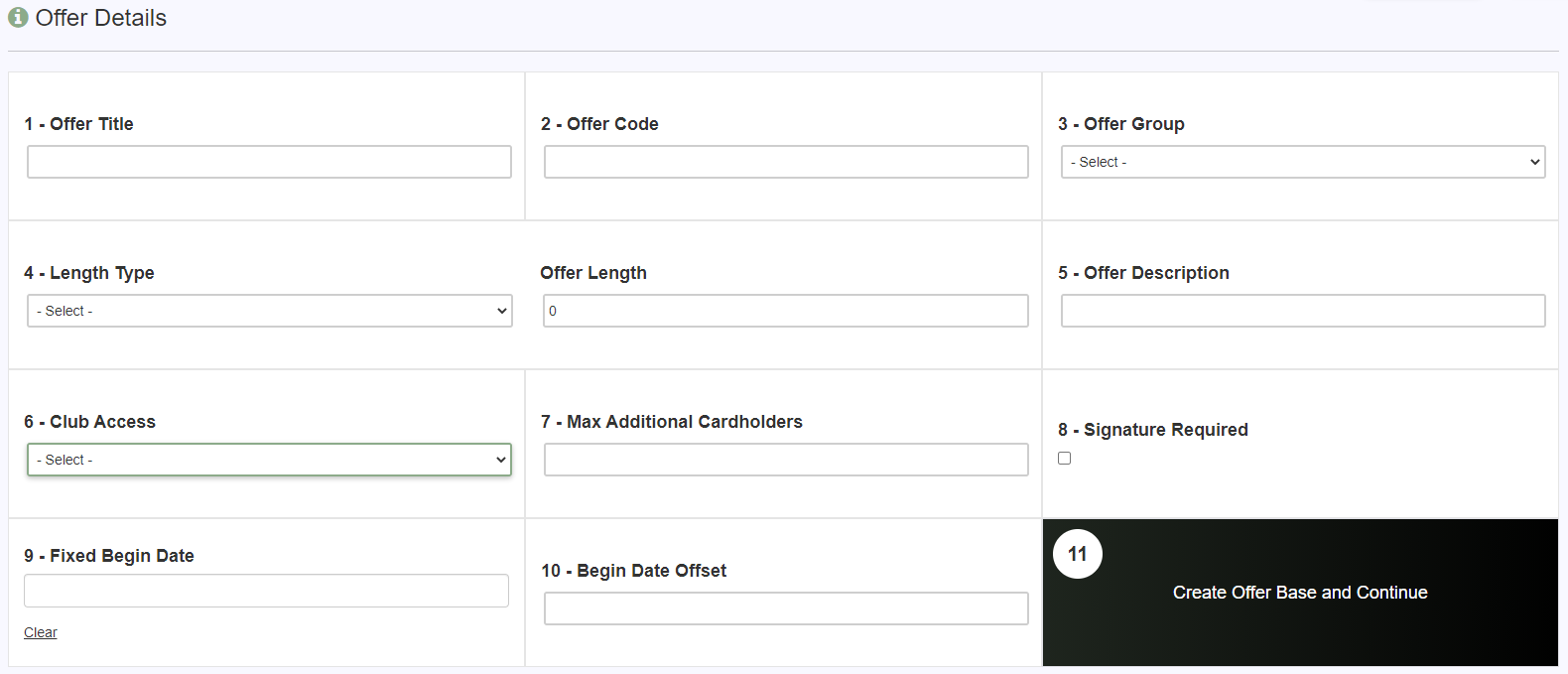
- Offer Title: The name displayed for this membership offer.
- Offer Code: A unique 8-character code for this offer.
- Offer Group: Assigns the offer to a category for filtering and display.
- Length Type: Days, Weeks, Months, or Open Ended.
- Offer Length: The duration of the membership based on the selected length type.
- Offer Description: A brief overview shown during enrollment.
- Club Access: Default facility access for the member. Access can be updated on the member profile after sign-up at any time.
- Max Additional Cardholders: Sets the maximum number of family or additional cardholders that can be added.
- Signature Required: Toggle requiring a contract signature during enrollment.
- Fixed Begin Date: Used for pre-sale memberships; sets a specific start date for all sign-ups.
- Begin Date Offset: Number of days after sign-up before the membership officially begins.
Long description #
Use the Long Description section to enter a detailed, formatted description of the offer. For offers available through Online Join, use the Display in Online Join toggle to control whether this description appears to prospective members on the sign-up page.
Offer terms and conditions #
Use the Offer Terms and Conditions section to set the terms displayed on screen and printed in the contract. You can select from pre-built terms saved in Generic Terms or enter custom terms directly.
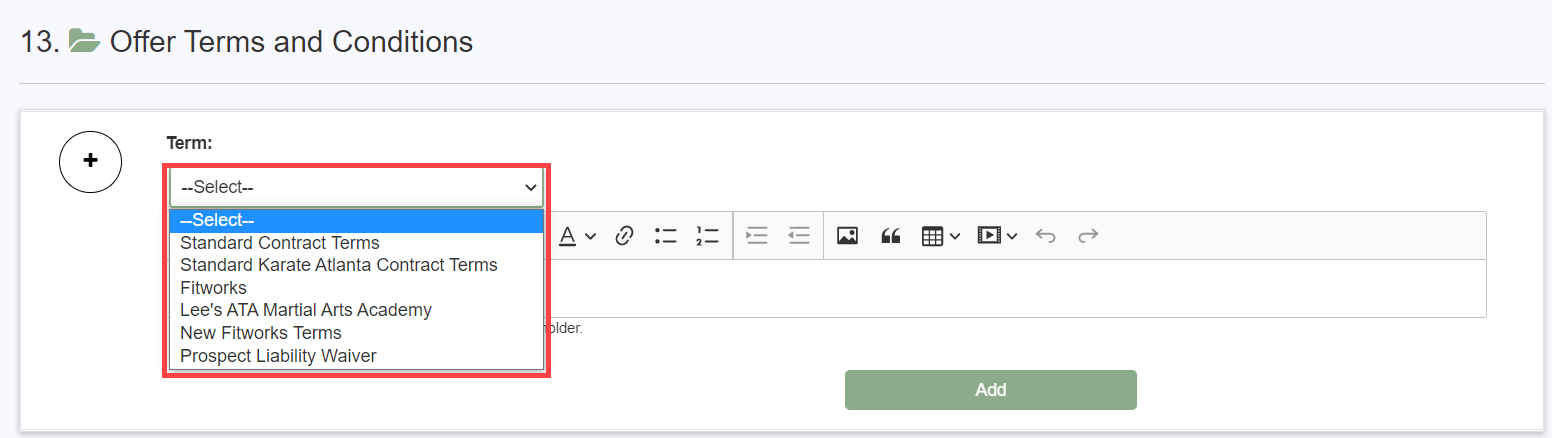
For offers available both in-club and through Online Join, you can configure separate terms for each enrollment channel.
Payment terms #
The Payment Terms section is where you configure the cost and billing structure of the membership. This is the most important section when creating a new offer.
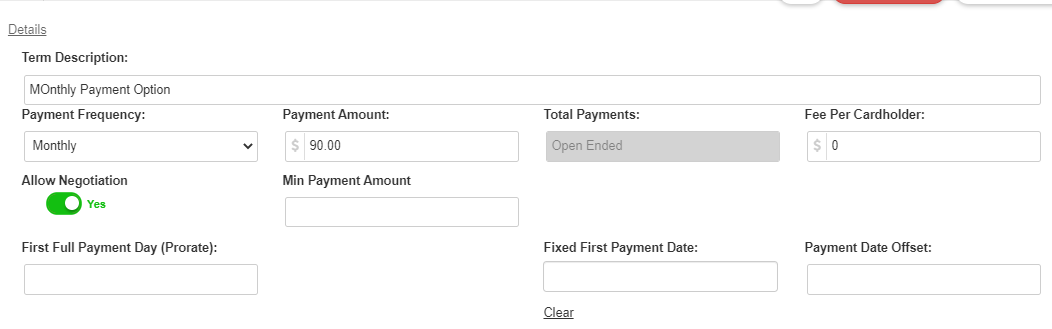
Details
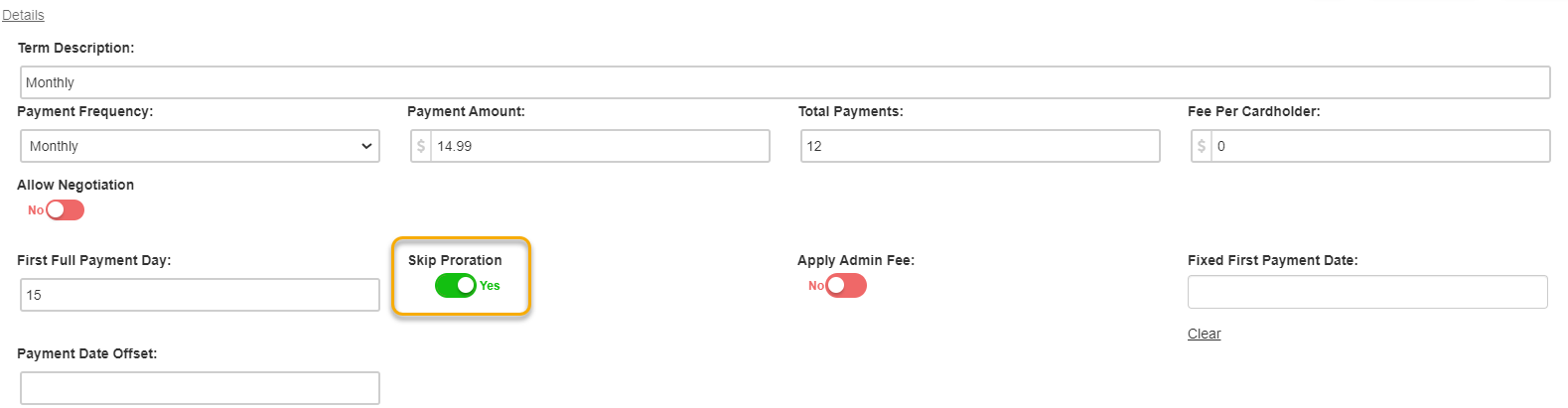
- Term Description: The name for this payment plan, shown during enrollment.
- Payment Frequency: Weekly, Bi-Weekly, Monthly, Bi-Monthly, Quarterly, Semi-Annually, Yearly, or Paid in Full.
- Payment Amount: The amount due per payment period.
- Total Payments: The total number of payments required for a term membership.
- Fee Per Cardholder: An additional amount charged per additional family member.
- Allow Negotiation: Permits limited adjustments to price and terms at the time of enrollment. See Offer negotiation for configuration details.
- Min Payment Amount: The lowest allowable dues amount when negotiation is enabled.
- First Full Payment Day (Prorate): Sets a calendar day for aligned billing with proration. Applicable to Weekly and Monthly frequencies.
- Skip Proration: Blocks collection of prorated dues upfront when a First Full Payment Day is set.
- Fixed First Payment Date: Locks the first dues payment to a specific calendar date.
- Payment Date Offset: Delays the first payment by a specified number of days from the sign-up date.
For details on when to use each payment timing option, see Offer setup overview.
Settings
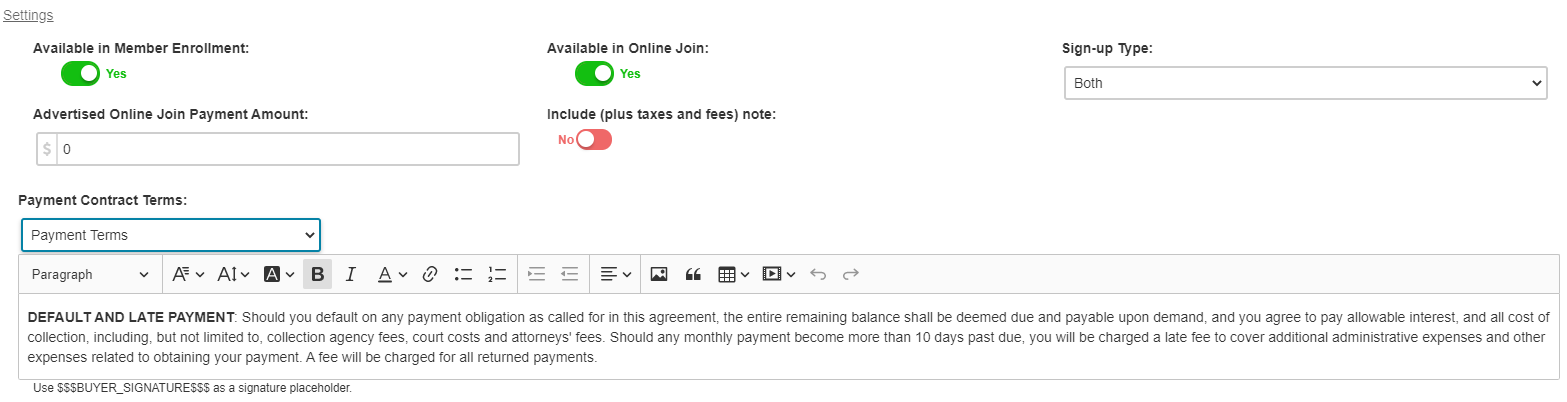
- Available in Member Enrollment: Makes this payment term available for in-club enrollment by staff.
- Available in Online Join: Makes this payment term available for self-service online enrollment.
- Sign Up Type: Controls whether this term is used for new sign-ups, renewals, or both.
- Advertised Online Join Payment Amount: The price displayed to members before taxes and fees are added.
- Include (plus taxes and fees) note: Toggle to append a tax and fee disclosure next to the advertised price.
- Payment Contract Terms: Import from Generic Terms or enter the payment-specific contract language manually.
Renewal terms
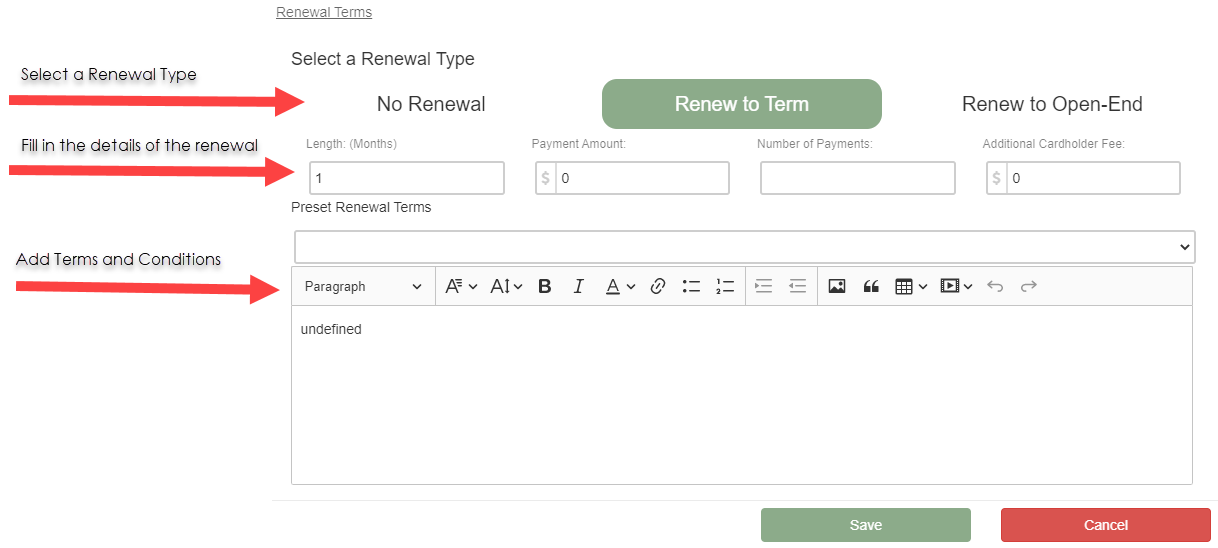
Renewal Terms determine what happens when the membership expires.
- No Renewal: The membership ends without automatic renewal.
- Renew to Term: Presets the details of the membership the member will renew into when their current term expires.
- Renew to Open-End: The membership automatically rolls over to an open-ended membership when the current term expires.
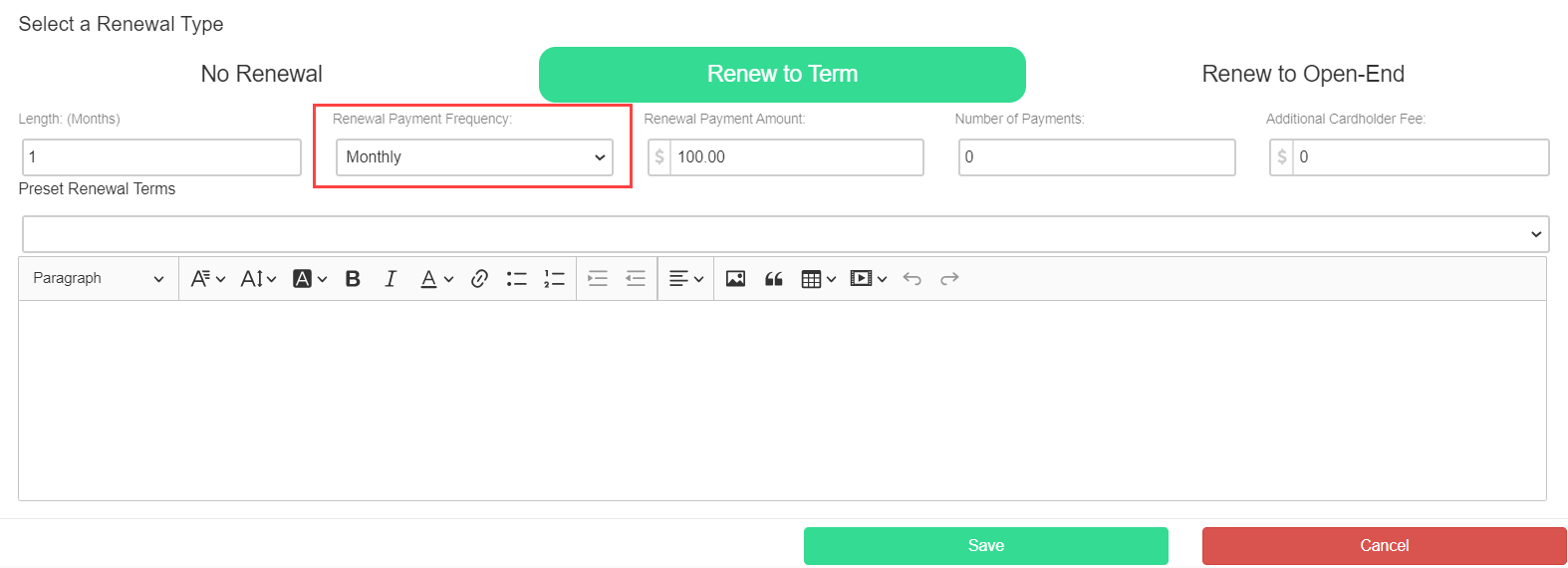
Note: The ability to set a Renewal Payment Frequency as part of the Renewal Terms is available on customer request. Contact your ASF account manager to enable this option.
Items #
The Items section adds Point of Sale items to the offer in the form of upfront costs or recurring add-ons.
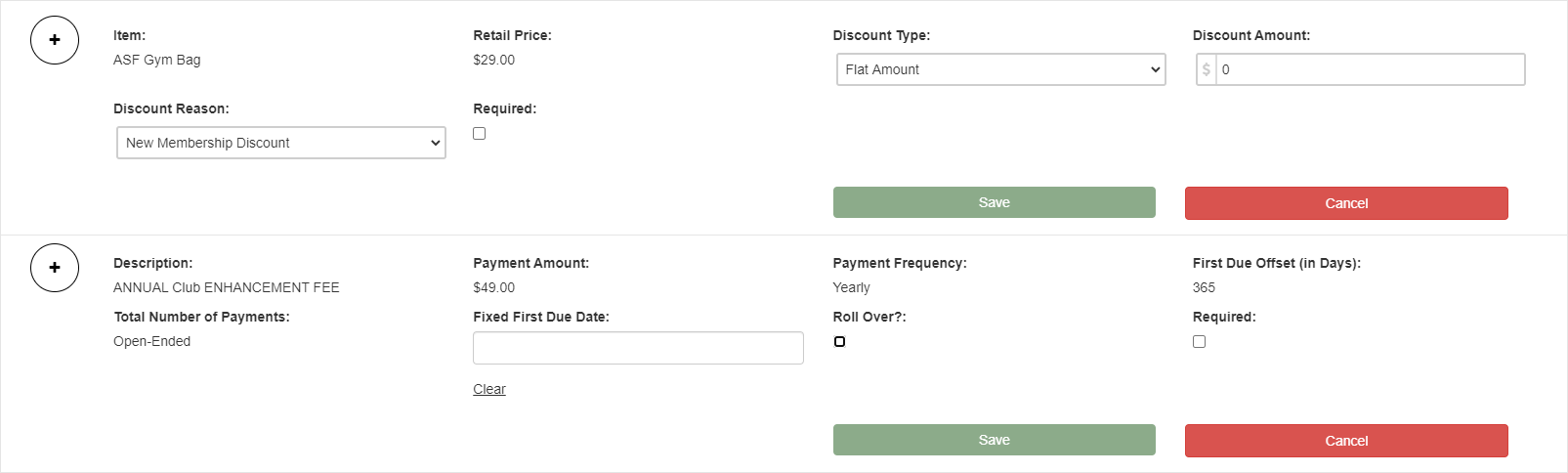
- POS Items tab: Add items charged at sign-up, such as enrollment fees or equipment.
- Add-ons tab: Add recurring items billed on a set schedule alongside the membership dues.
Member attributes #
The Member Attributes section allows you to associate specific attributes with this offer. Attributes are tags applied to a member's account at the time of sign-up and can be used for reporting, filtering, and communication targeting.
Activating the offer #
Once all sections are configured, activate the offer using the toggle in the upper right of the offer page.
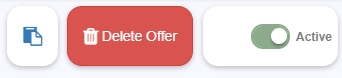
Additional actions available from the offer:
- Copy Offer: Duplicates the offer into a new inactive offer for editing. See Offer setup overview for details.
- Delete Offer: Permanently removes the offer. This is generally not recommended. If you need to stop using an offer, deactivate it instead to preserve member history.
Need help? #
Contact your ASF account manager at clientsupport@asfpaymentsolutions.com.