
What offer negotiation does #
Offer negotiation limits how much staff can adjust membership pricing during enrollment, preventing unauthorized price reductions. When Allow Negotiation is enabled on a payment term, staff can make limited price adjustments within the boundaries you configure in Offer Builder.
Note: The Manually Add Discount and Manually Override Payments permissions will override the negotiation limits. Review user role settings to ensure these permissions are assigned intentionally.
Staff must also have the Allow Negotiation permission enabled in their Role settings to make any adjustments during enrollment.
Configuring negotiation settings in Offer Builder #
Open the offer in Offer Builder, select a payment term, and locate the Details section. The negotiation parameters appear when Allow Negotiation is set to yes.

- Min. Payment Amount: The lowest dues amount that can be charged during enrollment. Staff cannot reduce the price below this value when making adjustments.
- Min. # of Payments: For term memberships only. Sets the minimum number of payments a staff member can set during enrollment. This limits the ability to shorten a membership term.

Important: Do not set both fields to 0 at the same time. You may set either field individually to 0 if no limit is needed for that value, but having both set to 0 simultaneously is not a valid configuration.
Adjusting contract expiration date #
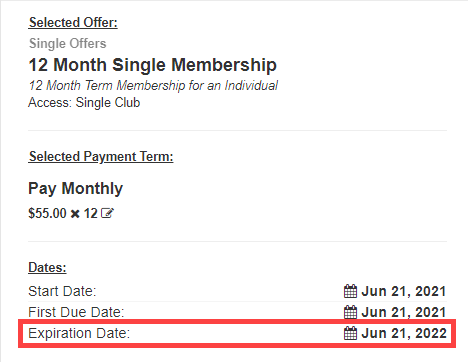
For term contracts, staff with negotiation permission can also modify the contract expiration date. The calendar icon in the Summary section of Member Enrollment allows the expiration date to be moved. This is useful when crediting a member for time spent under a previous offer or program before signing the current one.
Need help? #
Contact your ASF account manager at clientsupport@asfpaymentsolutions.com.