
Signing up a new member or prospect #
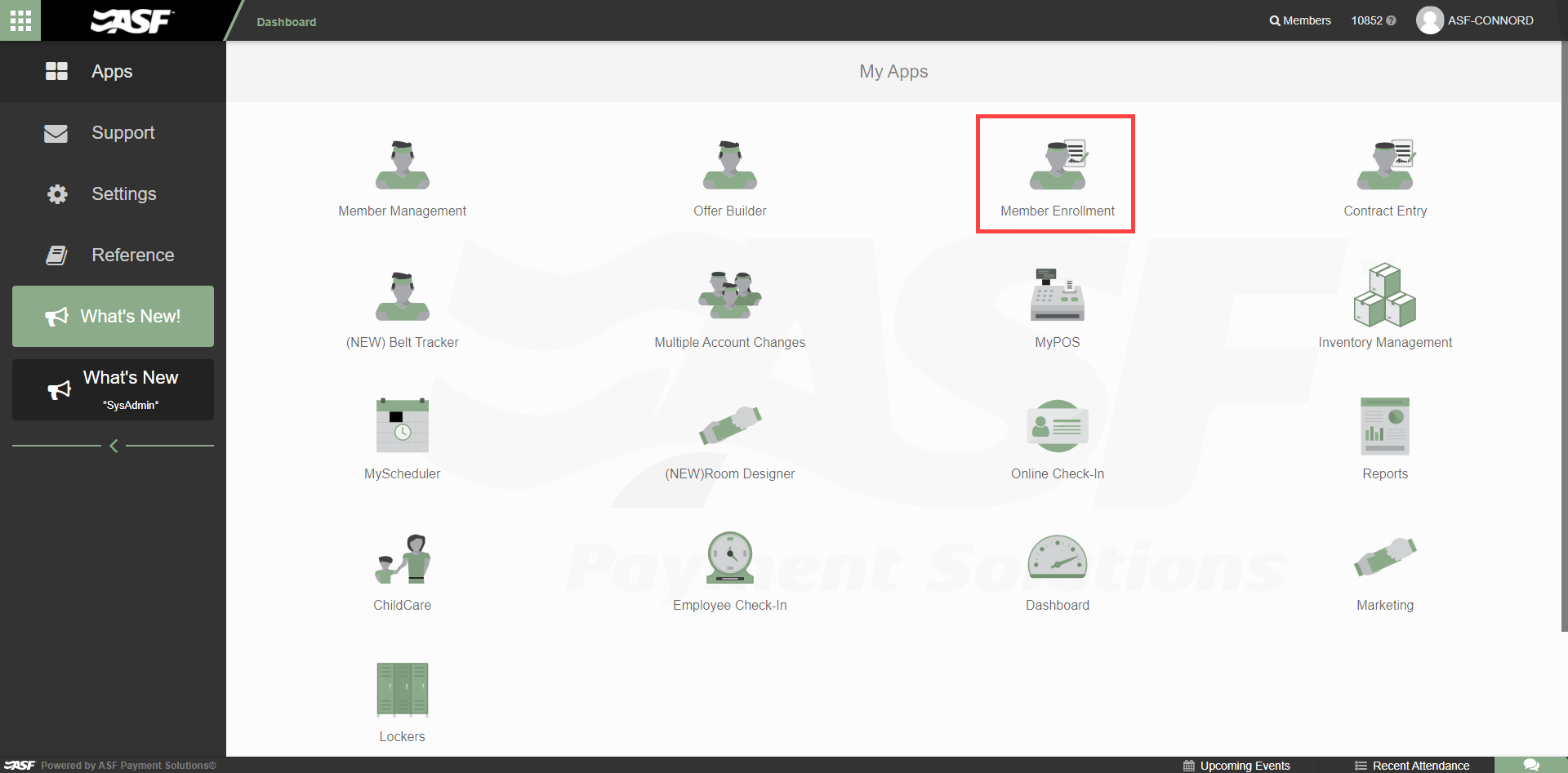
Member Enrollment is accessed from the My Apps page. The following steps cover the standard in-club enrollment process for a new member or prospect.
Step 1: Define the membership
Select an offer from the left panel. Use the Member or Prospect filter to narrow the list as needed. Choose a payment term, any optional items or add-ons, and the salesperson. Staff must have the POS - Can Access permission to appear in the salesperson dropdown. For term memberships, review and adjust Renewal Terms if needed.
Step 2: Enter buyer and cardholder information
Two roles must be defined:
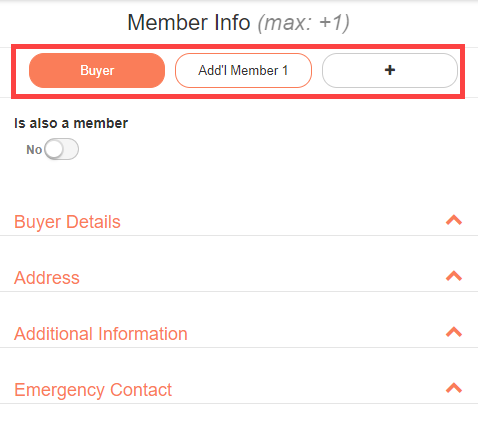
- Buyer: The person financially responsible for the membership. This person may also be a cardholder by enabling the Is also member toggle.
- Cardholders: The individuals who will check in at the facility.
At minimum, complete the Buyer section and either enable Is also member or fill in the first cardholder's information in the Add'l Member 1 tab.
Alternate ID: To enable card scanning at check-in, the member's card number must be entered in the Alternate ID field.
Organization affiliation: For clubs with organization-sponsored memberships, enter the relevant organization in the designated field. This populates member data in reporting systems for the sponsor organization.
Step 3: Review the summary and make adjustments
The Summary section shows all membership details before finalizing. The following adjustments are available:
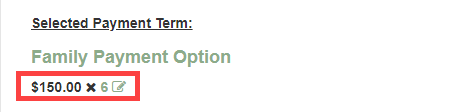
- Payment count: Use the pencil icon to reduce the number of payments (cannot exceed the original count).
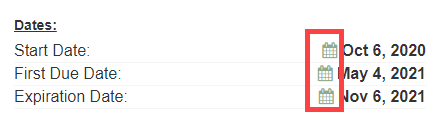
- Dates: Use the calendar icons to adjust the Start Date, First Due Date, and Expiration Date.
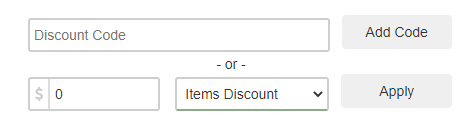
- Discounts: Add a discount code or apply a manual discount.
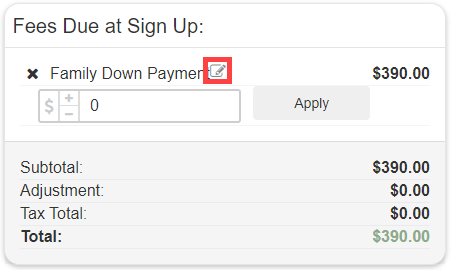
- POS items: Adjust added items using the pencil icon.
Step 4: Apply discounts
Two types of discounts can be applied in the Summary section:
Discount codes: Pre-built codes created in Offer Builder. Enter the code in the code field and click Add Code.
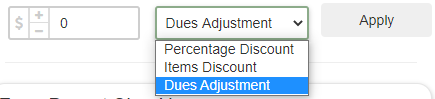
Manual discounts: Three types are available:
- Percentage Discount: Reduces both sign-up fees and recurring dues by a percentage.
- Items Discount: Reduces only Point of Sale items by a dollar amount.
- Dues Adjustment: Increases or decreases recurring dues by a dollar amount.
Step 5: Review and pay
The Review and Pay screen shows the final membership and person information on the left, with payment fields on the right.
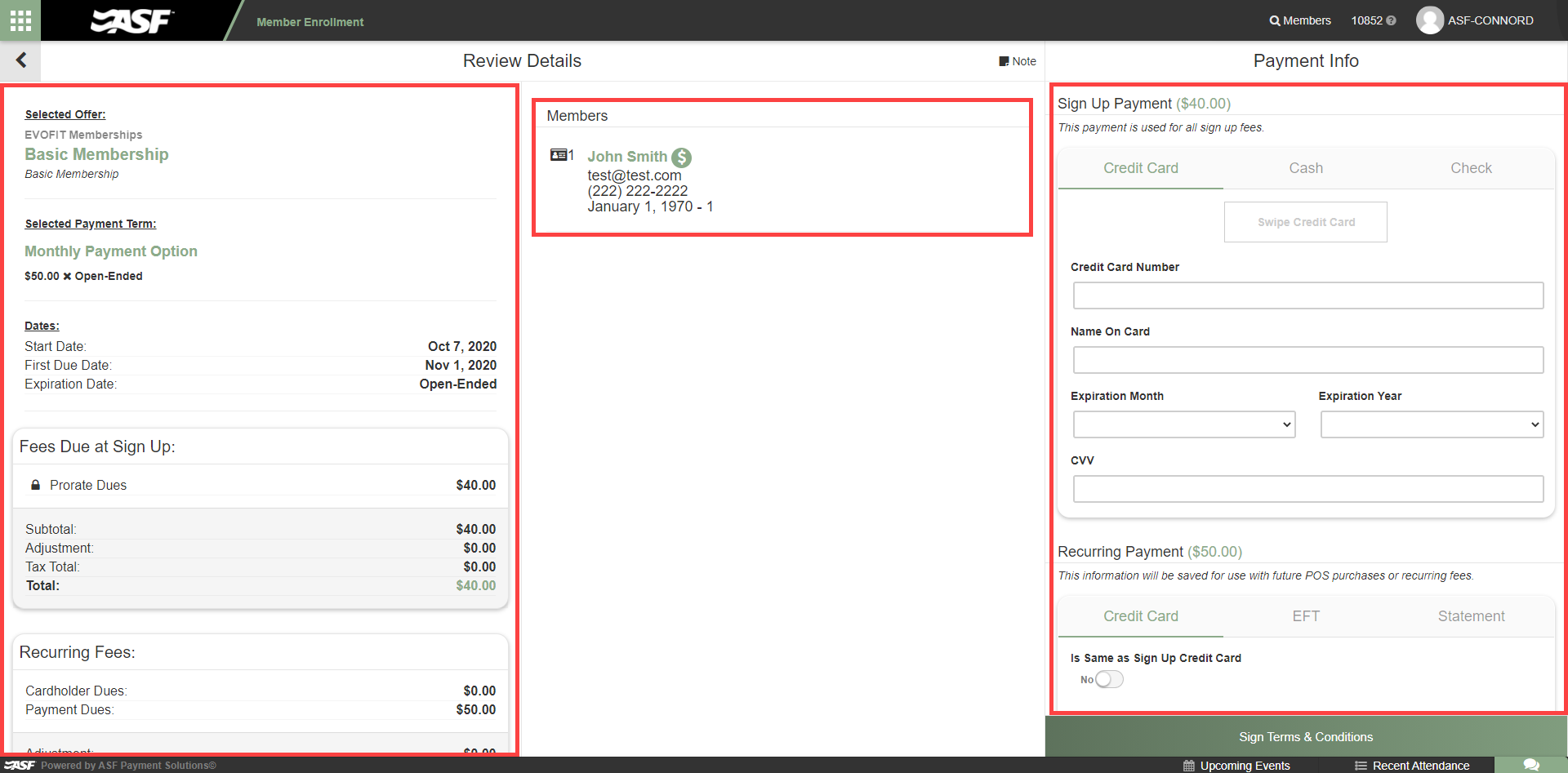
Sign Up Payment: Covers all immediate costs. Payment methods: credit card, cash, or check. Cash and check require only a cash drawer selection.
Recurring Payment: Required if the membership has recurring charges and is not Paid in Full. Payment methods: credit card, ACH (bank account), or Statement. Credit card requires the card number, expiration date, and CVV. ACH requires the routing number and account number.
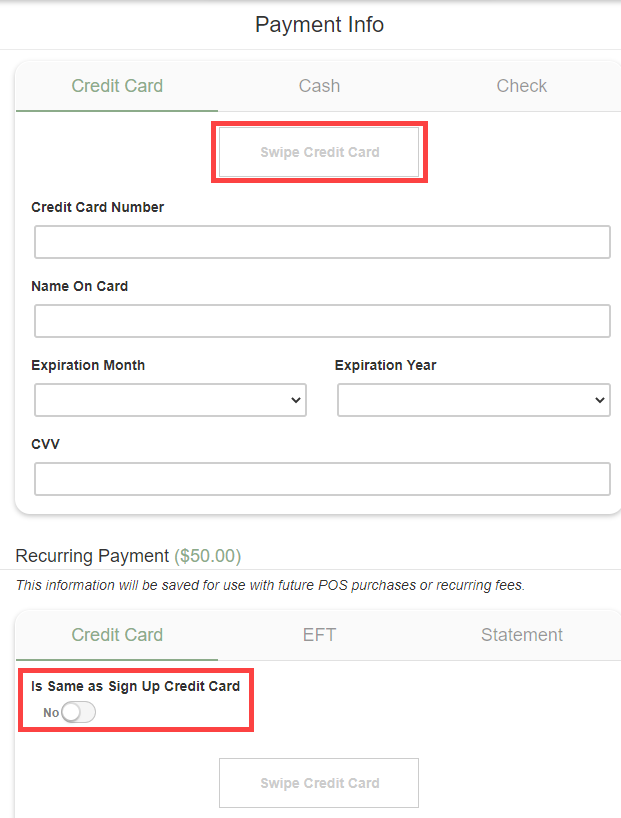
ASF recommends credit card or ACH for recurring payments when possible. A toggle allows the same payment method to be used for both sign-up and recurring charges.
Step 6: Sign the contract
The final step presents the contract for review. The member signs in all required locations. A communication opt-in signature box may appear for text consent; the member may decline at sign-up or opt out later using the instructions in the initial text message.
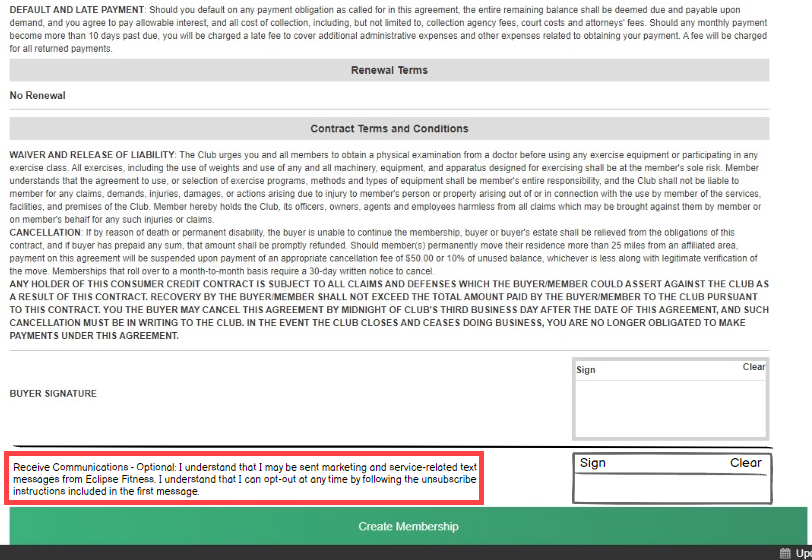
For clubs integrated with the system, members are automatically opted into promotional emails using the Buyer information. Members can unsubscribe at any time using the link in any email.
Signing up multiple cardholders #
When enrolling a family or group under one membership account, use the multiple cardholders feature. This allows you to add additional cardholders to a single membership.
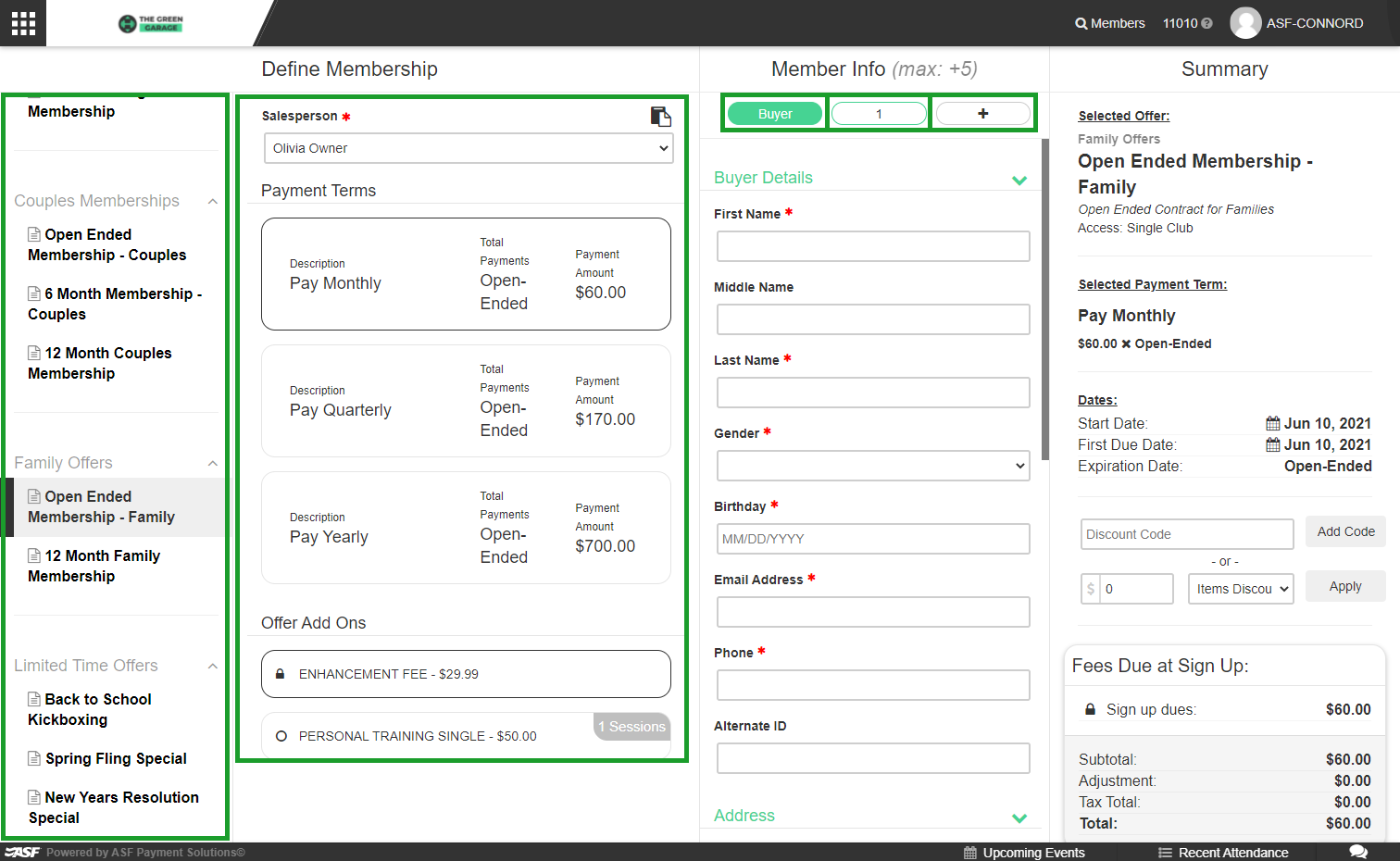
- Choose the offer through Member Enrollment and select the payment term and any additional items.
- Complete the Buyer information.
- Enter the first cardholder's information in tab 1, using the Same as Buyer toggle if applicable.
- Use the + button to add each subsequent cardholder.
Note: Depending on the offer, there may be a maximum number of cardholders allowed. This limit is shown as a max value in the cardholder section.
Signing up prospects in Member Enrollment #
Prospect sign-up follows the same flow as member sign-up. On the left panel in Member Enrollment, filter to Prospect offers, then select the appropriate prospect offer and proceed through the same steps. Prospects do not have recurring payment terms, but upfront POS charges may apply.
Signing up members on third-party memberships #
For members whose dues are paid by an external organization or sponsor, select the appropriate third-party membership offer during enrollment. Enter the relevant organization name in the organization affiliation field during the Buyer and Cardholder information step. This links the member's record to the sponsor organization for reporting and billing coordination purposes.
Upgrading a prospect to a member #
When a prospect is ready to convert to a full membership, use one of two methods:
Method 1: Quick Member Search
- Open Quick Member Search and locate the prospect.
- Select Convert to Member from the prospect's profile window.
- Member Enrollment opens immediately with the prospect's profile information pre-populated.
- Complete the enrollment steps as normal.
Method 2: Member Management
- Navigate to the Member Management app.
- Search for the prospect. Uncheck the Members toggle to filter results to prospects only.
- Select the prospect and locate the Member Enrollment section.
- Click Convert to Member.
- Complete the enrollment steps.
Both methods automatically transfer the prospect's profile data to the new member account, so you do not need to re-enter personal information.
Need help? #
Contact your ASF account manager at clientsupport@asfpaymentsolutions.com.