
MyClubAccess is the mobile app for your gym membership. You can download it from the Apple App Store or Google Play Store by searching for MyClubAccess. This guide covers what the app offers, how to use the calendar to book classes, and how to buy sessions from the in-app store.
What you can do in MyClubAccess #
Access your account anytime
You can open the app at any time to view your schedule, manage your bookings, and review or update your personal and billing information. You do not need to call the gym or visit in person for most account tasks.
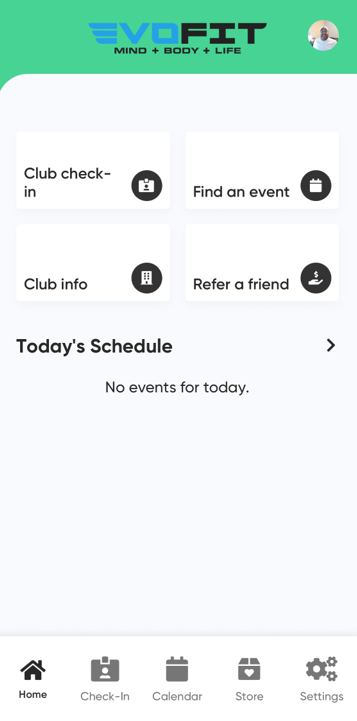
Book and manage classes
You can book or cancel classes, reserve equipment or specific spots, join waitlists, and manage training sessions directly in the app.
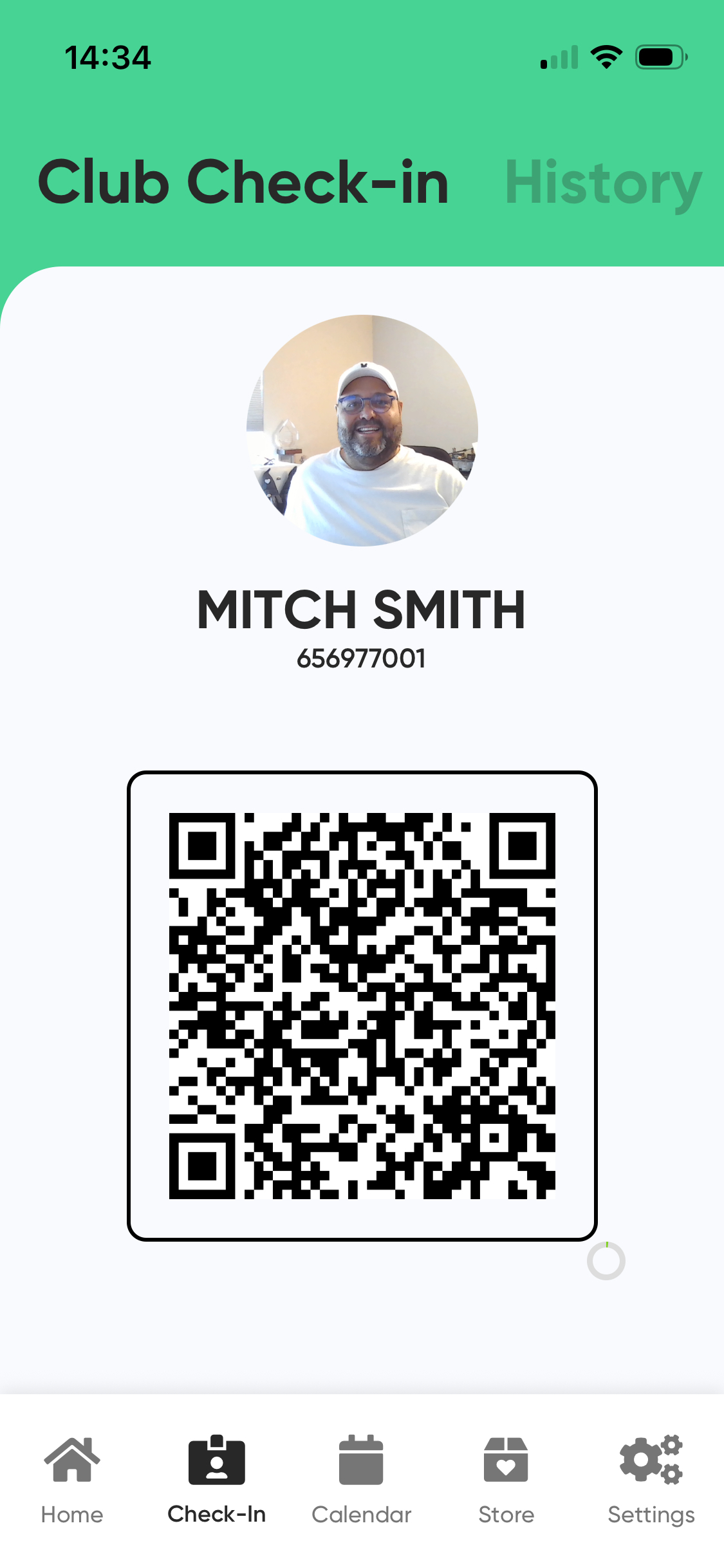
Check in with a secure QR code
The app generates a unique QR code for each check-in. This prevents code sharing and keeps your membership secure.
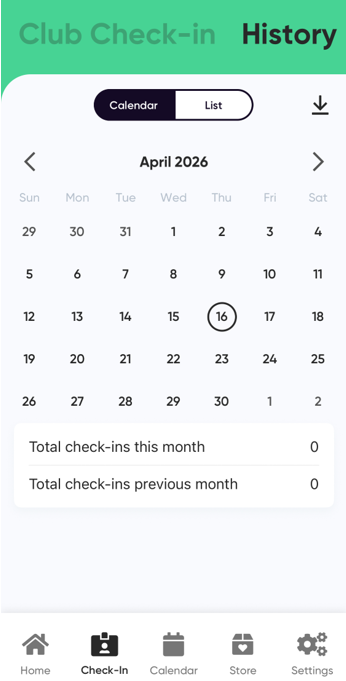
View your check-in and activity history
You can review your past visits and bookings. If other people are on your account (such as family members), you can track activity for all of them from the same place.
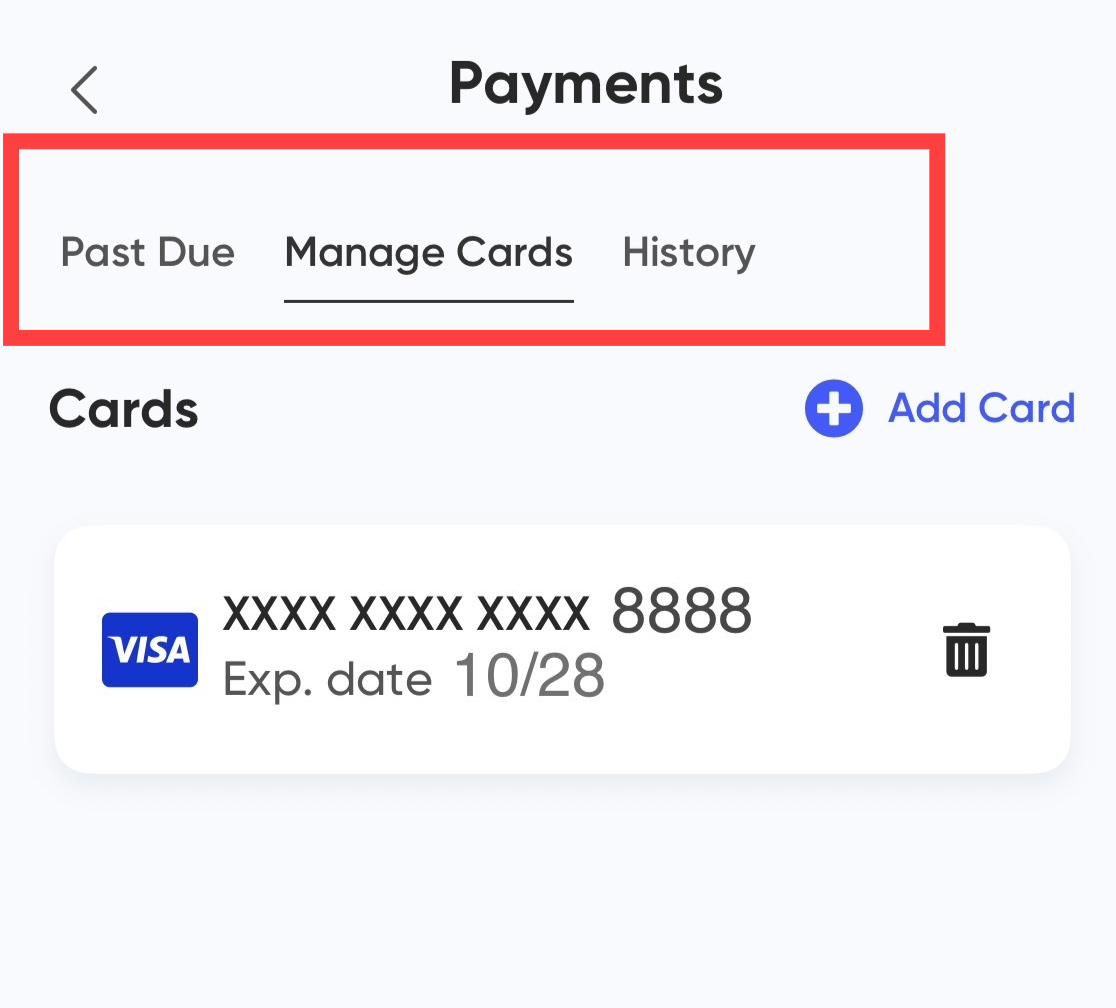
Manage payments and billing
You can update your billing information, make payments, address past-due balances, and make one-time purchases without calling the gym.
Using the calendar #
The calendar in MyClubAccess lets you browse your gym's schedule, book events, reserve equipment, and purchase sessions you need to attend certain classes.
Viewing the calendar
To navigate the calendar:
- Scroll to browse upcoming availability.
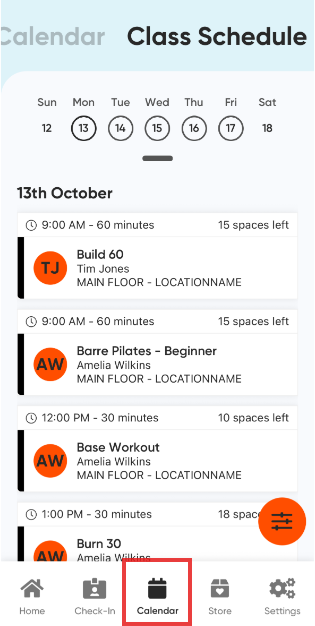
- Select a date to see all events scheduled for that day.
- Switch between daily or monthly views if your gym has enabled them.
To view events and locations:
- Tap a day to go directly to that day's events.
- Tap an event to see its details or book it.
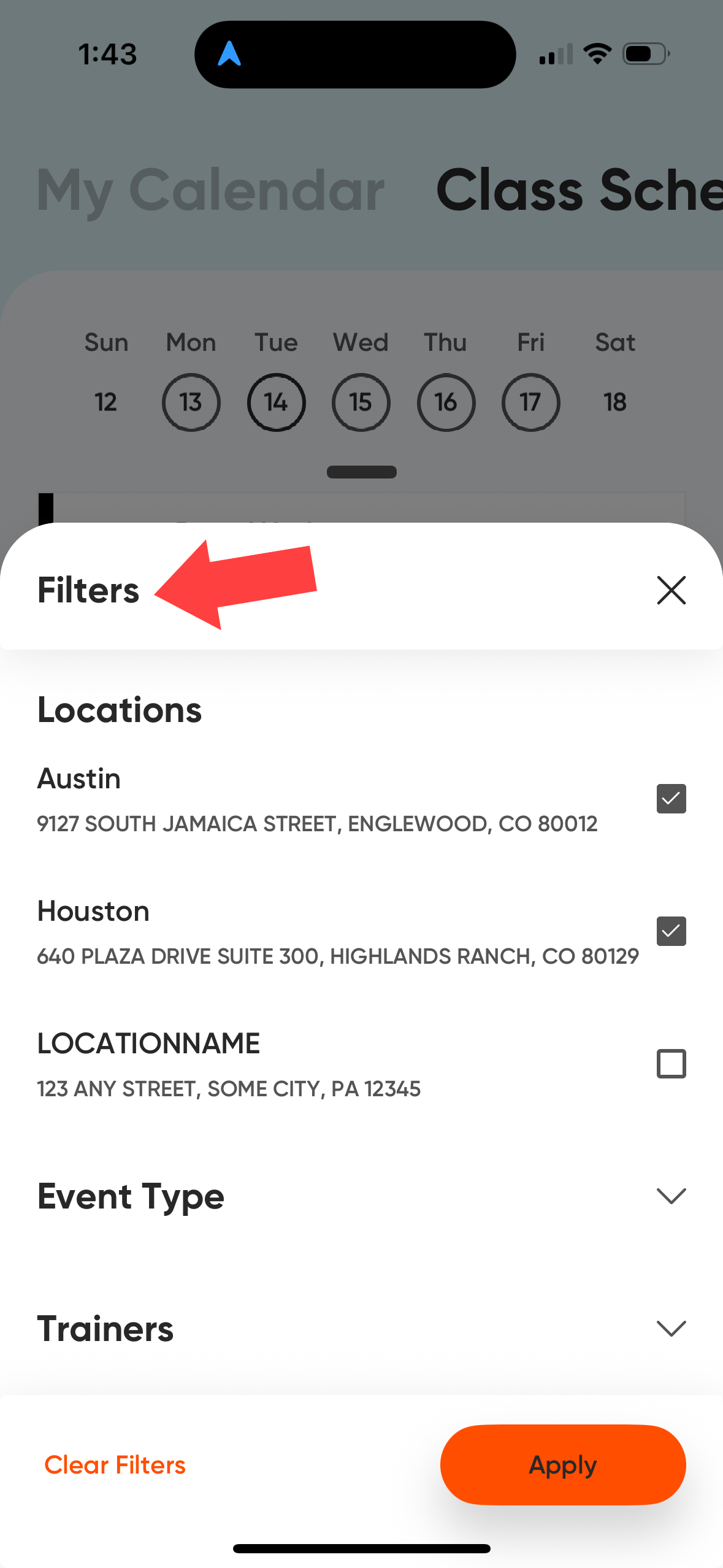
- Use the Filter icon to see events at other locations if your membership covers multiple clubs.
Booking an event
To book a class or appointment:
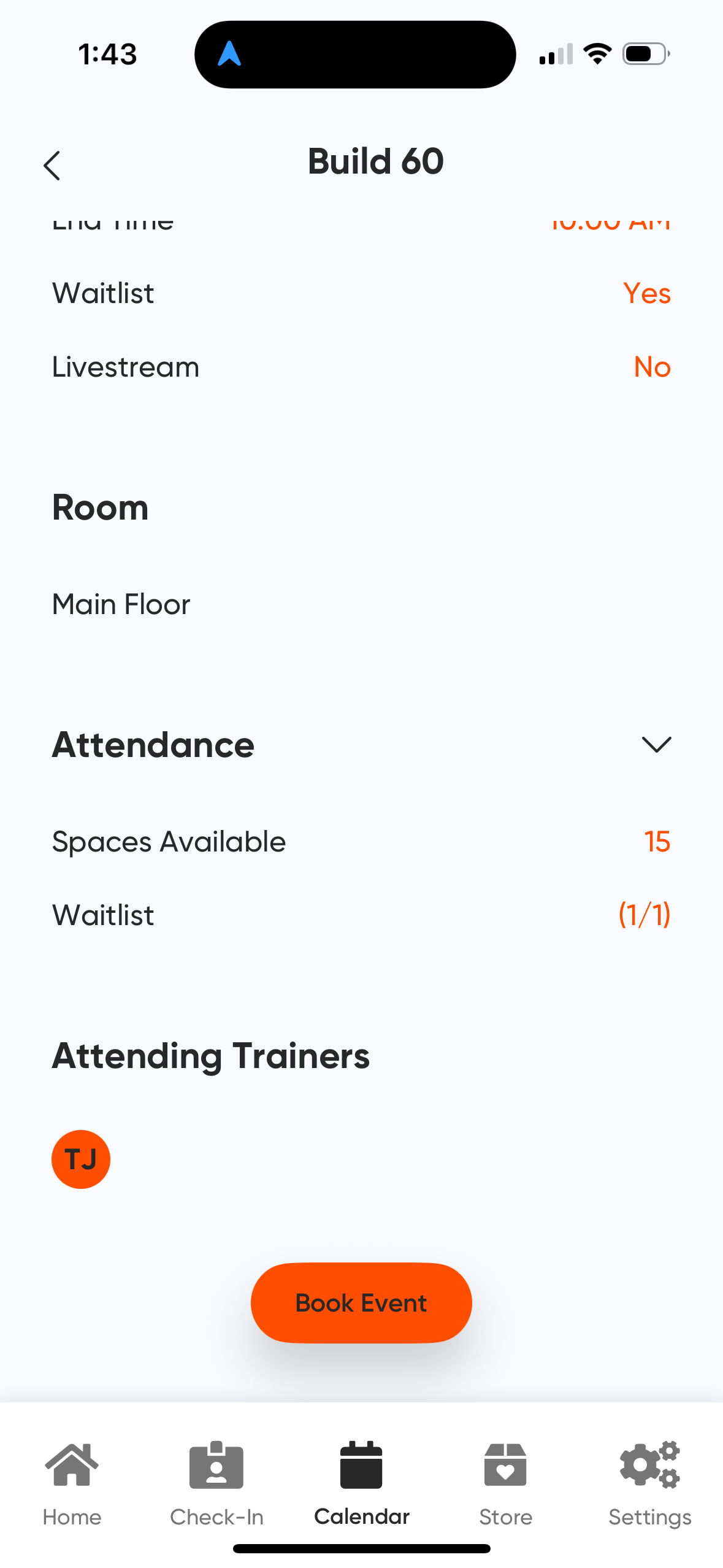
- Tap the event you want to attend.
- Scroll to the bottom of the event details.
- Select Book Event.
- If prompted, choose which sessions you want to use.
Once you are booked, a green check mark appears on the event. Events that require a paid session show a dollar sign icon. If you do not have sessions available, you will need to purchase them in the app or at your club before booking.
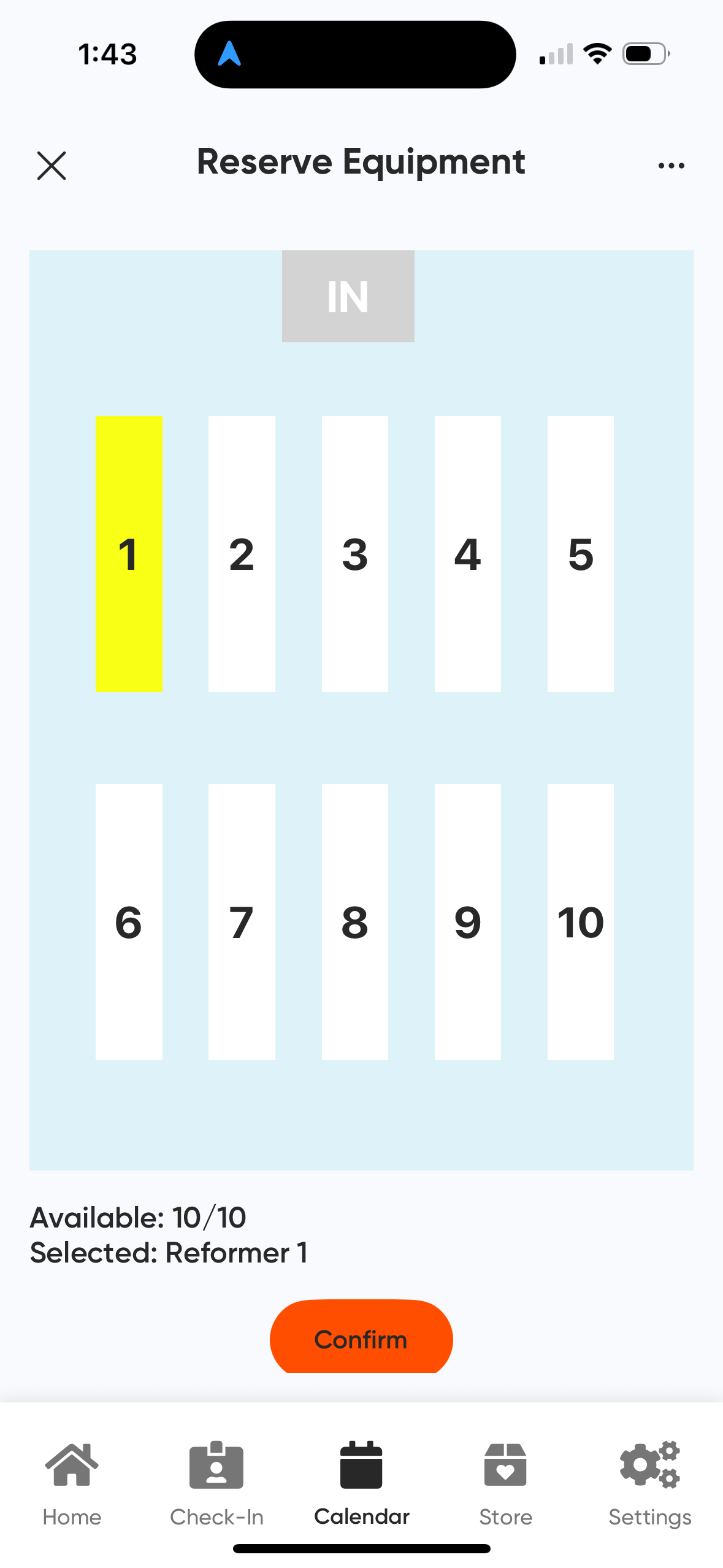
Reserving equipment
Some events require you to reserve a specific piece of equipment. If that applies:
- Select Book Event to view available equipment slots.
- Choose an open slot.
- Select Confirm.
After reserving, you can use the View Equipment option to change your selection if needed.
Purchasing sessions for a class
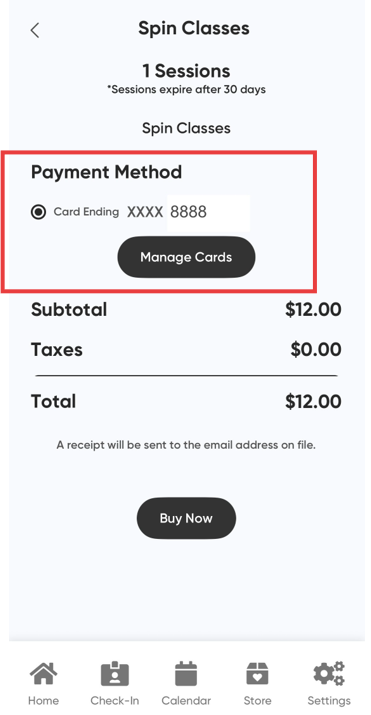
Some classes require sessions to attend. To purchase sessions in the app, you must have a credit or debit card on file. If you do not have a card on file, you must purchase sessions at the gym.
- Select the event from the calendar.
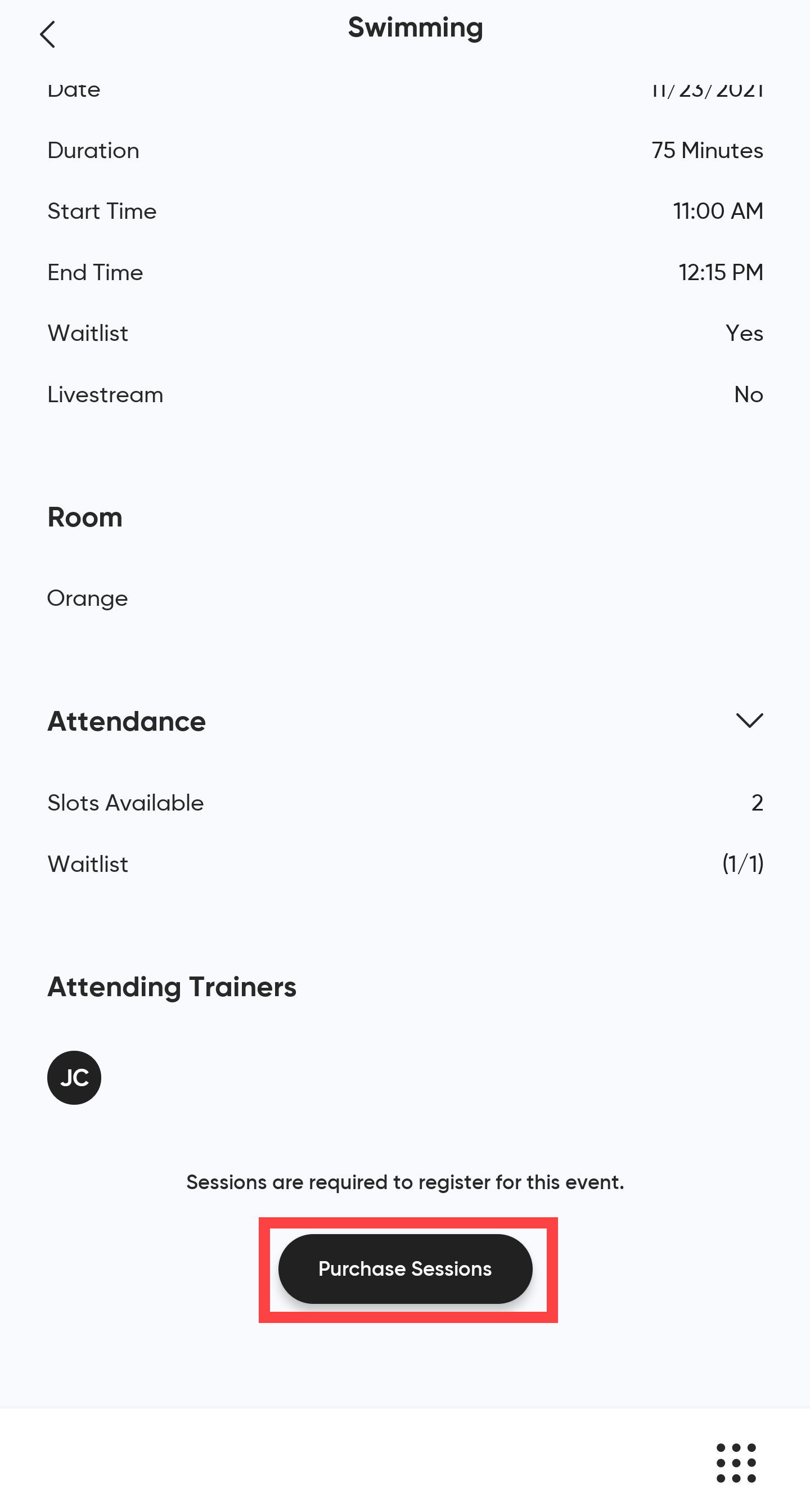
- Scroll to the bottom of the event details and select Purchase Sessions.
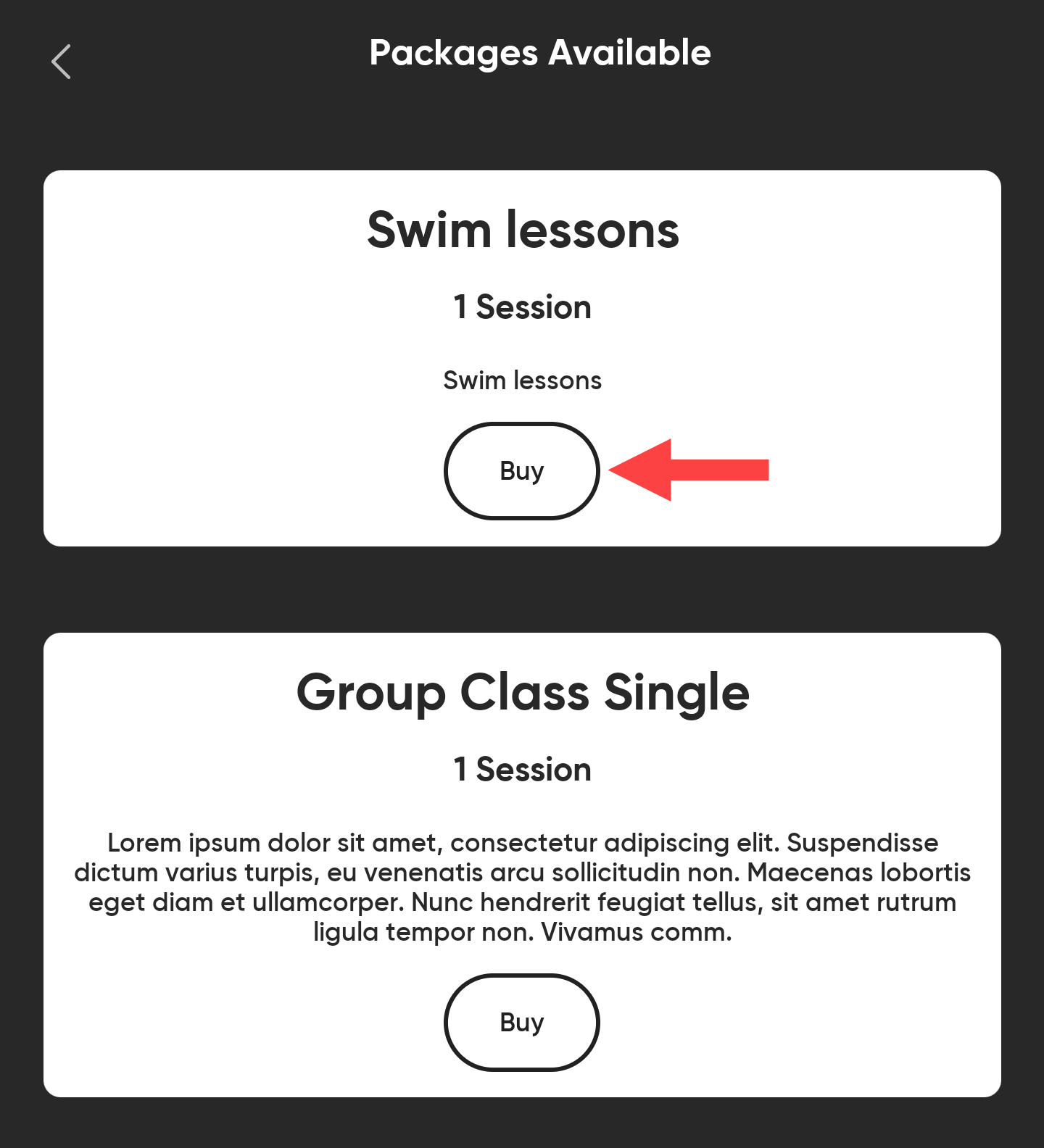
- Browse the available session packs that apply to this event and tap Buy on the one you want.
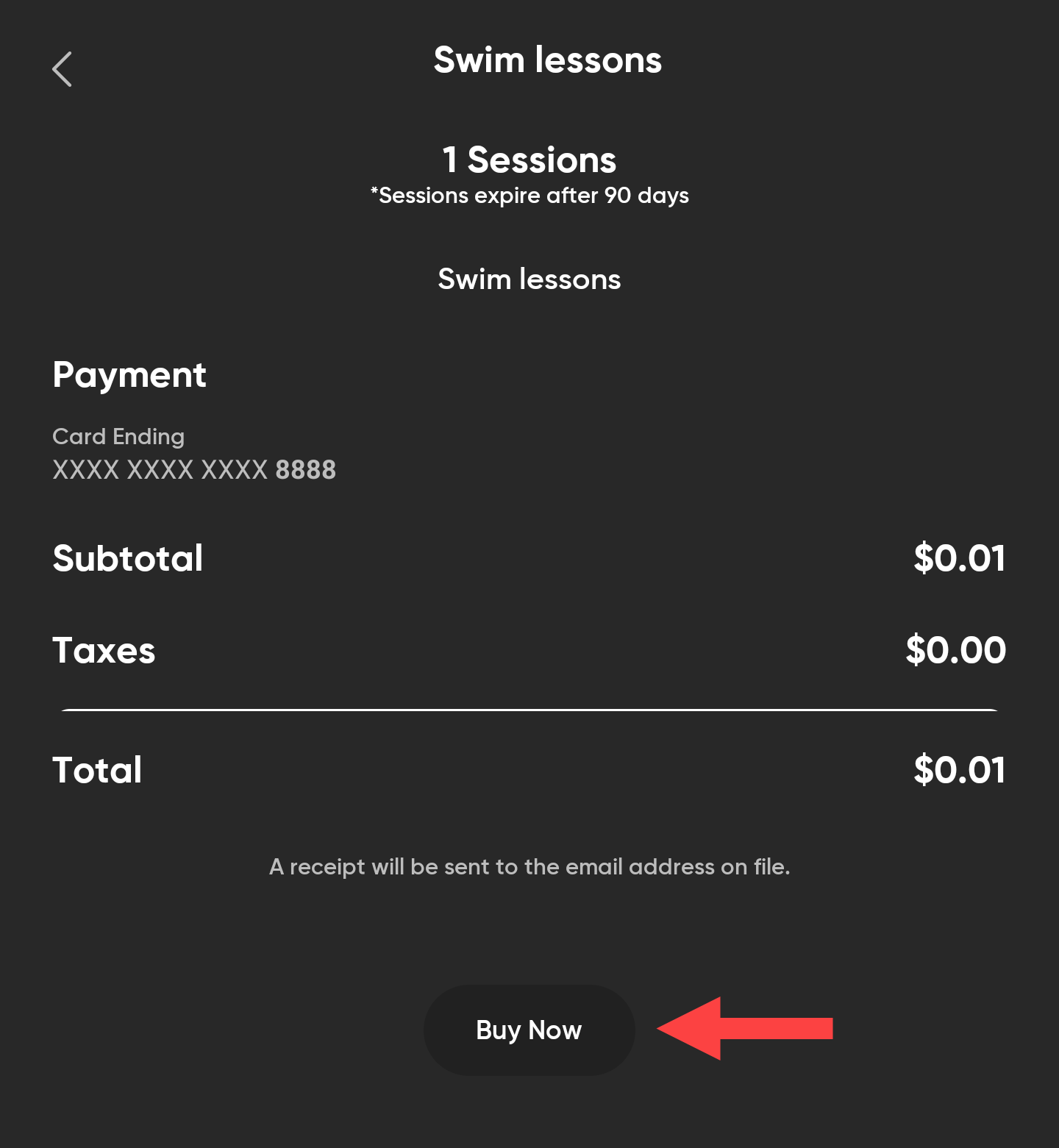
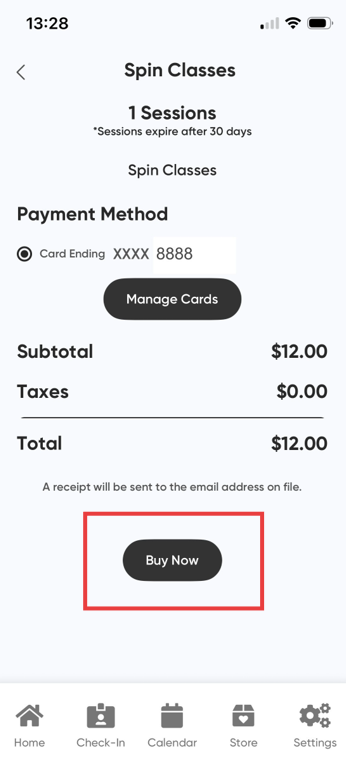
- Review the purchase details, then select Buy Now. A confirmation receipt will be emailed to the address on your account. Once your sessions are confirmed, you can register for the event.
Canceling an event
To cancel a booking:
- Find the event on the Hub page or in the calendar.
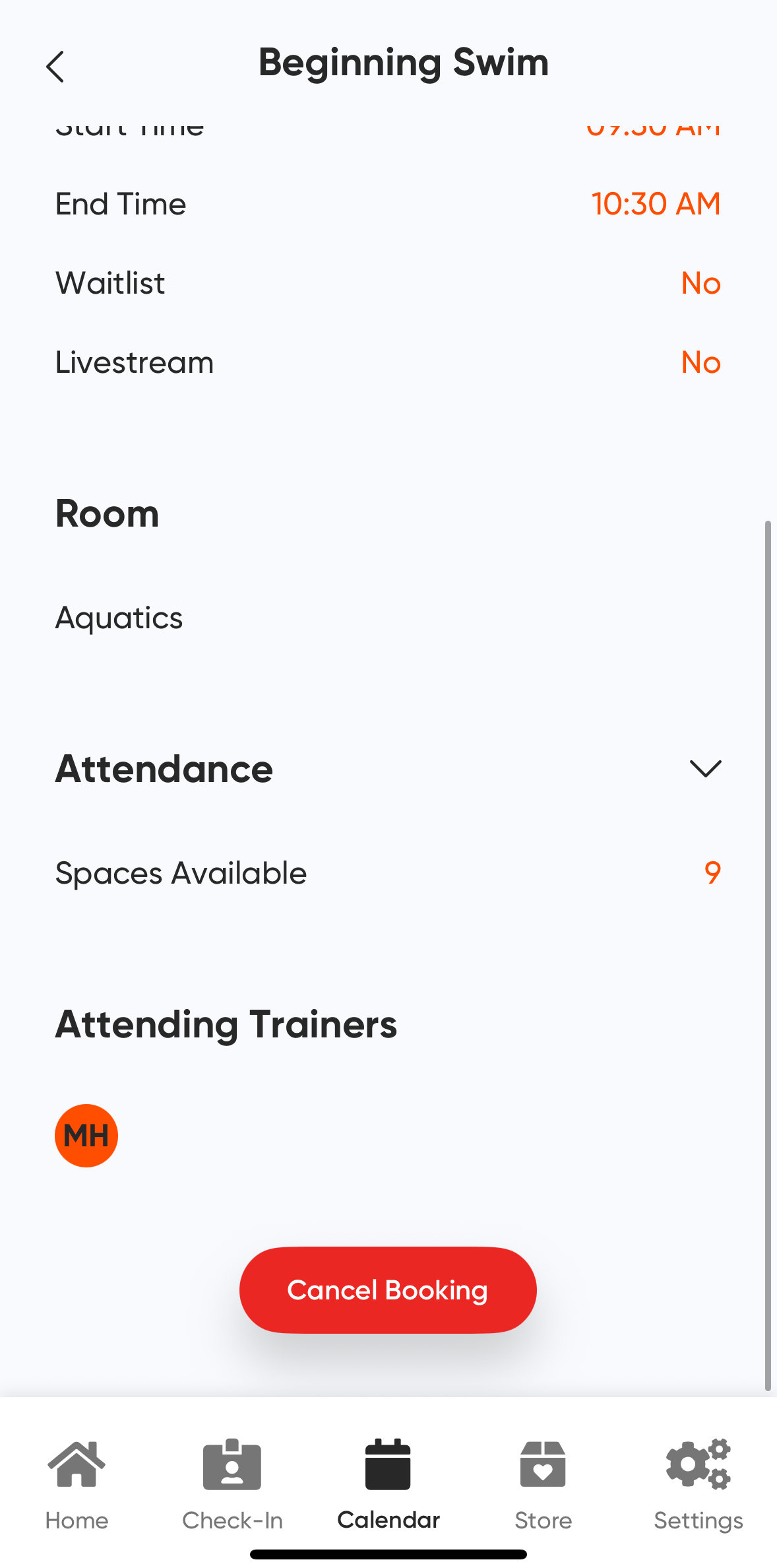
- Scroll to the bottom of the event details and select Cancel Booking.
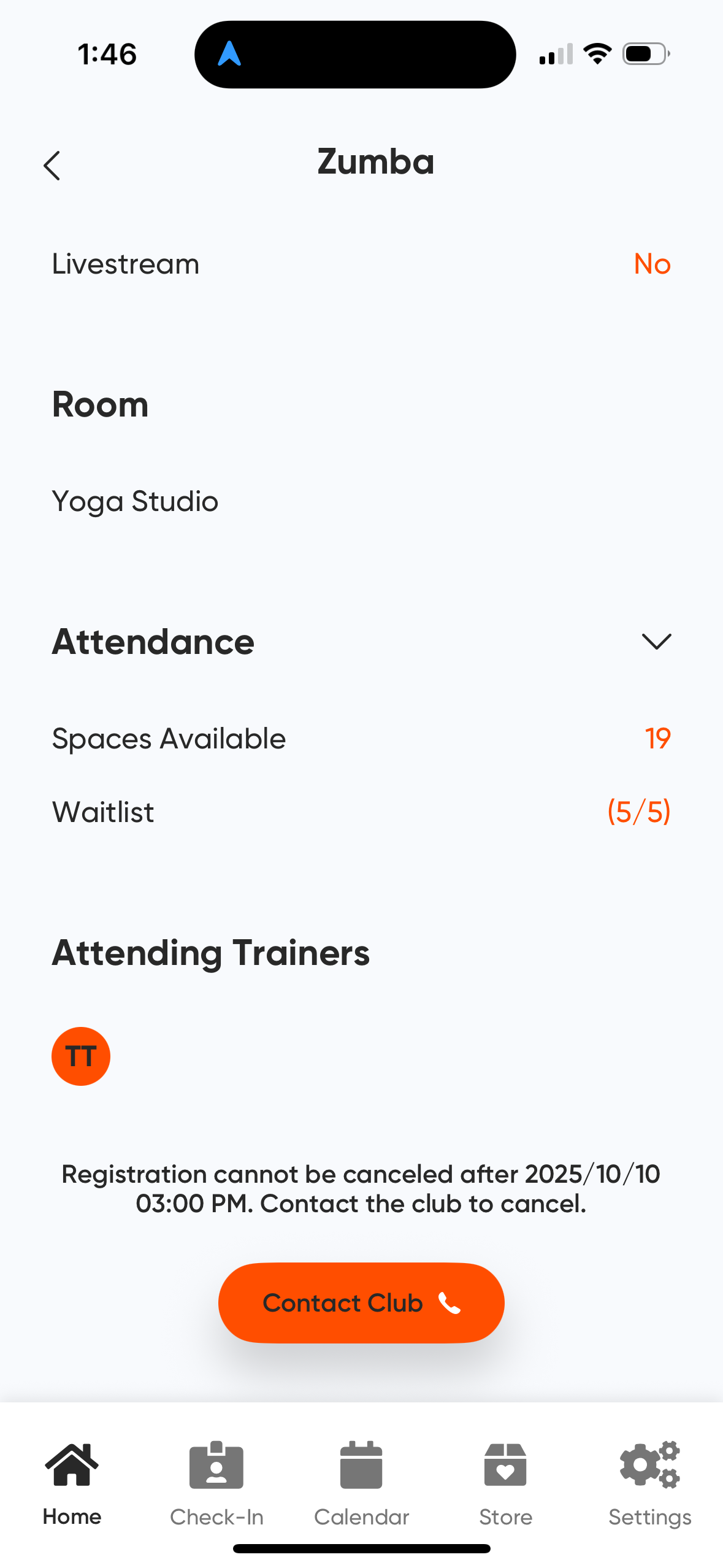
Your gym may only allow cancellations within a certain window before the event starts. If you are outside that window and cannot cancel yourself, contact your club directly.
Using the store #
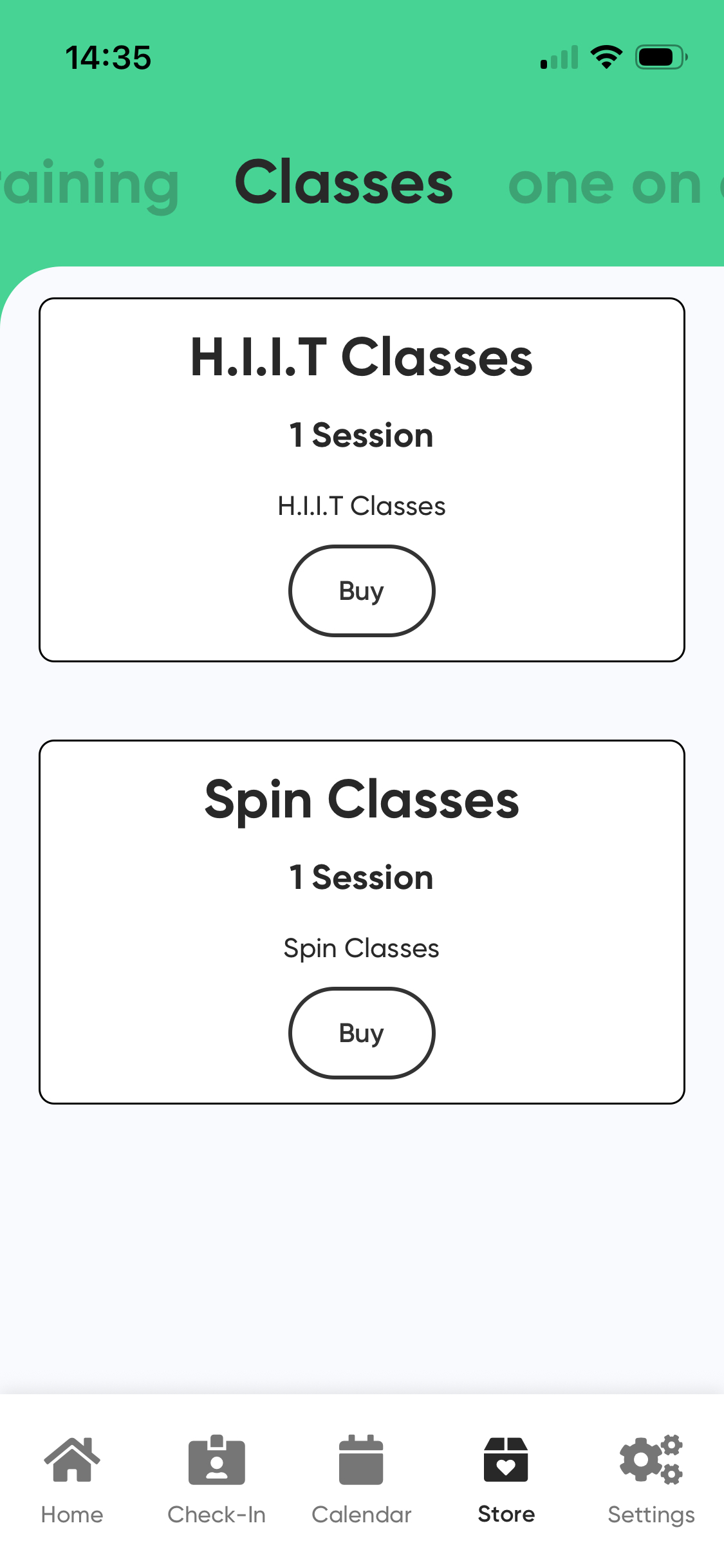
The in-app store lets you purchase session packs without visiting the gym. You can also view your remaining sessions and their expiration dates.
How to buy a session pack
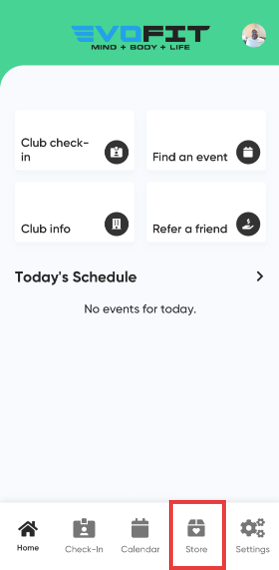
- Tap Store in the bottom navigation menu.
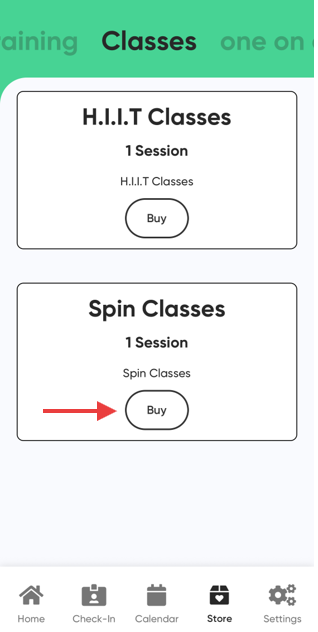
- Browse the available categories at the top of the screen (for example, Personal Training or Classes).
- Select the session or package you want.
- Tap Buy, then select Buy Now to complete the purchase.
Payment information
You need a saved credit or debit card to complete an in-app purchase. If you do not have a card on file, you can add one during checkout under Manage Cards. A receipt will be sent to your email address after the purchase is complete.
Viewing your purchased sessions
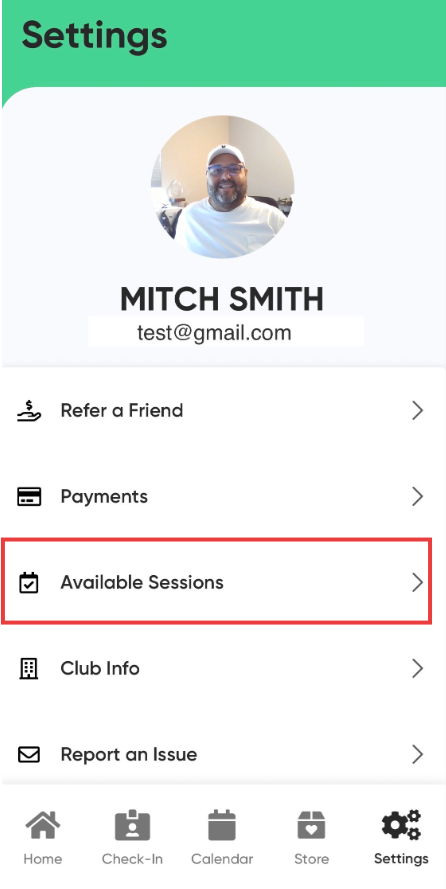
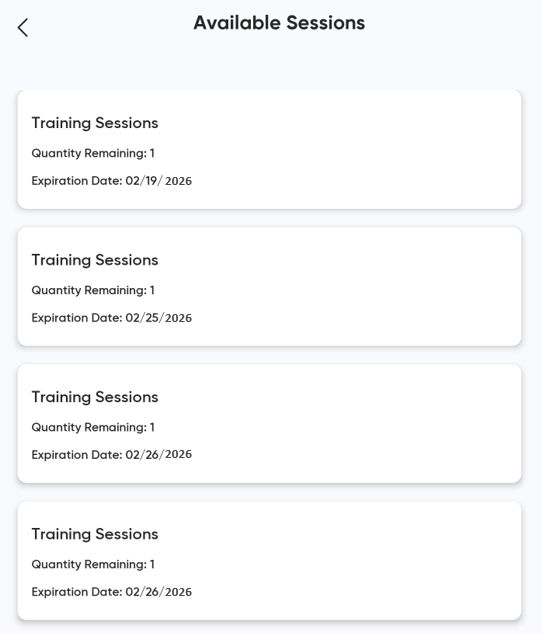
After a purchase, sessions are added to your account immediately. To check your available sessions:
- Tap Settings.
- Select Available Sessions.
You will see the number of remaining sessions for each pack and expiration dates where applicable. Session packs with very high counts (such as unlimited options) may display a large number like 9999.
MyClubAccess is distinct from the Member Account app (My Member Account). For the Member Account app, see Using the Member Account app.
Need help? #
Contact your gym or fitness club directly for account questions. For technical issues with MyASFAccount, email clientsupport@asfpaymentsolutions.com.