
Where these settings live #
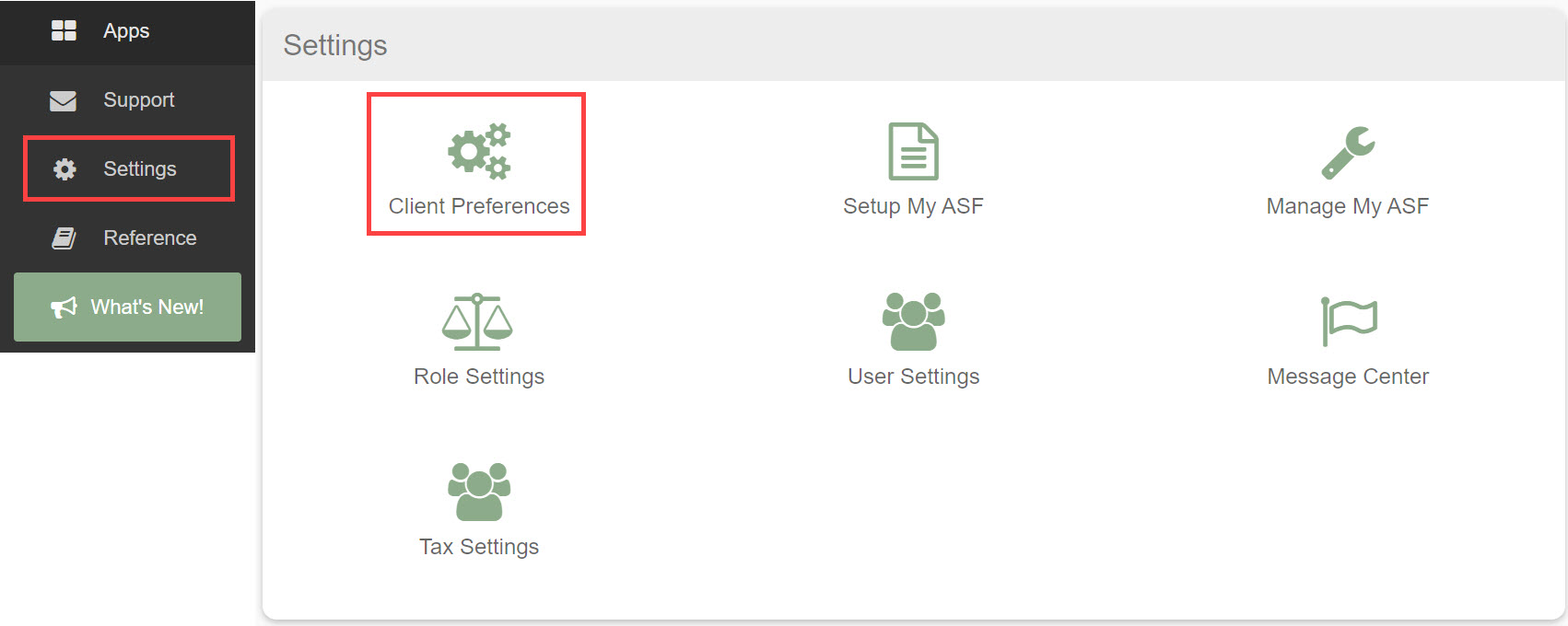
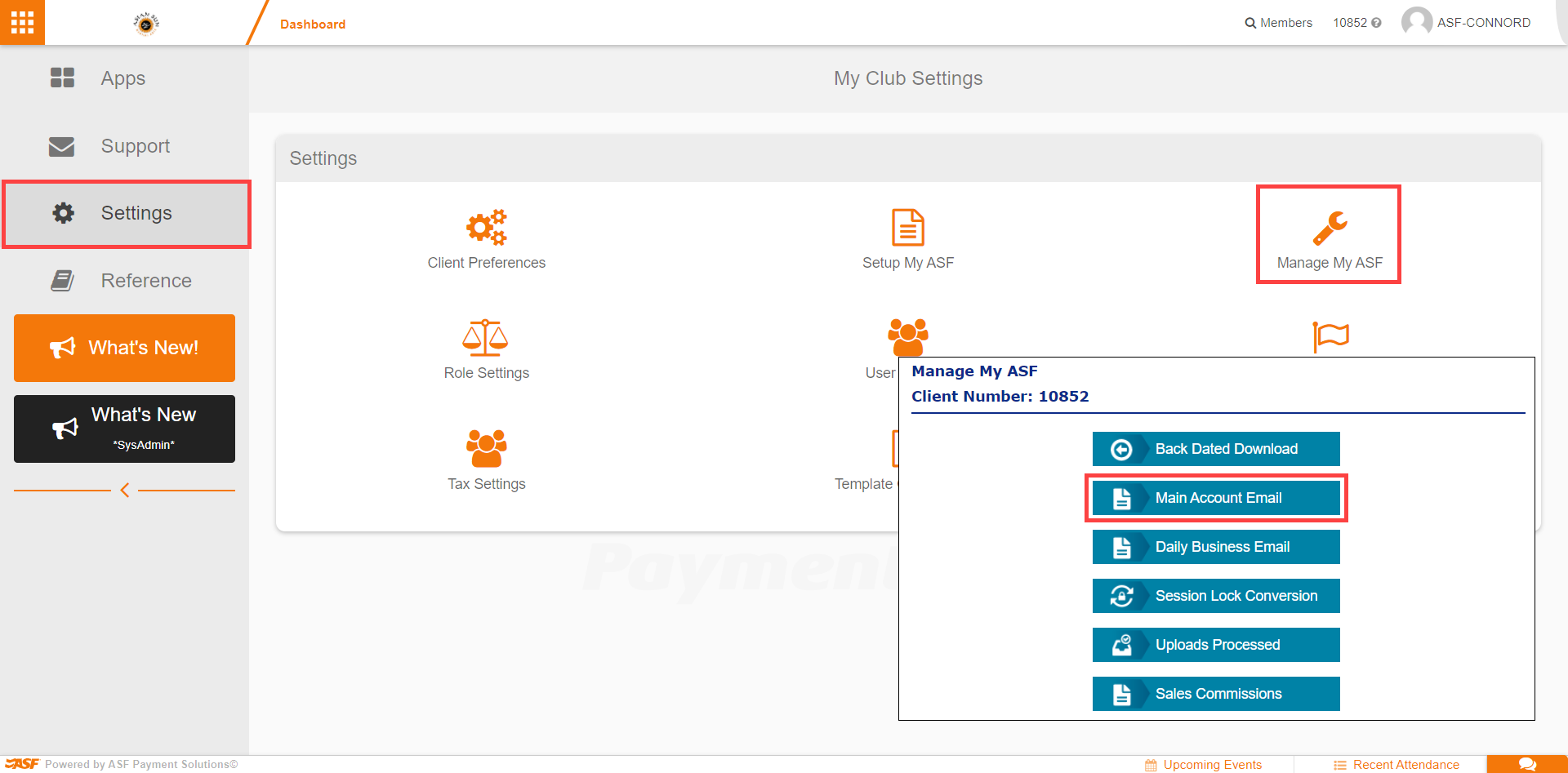
The look of your ASF site is customized through Client Preferences, accessed from Settings on the My Apps page. Open the Global tab to find Display Name, Logo, and Color Scheme. The Main Account Email is configured through Manage My ASF under Settings.
Display Name #
Enter your club's name in the Display Name field. This helps distinguish multiple locations or identify your single club location.

Logo #
Upload your club's logo:
- Select Choose File.
- Pick an image file from your computer.

Color Scheme #
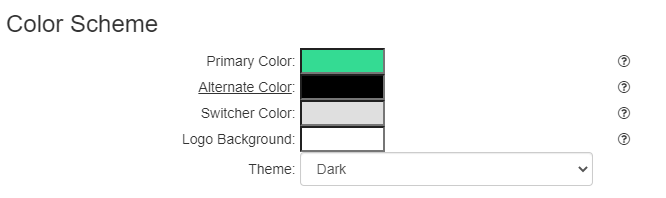
Adjust the site colors to match your club's branding.
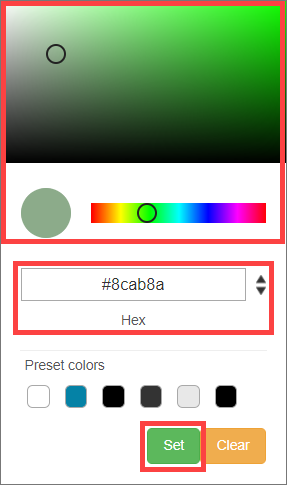
- Select a color box to open a color picker.
- Manually pick a color or enter a hexadecimal, RGB, or HSL value for an exact match.
- Click Set after choosing each color.
- Choose either the Dark or Light theme, depending on which fits your branding best.
- Click Submit once all colors are configured.
Main Account Email #
The Main Account Email is the primary business email for your club. It will generally already be set up, but it can also be managed through Manage My ASF in Settings.
The first email field contains the main email; this is the email address that was added when your club was set up with ASF. Adjust or change this email if your business email changes, then click Submit to save your changes.
Where to go next #
- To create staff accounts that match your new branding, see Users and roles.
- For the full Client Preferences map, see Client Preferences overview.
Need help? #
Contact your ASF account manager at clientsupport@asfpaymentsolutions.com.