
Setting up vendors #
Vendors are the suppliers you order from. Adding them to the system lets you link purchase orders to the correct source.
Adding a new vendor
- From the Inventory Management main screen, select the Inventory Setup icon and choose Vendor to see active vendors.
- Click the + icon to create a new vendor entry.
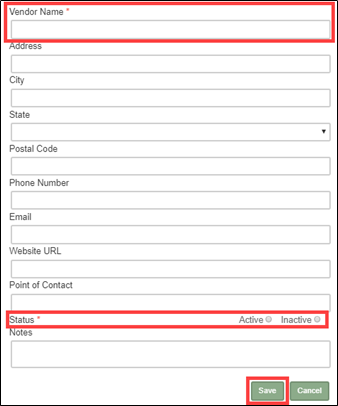
- Enter the Vendor Name and set the Status to Active. All other fields are optional.
- Click Save.
Editing or deactivating a vendor
Click Edit on the vendor card to modify information. To deactivate a vendor, change the Status from Active to Inactive. Toggle the page view to see inactive vendors when needed.
Using purchase orders #
A purchase order (PO) records your intent to buy products from a vendor before the stock arrives. POs track expected quantities, costs, and delivery dates.
PO statuses
- Active: Order placed, not yet received.
- Completed: Received, verified, and accepted into inventory.
- Cancelled: Order you decided not to fulfill.
Creating a purchase order
- From the Inventory Management screen, click the Bars icon to open Purchase Orders.
- Fill in the order header fields: Order Status, Purchase Order Number, Vendor, Expected Receipt Date, Shipping Cost, Order Placed By, and any Notes.
- Select inventory items from the center list and enter quantities and per-item costs.
- Click Save.

Completing a purchase order
When a shipment arrives, record actual received quantities to update your inventory count.
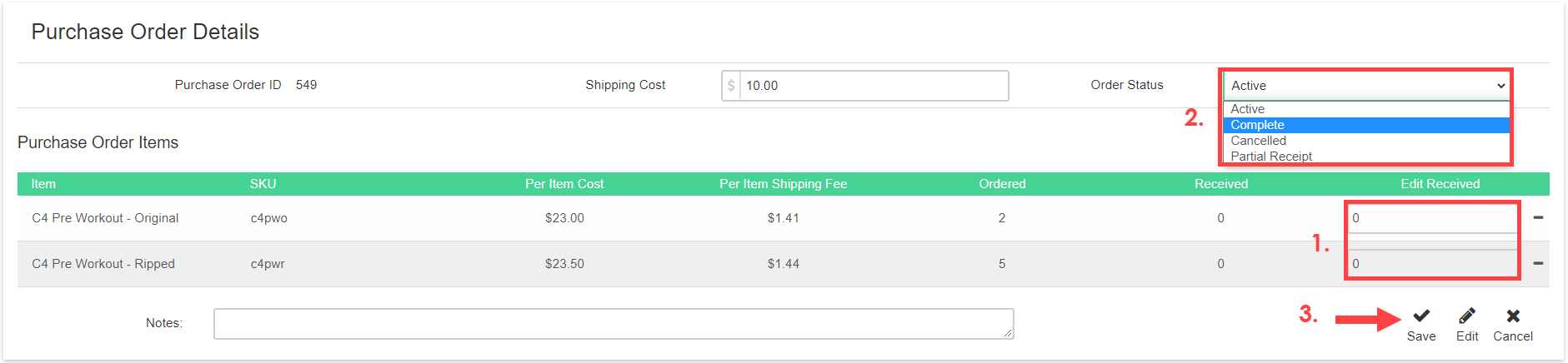
- Open the Active PO from the Purchase Orders screen.
- Enter the actual received quantities in the Edit Received column.
- Change the Order Status to Complete.
- Click Save.
Important: Completing a PO cannot be undone. Verify all quantities before saving.
Cancelling a purchase order
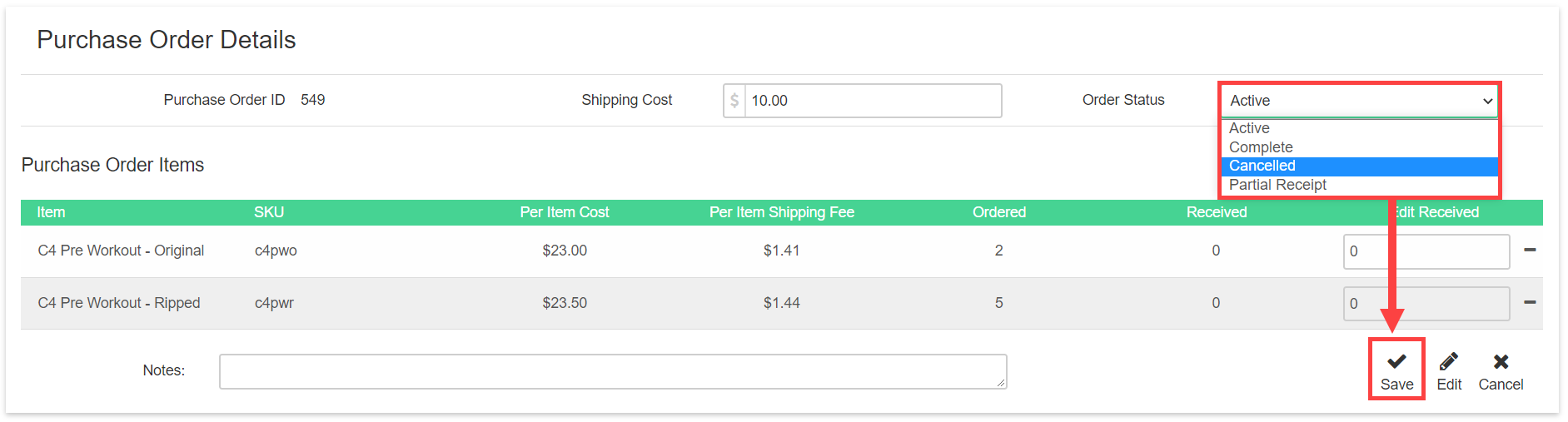
Open the PO from either the Active or Completed list, change the Order Status to Cancelled, and save. If you cancel a completed PO, the items are removed from your inventory count.
Where to go next #
- To add or edit the items you order, see Manage inventory items.
- For a full setup overview, see Getting started with Point of Sale.
Need help? #
Contact your ASF account manager at clientsupport@asfpaymentsolutions.com.