
How tax settings are structured #
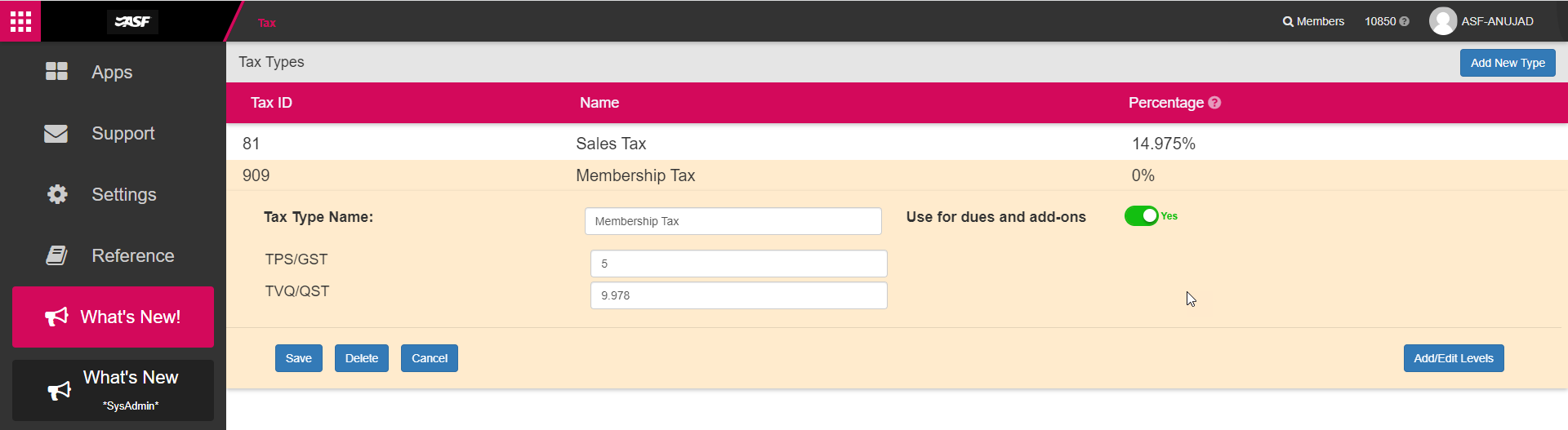
Tax Settings uses a two-level hierarchy. A Tax Type is the overall tax configuration (for example, "State Sales Tax"). A Tax Level is one percentage component within that type (for example, a state portion and a local portion). You can have multiple levels within a single type, and their percentages combine to form the total tax rate.
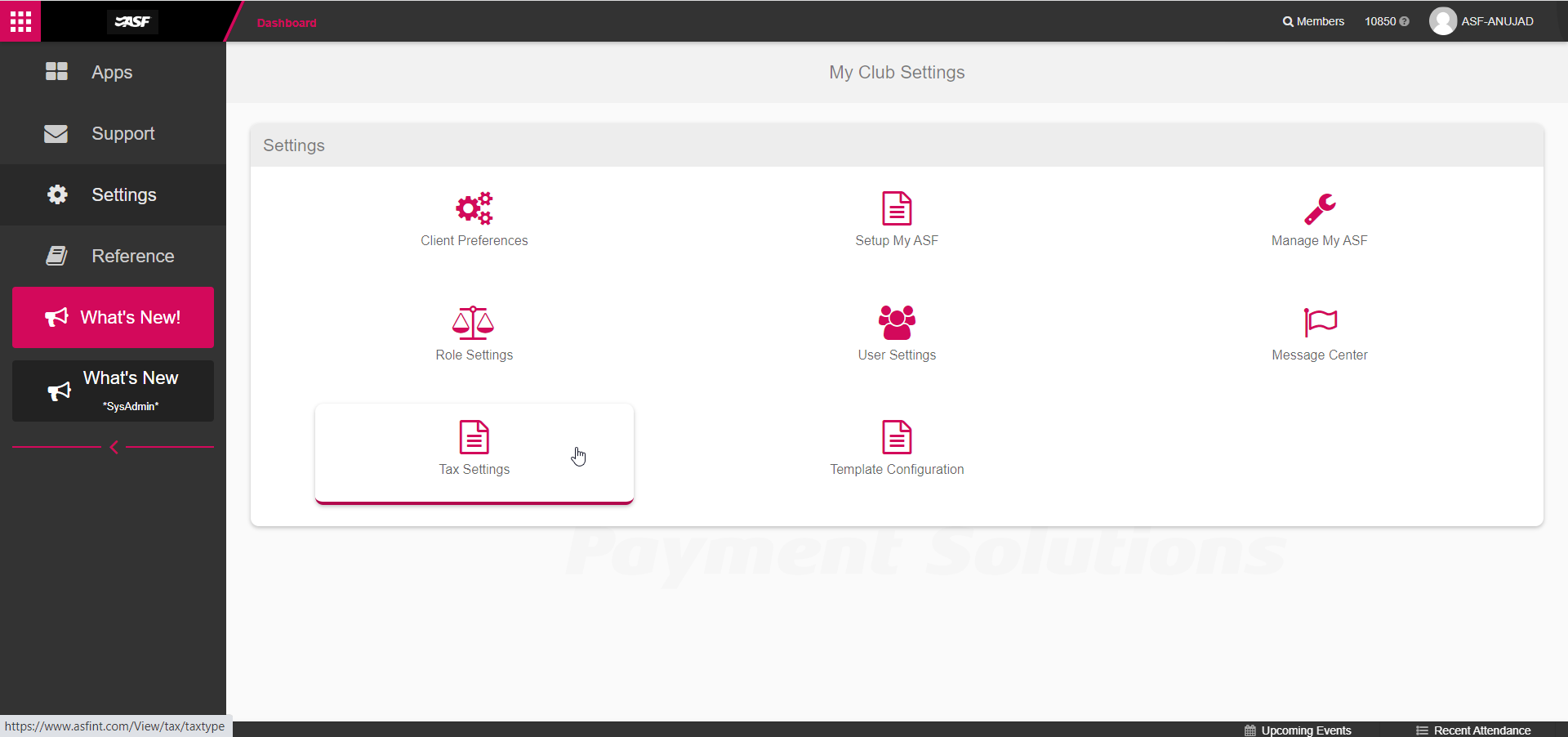
Access Tax Settings by selecting Settings from the My Apps page, then choosing Tax Settings.
Creating a Tax Type #
- Click Add New Type.
- Enter a descriptive name that your staff will recognize.
- Click Save.
The system carries over previously created Tax Levels so you can assign them immediately.
Creating Tax Levels #
Tax Levels are the individual percentage components that make up a Tax Type. Levels created here are available across all Tax Types.
- Expand a Tax Type row.
- Click Add/Edit Levels, then Add New Level.
- Enter the level name and tax ID number (obtain the tax ID from your state or provincial tax authority).
- Click Save.

Setting tax percentages #
- Expand the Tax Type row.
- Enter the percentage for each Tax Level. Percentages support up to 3 decimal places.
- Click Save.
The combined total displays next to the Tax Type name on the main screen.

Editing and deleting Tax Types #
Expand the Tax Type row to modify its name or level percentages. Click Delete to remove the Tax Type entirely. Deleting automatically clears any dues, add-on, or analytics designations connected to that type.
Applying tax to dues and add-ons #
When enabled by the ASF Client Support team, a toggle labeled Use for dues and add-ons appears on each Tax Type. Enabling it designates that type for enrollment tax calculations.
Important constraints:
- Only one Tax Type can be designated for dues and add-ons at a time.
- Auto-term renewals are not supported with this designation.
- To switch to a different Tax Type, set the current designation to No first, save, then enable the new one.
Tax breakouts appear on Online Join, In-Club Enrollment, and membership contracts so members can see individual level amounts.
Adding reason codes #
Reason codes are short labels that staff select when applying a discount, override, or tax exemption during a transaction. They provide an audit trail for pricing changes.
To add reason codes, navigate to Point of Sale in Client Preferences, locate the Reason Codes section, enter a code name, and save. Reason codes appear in the dropdown when staff apply discounts or overrides in MyPOS.
Troubleshooting: tax not calculating at enrollment #
If tax is not calculating during enrollment, the Membership Tax Calculation indicator for your account may be set to False. In this state, tax displays for reporting purposes only and is not applied at signup. Contact ASF Client Support at 1 (800) 527-6898 to enable the indicator. Allow up to one hour for the change to propagate.
Where to go next #
- To assign a tax type to an item, see Manage inventory items.
- To apply tax exemptions during a transaction, see Discounts and overrides.
Need help? #
Contact your ASF account manager at clientsupport@asfpaymentsolutions.com.