
Prerequisites #
Discount and override reason codes must be configured in Point of Sale Client Preferences before staff can apply them. Contact your ASF account manager if reason codes are not yet set up at your location.
Discounting an individual item #
You can adjust the price of a specific item during a transaction without affecting the rest of the order.
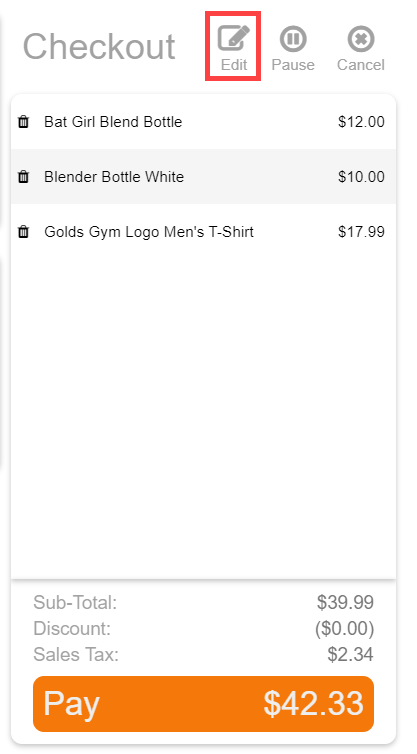
- With items in the checkout list, click Edit.
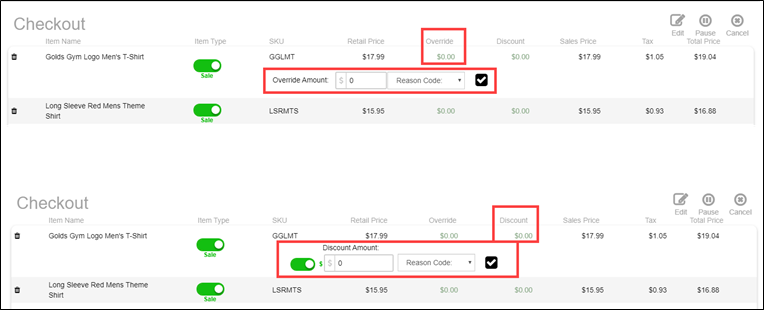
- Locate the item and click the $0.00 value under the Discount column.
- Enter the discount amount.
- Select whether to apply a dollar ($) or percentage (%) discount.
- Choose a Reason Code from the dropdown.
- Click the checkmark to confirm.
- Close the Edit screen by clicking Edit again.
Overriding an item price #
A price override replaces the listed retail price entirely, rather than deducting a set amount.
- Click Edit in the checkout area.
- Click the $0.00 value under the Override column for the item.
- Enter the new price you want to charge.
- Select a Reason Code.
- Click the checkmark to confirm, then close Edit.
Discounting the full ticket #
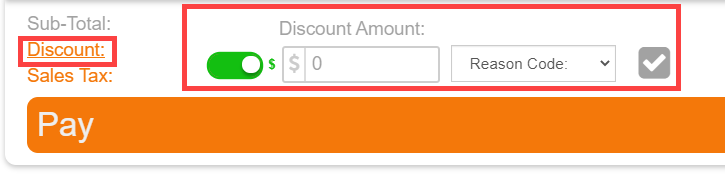
To apply a discount to the entire order rather than a single item, use the Discount button at the bottom of the checkout screen. The steps are the same as discounting an individual item: enter an amount, choose dollar or percentage, select a reason code, and confirm.
Where to go next #
- For a full walkthrough of a transaction, see Run a MyPOS transaction.
- To configure tax exemptions, see Tax settings.
- To reverse a transaction, see Returns and voids.
Need help? #
Contact your ASF account manager at clientsupport@asfpaymentsolutions.com.