
Inventory reports #
Inventory reports are accessed from the Reports application. Select Inventory in the left navigation. Two report types are available.
All Inventory report
The All Inventory report shows a full list of either active or inactive POS inventory items. Use it as an ordering reference or to audit your catalog.
- Navigate to Reports and select Inventory.
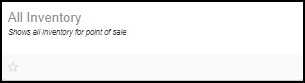
- Click All Inventory.
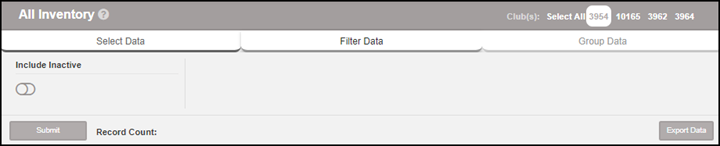
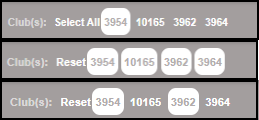
- Use the club selector in the upper-right to view a specific location (defaults to your current club).
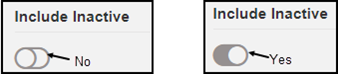
- Toggle Include Inactive to include inactive items in the results.
- Click Submit.
The report includes: Record Count, Client ID, SKU, Item Name, Item Type, ASF Type, Quantity on hand, Item Cost, Retail Price, Tax Type and percentage, Reorder Point and Quantity, and General Ledger account.

Inventory report (date range)
The Inventory report provides detailed information over a selected date range with flexible filtering.
Report type options:
- Daily: Single date selection.
- Weekly: Auto-calculated week starting from the date you enter.
- Range: Custom start and end dates.
- Yearly: Annual summary.
Available filters: Attribute, Sub-Attribute, SKU, and Report Year.
The report shows two sections of columns. Section 1 includes Client, Item ID, SKU, Item Name, Item Type, Sales quantity, Last Date Sold, Last Date Returned, Returns quantity, Quantity Ordered, Quantity Received, and Last Date Ordered and Received. Section 2 includes Outstanding quantity, Order Status, Quantity Adjusted, Last Date Adjusted, Current Inventory, and Associated Attributes.
Member Transaction History #
Member Transaction History lets you review all POS purchases for a specific member, including gift card balances and prepay account amounts.
Accessing member transaction history
Search for the member in MyPOS as if starting a new transaction, then click the Book icon next to their name instead of selecting them to ring up.
The transaction history screen displays:
- Complete transaction list, filterable by Sales Person, Cash Drawer, Payment Type, or Month.
- Item view that lists individual items within transactions, filterable by Item Name, Month, or Price Range.
- Cardholders, Gift Cards, and Prepay Account balance in the upper-right area.
Processing returns and voids from member history
Expand any transaction by clicking its Order ID. Use the top-right quick links to process a return or void the transaction. The void option is only available until 11:59 PM on the day the transaction was processed. For voids after that deadline, contact ASF Client Support at 1 (800) 527-6898.
Facility Transaction History #
Facility Transaction History shows all transactions at your location based on the search criteria you select. Use it to review daily, weekly, or monthly sales activity, though it should not replace regular use of the Reports application for formal reporting.
Searching and filtering
Enter your criteria and click Search. Available filters include:
- Order ID, Cash Drawers, Order Type (Sales, Returns, All)
- Sales People, Order Status, Item Type
- Payment Type, Item Name, Start and End Date
Click an Order ID to expand transaction details. Use the top-right quick links to reprint receipts, void transactions, or process returns.
Where to go next #
- To process a return or void from transaction history, see Returns and voids.
- To run a new transaction, see Run a MyPOS transaction.
Need help? #
Contact your ASF account manager at clientsupport@asfpaymentsolutions.com.