
When to print barcodes #
MyPOS can generate barcodes for any inventory item that does not have its own product barcode. This is especially useful for personal training sessions, class packages, and other non-physical items that are sold in person but need to be scanned at the register.
Printing a single barcode #
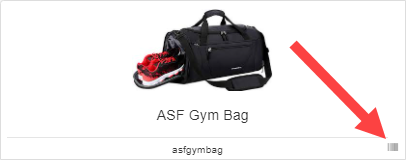
On the Inventory Management screen, each item in the list displays a barcode icon. Clicking that icon generates a barcode for that item, which can then be sent to any connected printer.
Printing a barcode sheet (multiple items) #
To print barcodes for several items at once, use the batch printing option.
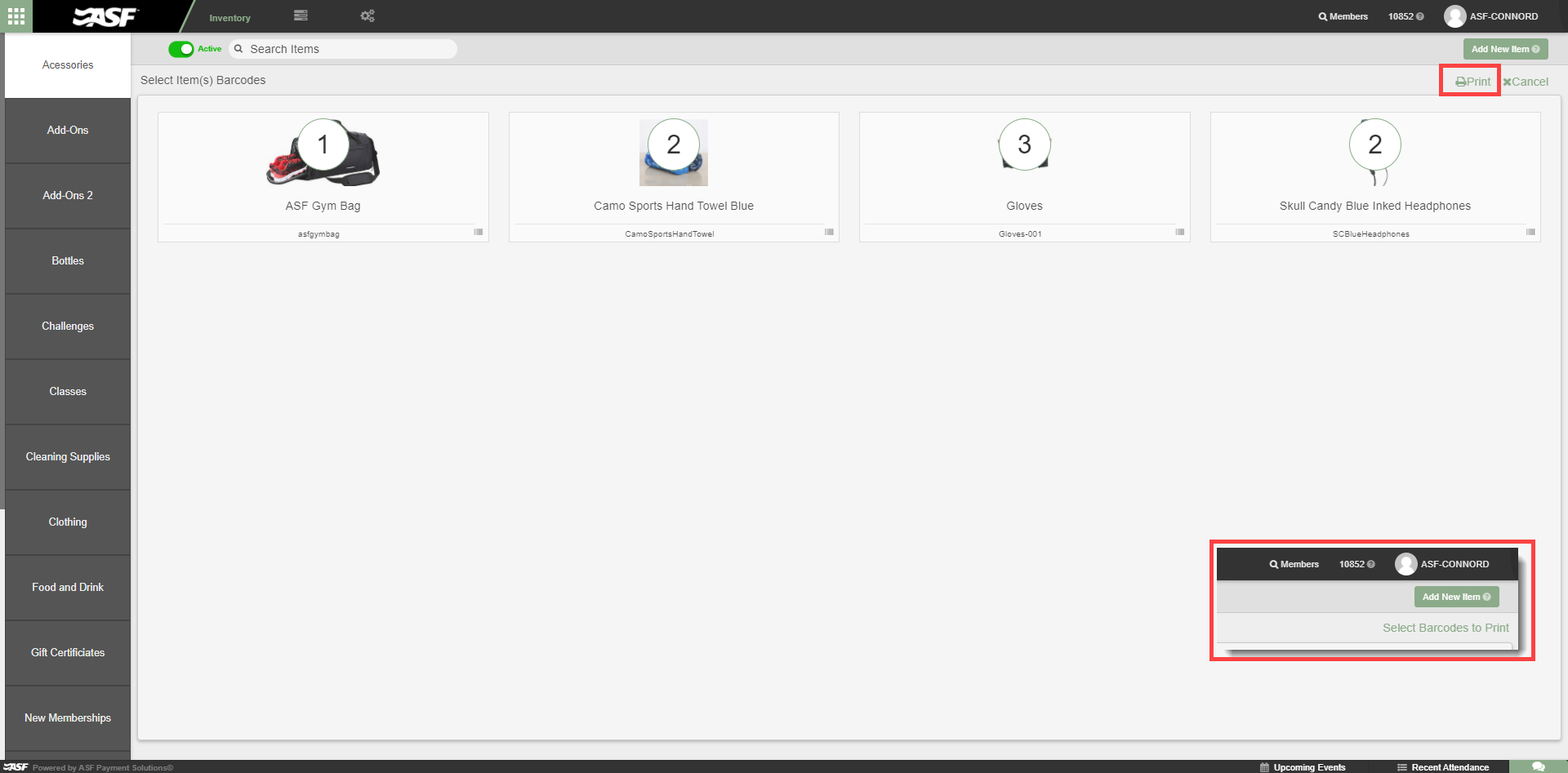
- Select Select Barcodes To Print from the Inventory Management screen. The interface changes so that clicking an item displays a counter showing how many barcodes will print for that item.
- Click items to add them to the batch. Click the same item again to increment its barcode count (useful for printing duplicates for shelf labels).
- Select multiple different items as needed.
- Click Print to generate the full sheet.
Where to go next #
- To configure the SKU on an item (required for barcode scanning), see Manage inventory items.
- For scanner recommendations, see Hardware recommendations.
Need help? #
Contact your ASF account manager at clientsupport@asfpaymentsolutions.com.