
Cash Drawer Maintenance overview #
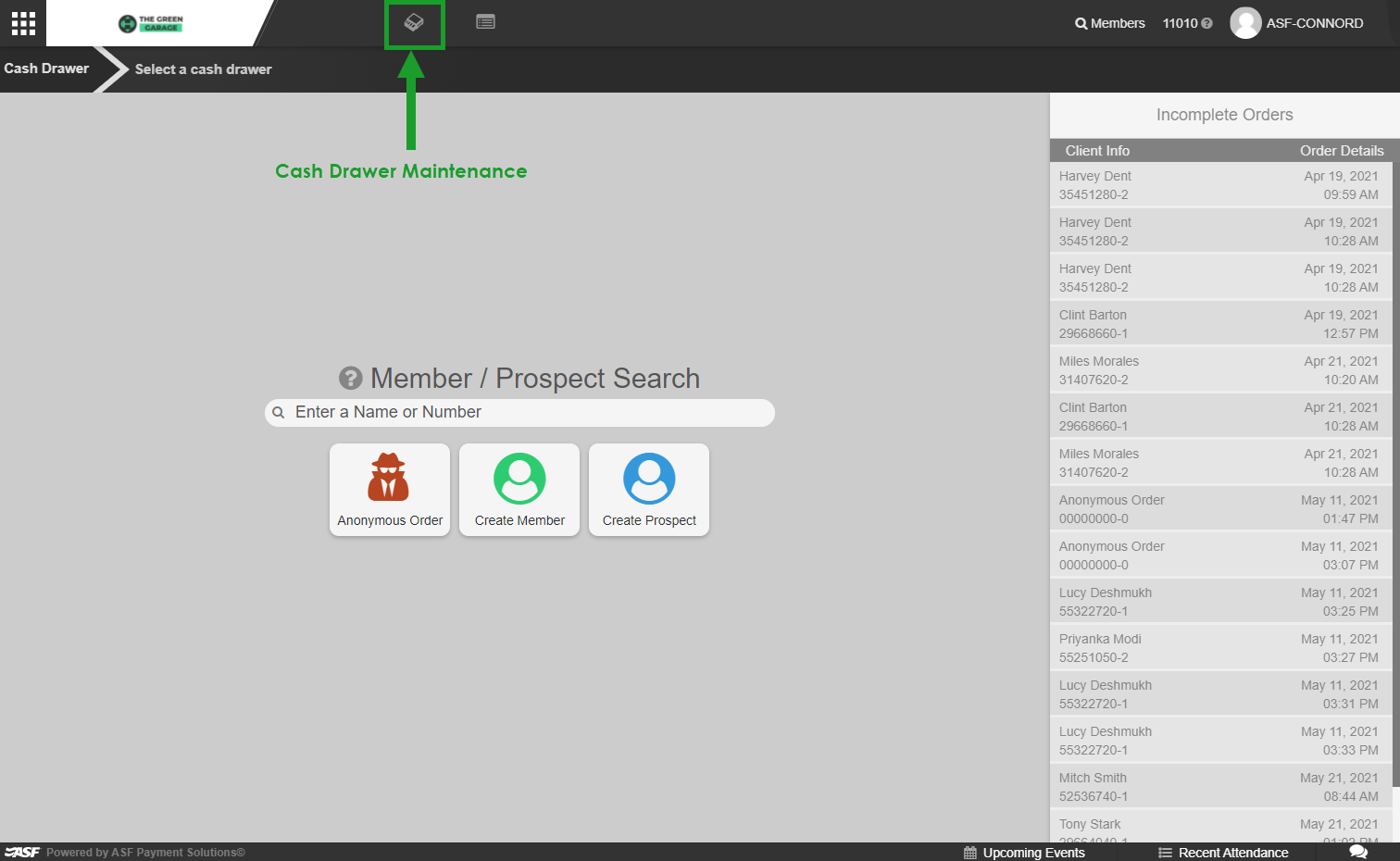
The Cash Drawer Maintenance screen is your central hub for managing drawer status. It displays all active drawers, their last open and close times, and the staff member responsible for each. Access it from the MyPOS main screen.
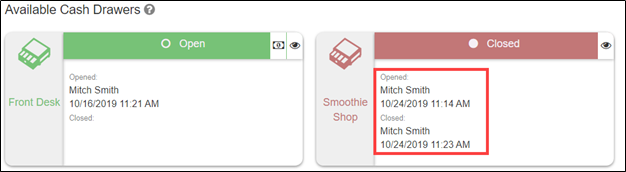
Opening a cash drawer #
A drawer must be open before it can be used for transactions.
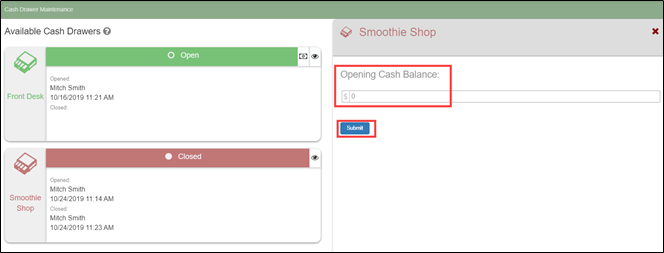
- On the Cash Drawer Maintenance screen, select the drawer you want to open.
- Enter the opening dollar amount (your standard starting balance, which can be $0).
- Click Submit. The drawer status changes to open and becomes available for transactions.
Closing a cash drawer #
ASF recommends closing and reconciling your drawer daily for accurate cash tracking. The interface varies based on your Require Blind Close permission setting.
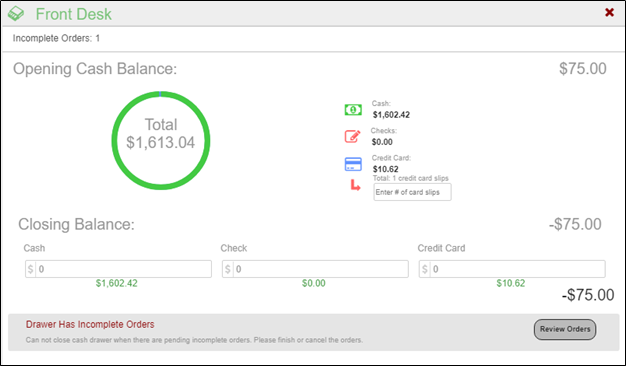
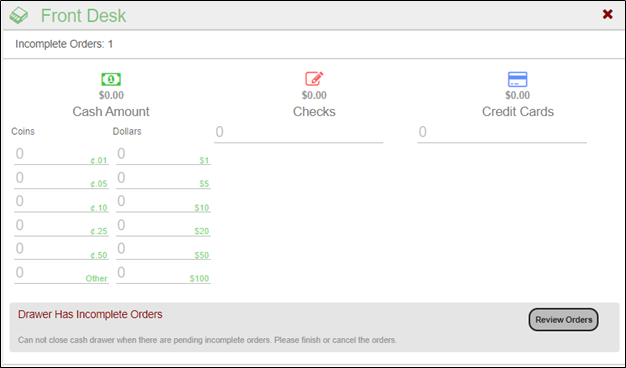
- Count all cash and checks collected and enter the amounts in the appropriate fields.
- If your location does not use Immediate Credit Card Authorization (ICC), manually enter credit card totals. Contact ASF Client Support at 1 (800) 527-6898 to check your ICC status.
- Click Review Orders to address any incomplete transactions. Cancel or complete them before proceeding.
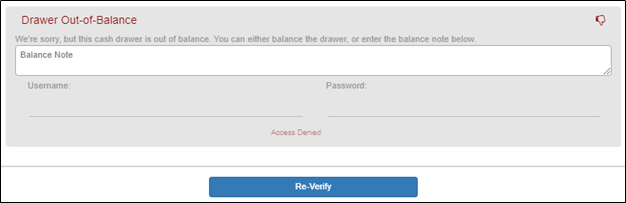
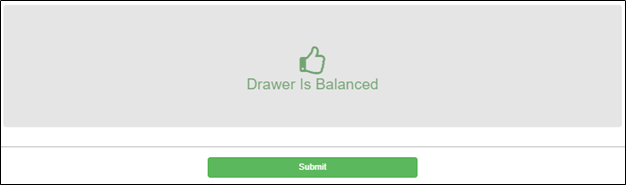
- Click Verify to compare your counted amounts against recorded totals.
- If the drawer is out of balance and your permissions allow, enter a note with your username and password, then submit. If permissions do not allow override, resolve the discrepancy before submitting.
Performing a cash drop #
Cash drops let you add or remove cash from an open drawer without closing it. Use cash drops to remove excess bills or to replenish change.
- On the Cash Drawer Maintenance screen, click the Cash icon for the drawer you want to adjust.
- Enter the amount: positive values add funds, negative values remove funds.
- Click Submit.
Adding a new cash drawer #
New drawers are configured in Inventory Setup. Once added, they appear on the Cash Drawer Maintenance screen and become available when opening a transaction. Contact your ASF account manager if you need to add a drawer and do not see the option in Inventory Setup.
Where to go next #
- To run a transaction with an open drawer, see Run a MyPOS transaction.
- For compatible hardware, see Hardware recommendations.
Need help? #
Contact your ASF account manager at clientsupport@asfpaymentsolutions.com.