
Attendance section overview #
The Attendance section is part of the Member Information screen in Member Management. Access it using the quick link on the left side of the screen or by scrolling down to the fourth section, Transactions. The Attendance section contains four sub-sections: Training Schedule, Show Attendance, Delete Attendance, and PT Adjust.
Attendance is tracked through the Online Check-In application, the Self-Check-In app, and the My Member Account mobile app.

Training Schedule #
The Training Schedule button links to the member's Training Schedule tab and allows the member or staff to purchase and schedule training sessions without using POS or Scheduler.
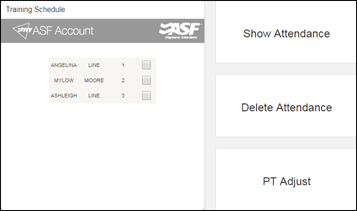
To view and manage the training schedule:
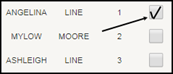
- Check the correct member's name.
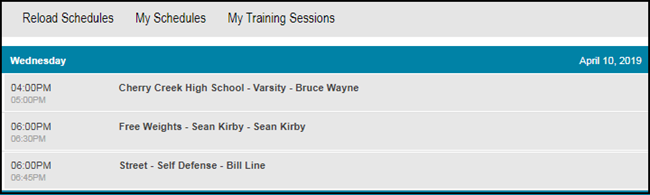
- The screen displays available club events.
- Select Reload Schedules to update any newly added events.
- Select My Schedules to view the events the member has already signed up for.
- Select My Training Sessions to display purchasable and owned session buckets.
- Click events to join. Purchase inventory as needed if sessions are required.
Show Attendance #
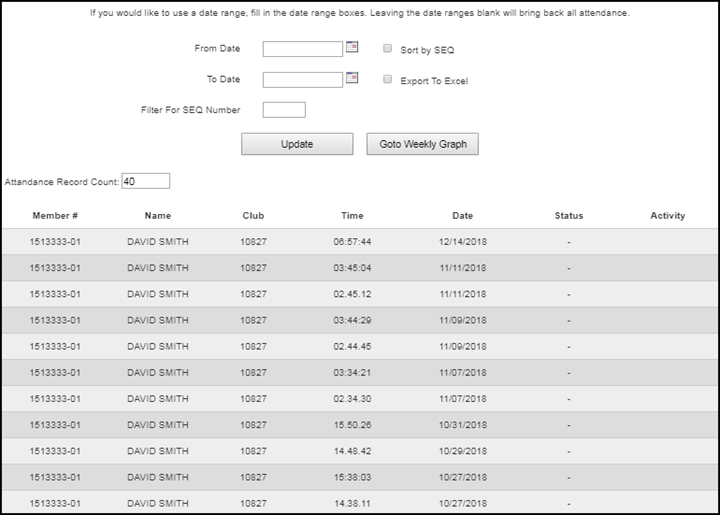
The Show Attendance section displays the attendance history for all members on the account. Records from all check-in sources appear here: Online Check-In, Self-Check-In, and the mobile app.
Members can filter attendance records by date range and by sequence number. Select Go to Weekly Graph for a visual representation of attendance frequency over time.
Delete Attendance #
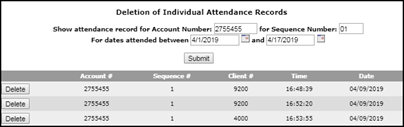
The Delete Attendance section permanently removes attendance records from the system. Use this section only when a record needs to be corrected.

To delete an attendance record:
- Select the date range.
- Select the sequence number for the member whose record you want to remove.
- Click Delete next to the targeted record.
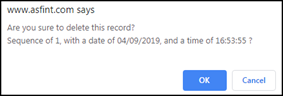
- Confirm the deletion.
Note: New attendance records cannot be added after the fact. ASF does not allow clients or employees to add attendance records because some clients work with insurance companies and wellness programs, and adding records after the fact could be construed as fraudulent activity.
PT Adjust #
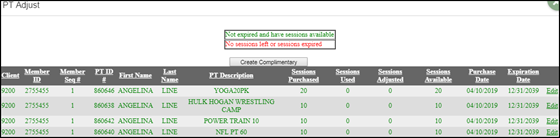
The PT Adjust section allows you to adjust sessions, buckets, and expiration dates on a member's personal training sessions. You can also reassign purchased sessions to different cardholders on the same account.
Color coding in the session list:
- Lines highlighted in green indicate sessions are still available.
- Lines highlighted in red indicate no sessions remain.

Adjusting a session bucket
To adjust a session bucket:
- Click Edit on the far right of the session.
- Edit the applicable fields:
- Member Seq #: change the sequence number to reassign the sessions to a different cardholder on the account.
- Sessions Adjusted: use a positive number to add sessions; use a negative number to remove sessions.
- Expiration Date: type over the existing expiration date to change it.
- Click Update.


Need help? #
Contact your ASF account manager at clientsupport@asfpaymentsolutions.com.