
Checking members and prospects into events #
Online Check-In can be used to check members and prospects into events as well as to track general attendance. The left sidebar displays upcoming events for the day along with their scheduled members.
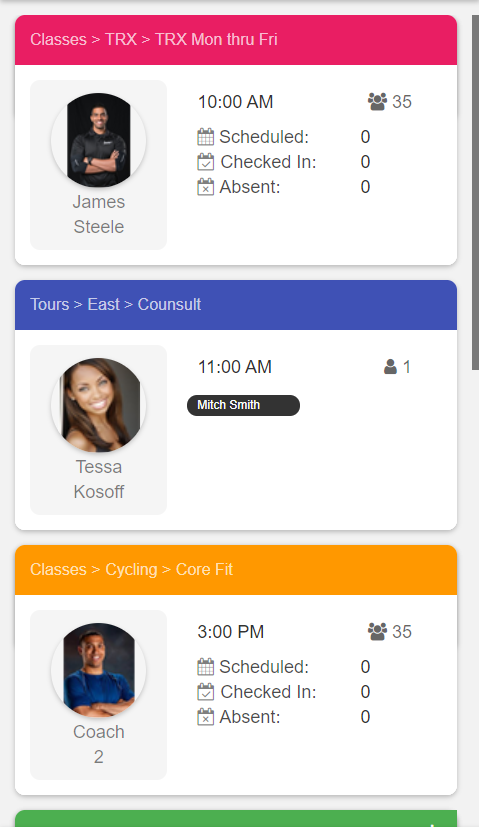
When you select an event, the view expands and allows you to:
- Check members in.
- Mark members absent (Free or Paid absence).
- Cancel members from the event entirely.
This functions identically to the Scheduler Check-in View.
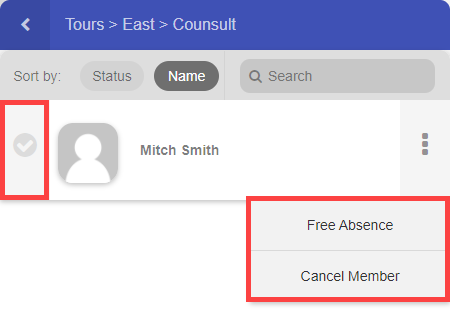
Note: When a member is marked absent for an event (Free or Paid absence) and your club uses the Public Calendar feature, the member receives an automated email with a link to your Public Calendar so they can sign up for a new event right away.
Member account alerts #
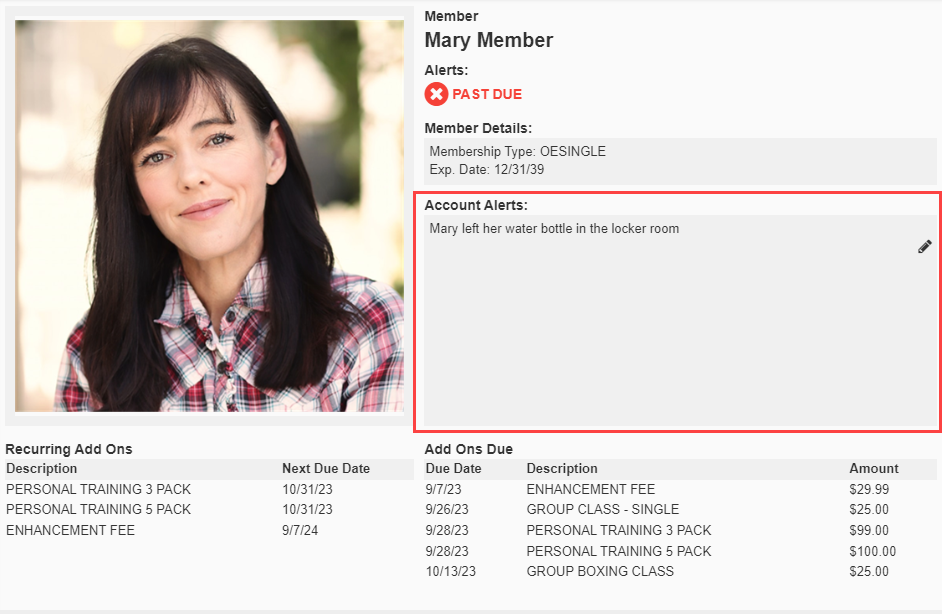
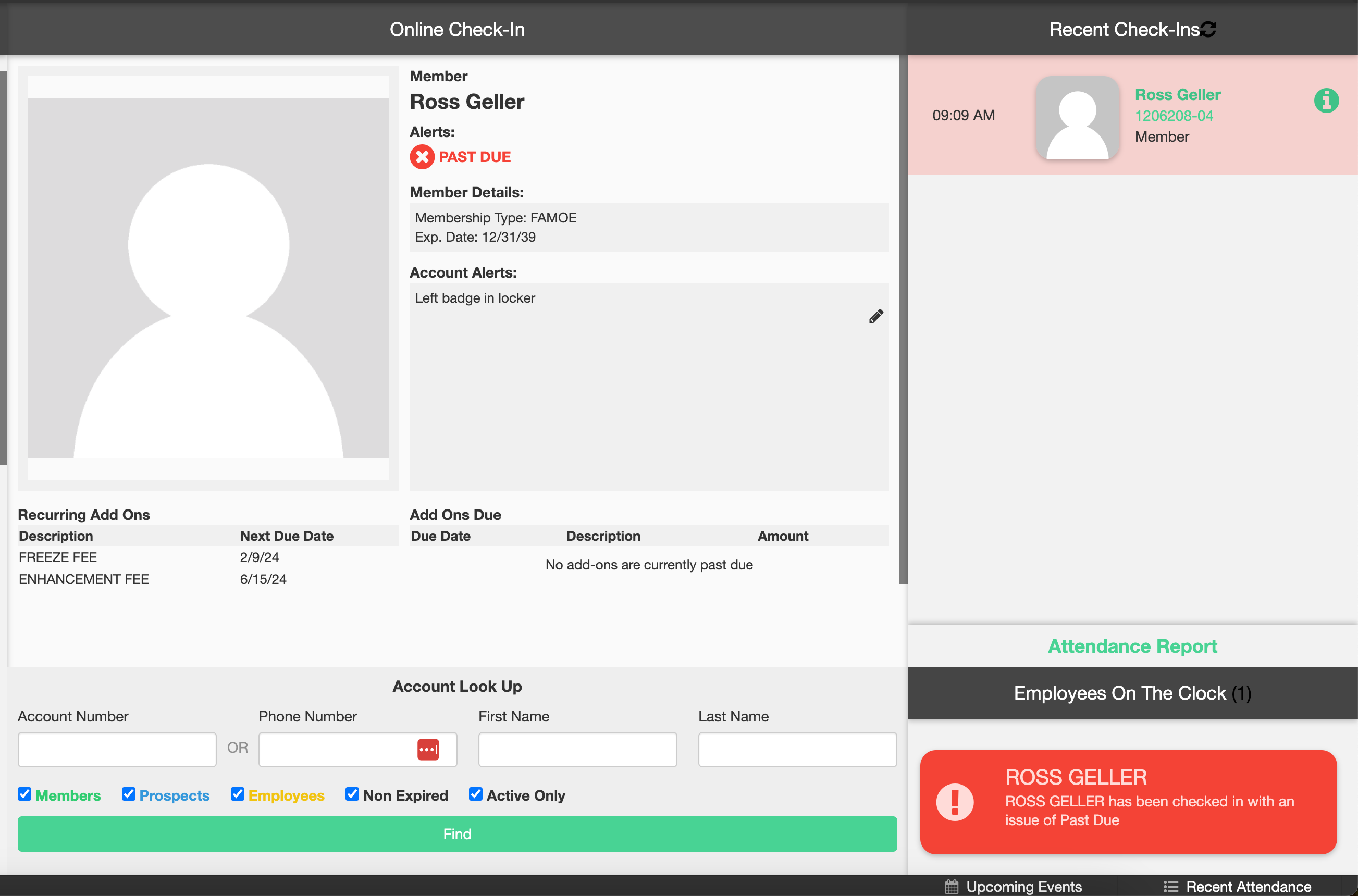
Member account alerts are notes on a member's account that appear at check-in to notify staff of a member issue.
Adding a member alert
To add an account alert to a member:
- Use Quick Member Search to locate the member.
- Open the member profile.
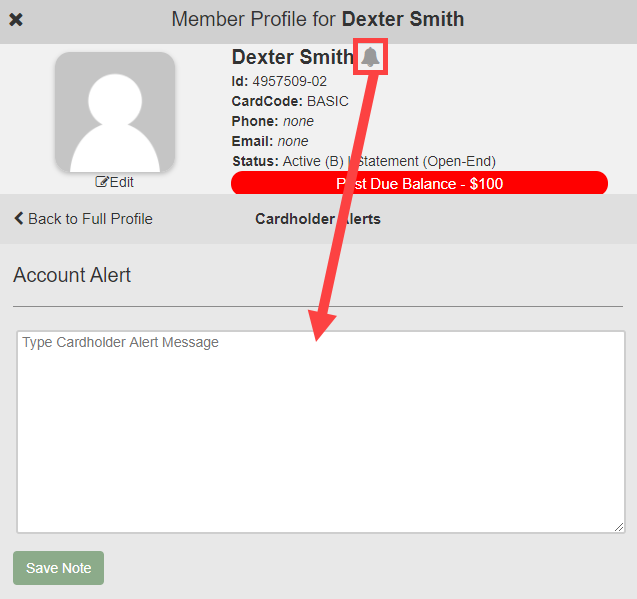
- Click the bell icon next to the member name to open the Account Alert section.
- Enter the alert message.
- Select Save Note.
Member alerts at check-in
When any member on the account checks in, the account alert is displayed alongside key member information. Staff can modify or remove the alert at any time using the edit icon shown with the alert.
Configurable check-in alert options #
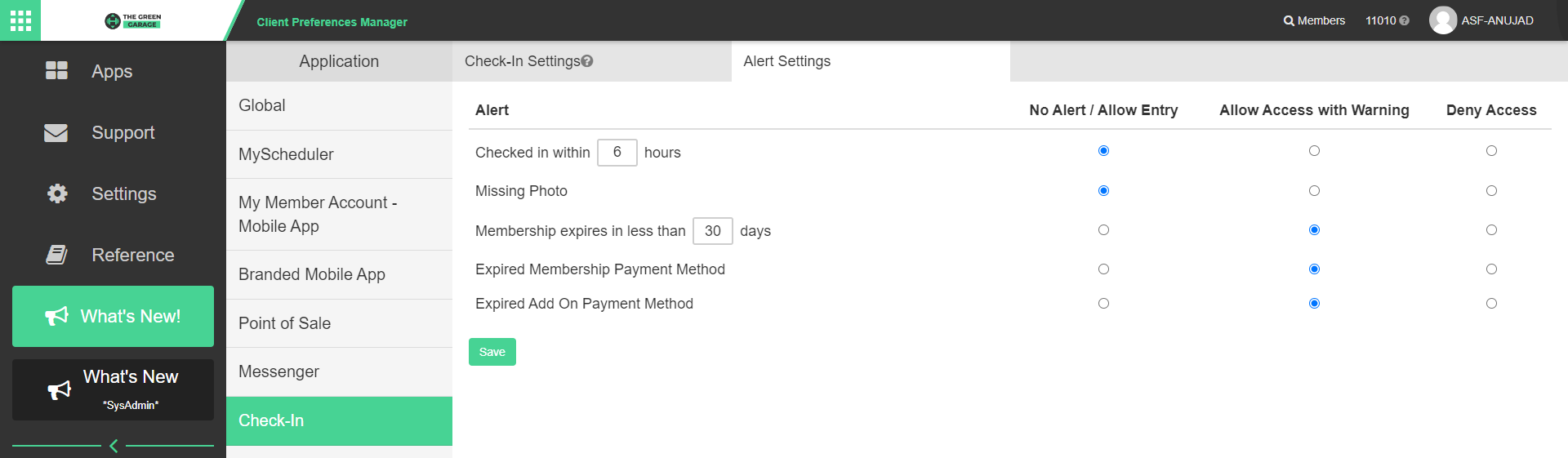
Several alerts can be configured in Settings > Client Preferences > Check-in > Alert Settings. Each configurable alert supports three response settings:
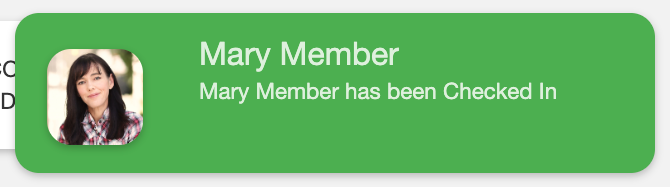
- No Alert / Allow Entry - permits access with a success audio tone.
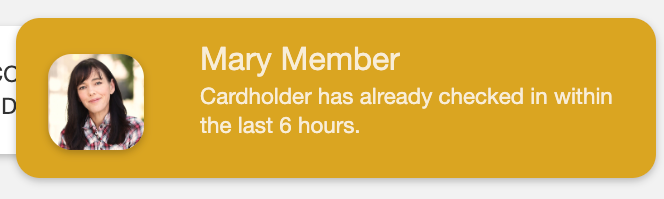
- Allow Access with Warning - grants entry but displays a yellow warning notification.
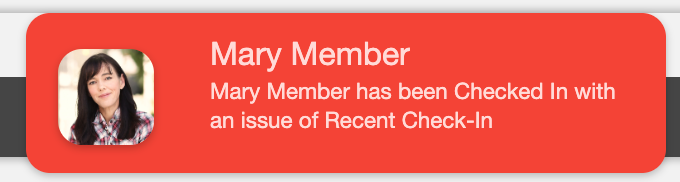
- Deny Access - blocks entry with a red error notification; requires staff intervention in Online Check-In.
Missing Member Photo
Triggers when a member checks in without a photo on file.
Recent Check-In
Triggers when the same member checks in again within a club-defined timeframe.
Expired Membership Payment
Triggers when the membership payment method on the account has expired.
Expired Add On Payment
Triggers when an add-on payment method on the account has expired.
Expiring Membership
Triggers when the account's membership is expiring within the club-defined threshold.
Always-on check-in alerts #
The following alerts are always active regardless of your Alert Settings configuration. They cannot be disabled.
Past Due
A PAST DUE alert appears when a member's account has unpaid dues. Automated billing attempts are made before the alert is flagged, preventing premature alerts around holidays and weekends.
Location access restriction
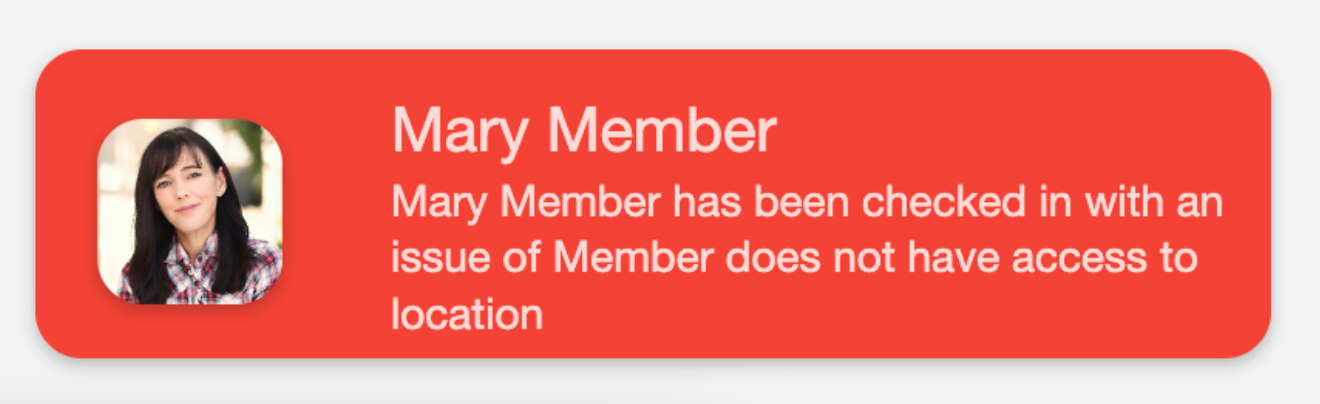
A SINGLE CLUB ONLY alert appears when the member does not have access to the location being checked into.
Inactive membership
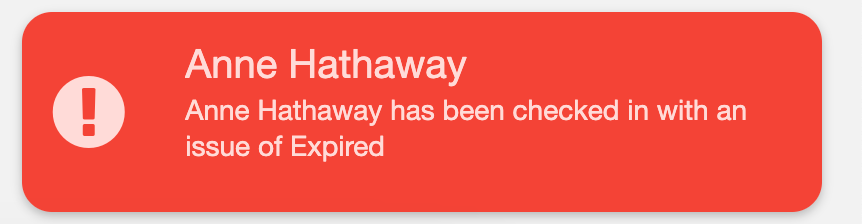
Displays EXPIRED, CANCELED, or RETURNED for memberships that are no longer active.
Frozen access
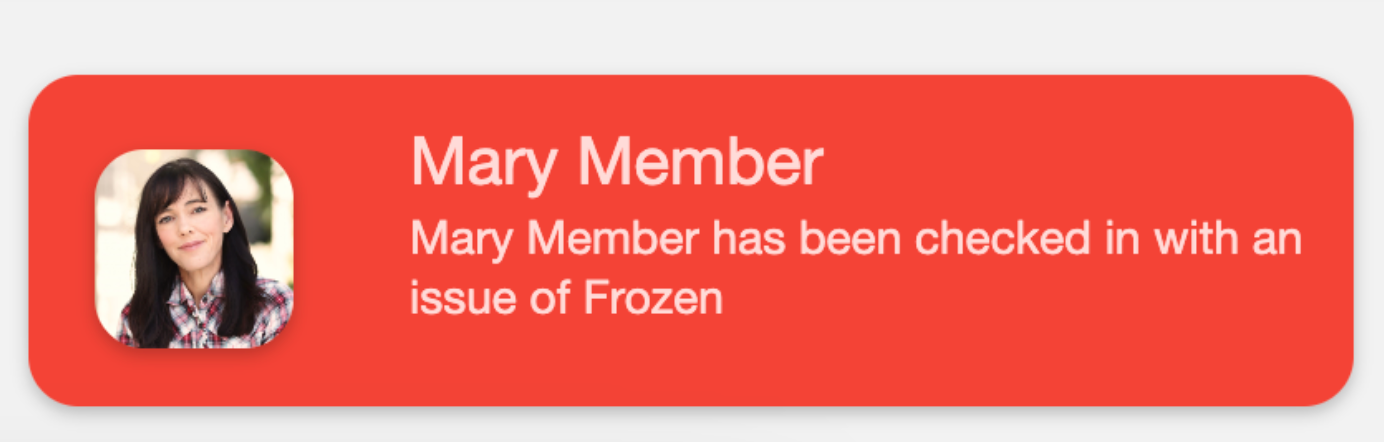
A FROZEN alert indicates the account has an active freeze with allow-entry set to No.
Need help? #
Contact your ASF account manager at clientsupport@asfpaymentsolutions.com.