
What Belt Tracker does #
Belt Tracker is a tool inside Member Management for tracking rank progression in martial arts and other belt-based programs. You can create programs that match your facility's class structure, define experience levels and ranks within each program, set testing criteria, and monitor each student's readiness to test for their next rank. This guide covers setup and daily use across all Belt Tracker functions.
Quick reference #
The sections below provide a complete reference for Belt Tracker. Use these links to jump to the area you need:
- Programs, levels, and ranks
- Navigating the Belt Tracker dashboard
- Setting up testing criteria
- Rank checklist
The Dashboard
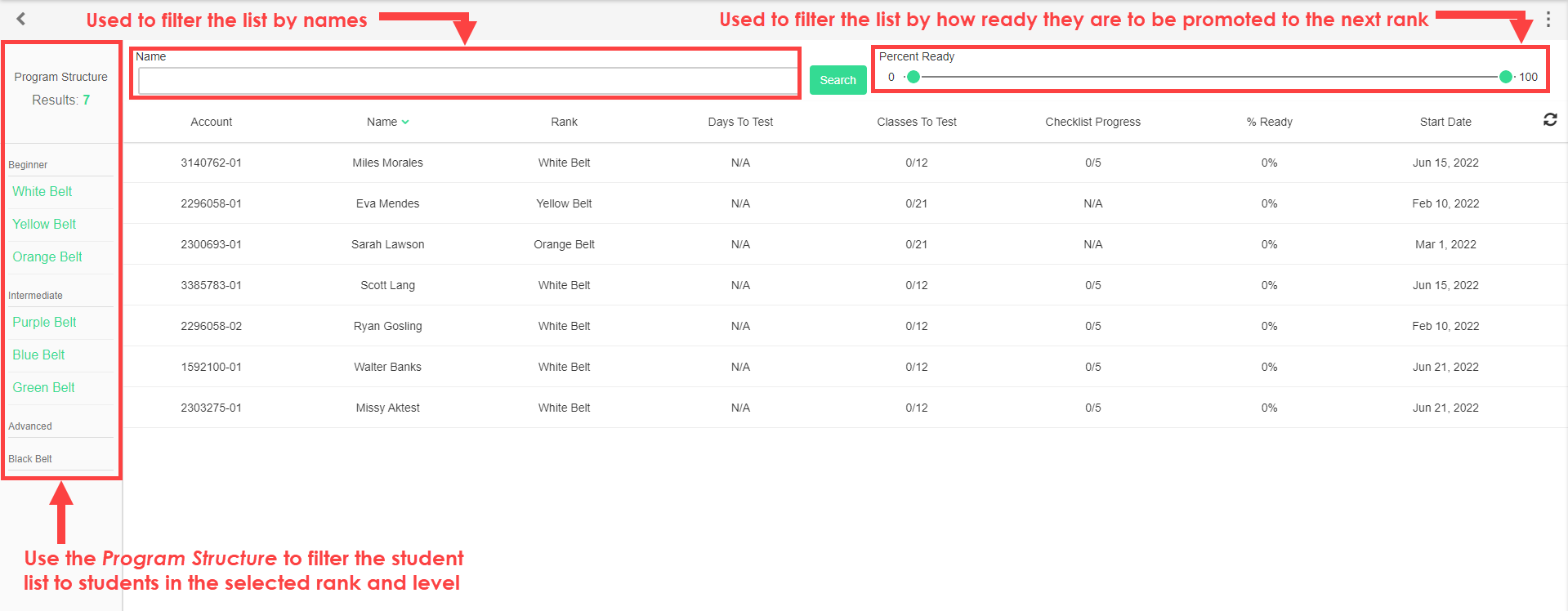
The Dashboard is the primary view displayed when accessing a program within Belt Tracker. It shows a complete list of members enrolled in the program, with filtering and sorting tools.
The Student Profile
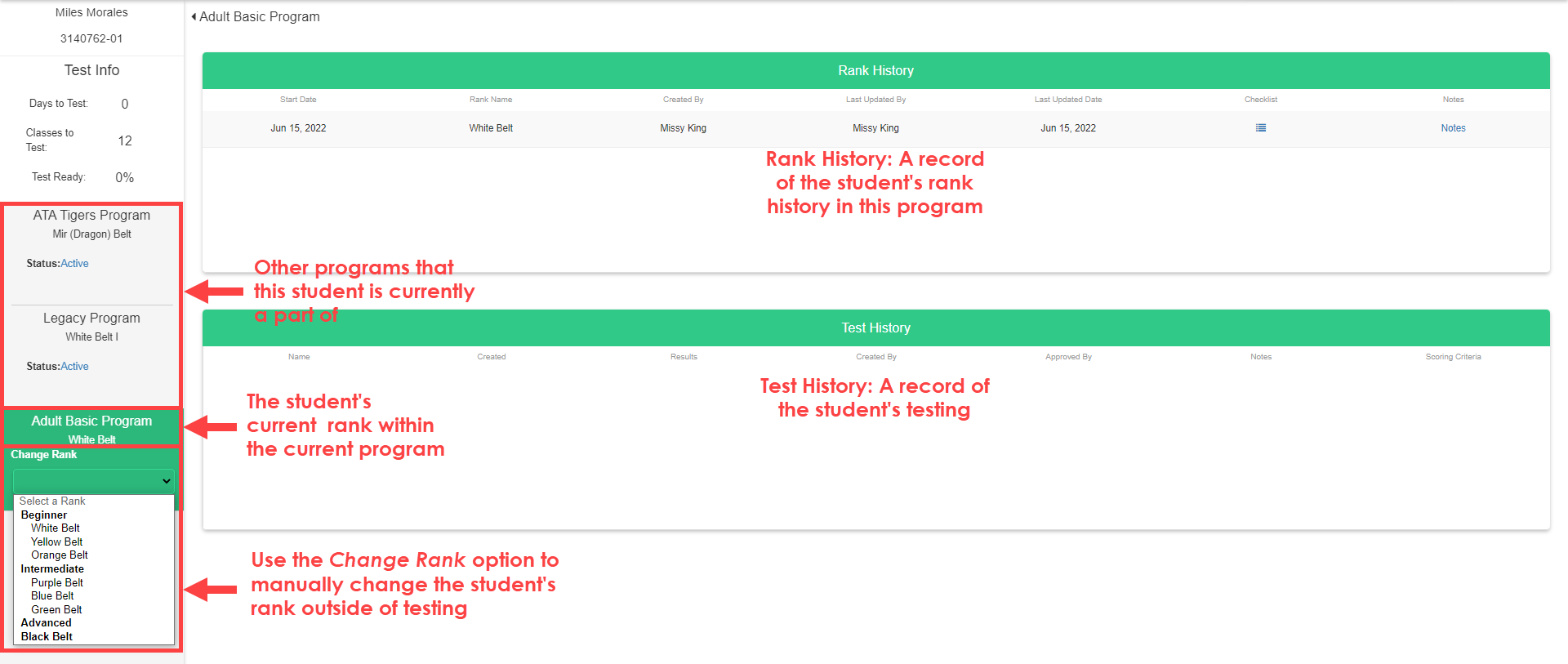
Selecting an individual student from the Dashboard list opens their Student Profile, which shows detailed rank and progress information for that member.
Tests: View Members
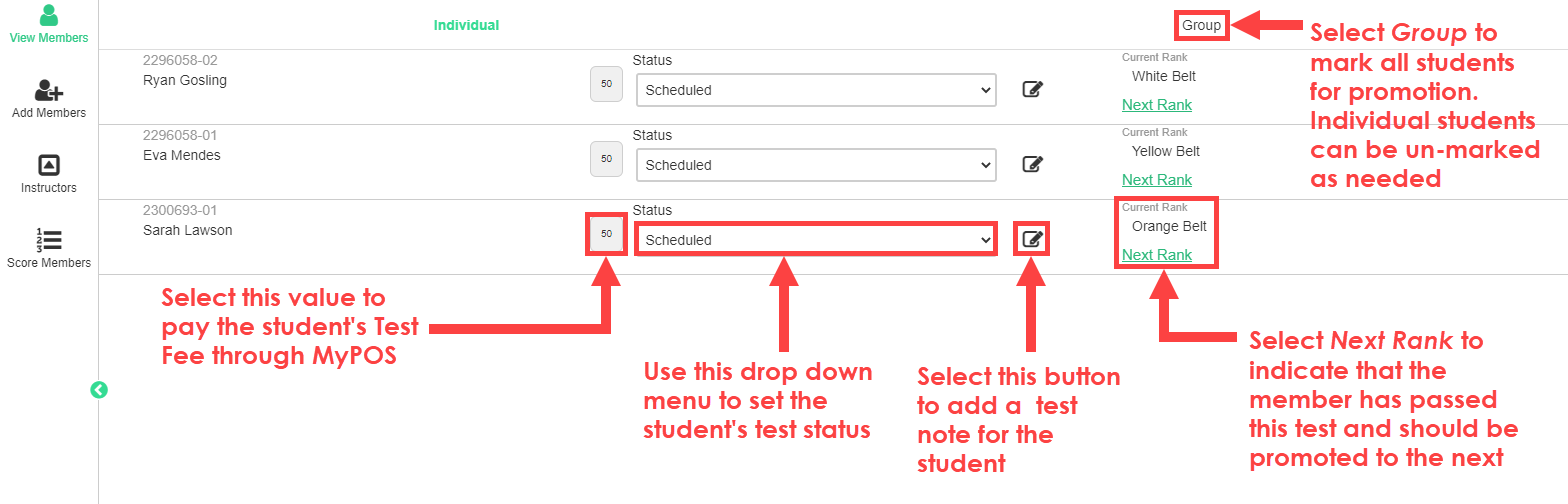
Accessed from the Belt Tracker menu on the Dashboard. Use View Members to manage students enrolled in a test.
Tests: Add Members
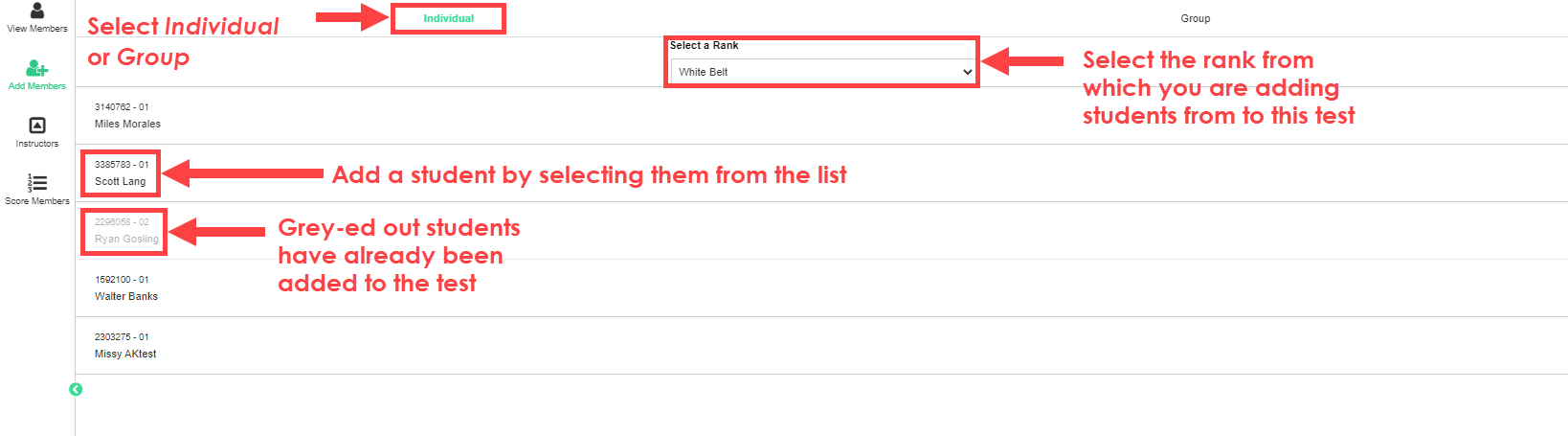
Use Add Members to enroll new students in a test.
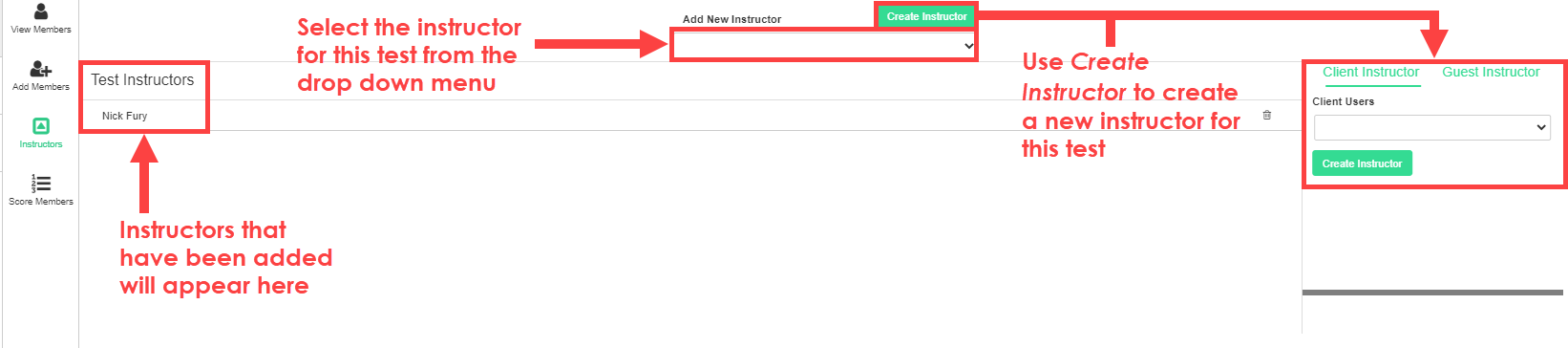
Tests: Instructors
Use Instructors to register instructors for a test.
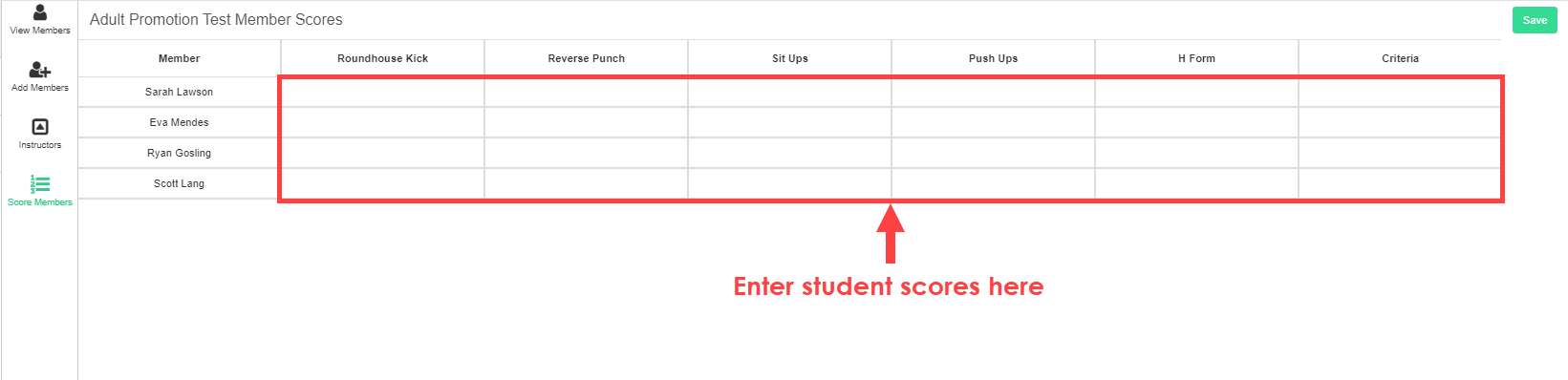
Tests: Score Members
Use Score Members to track student performance during testing. Each criteria field can be edited to record each member's score.
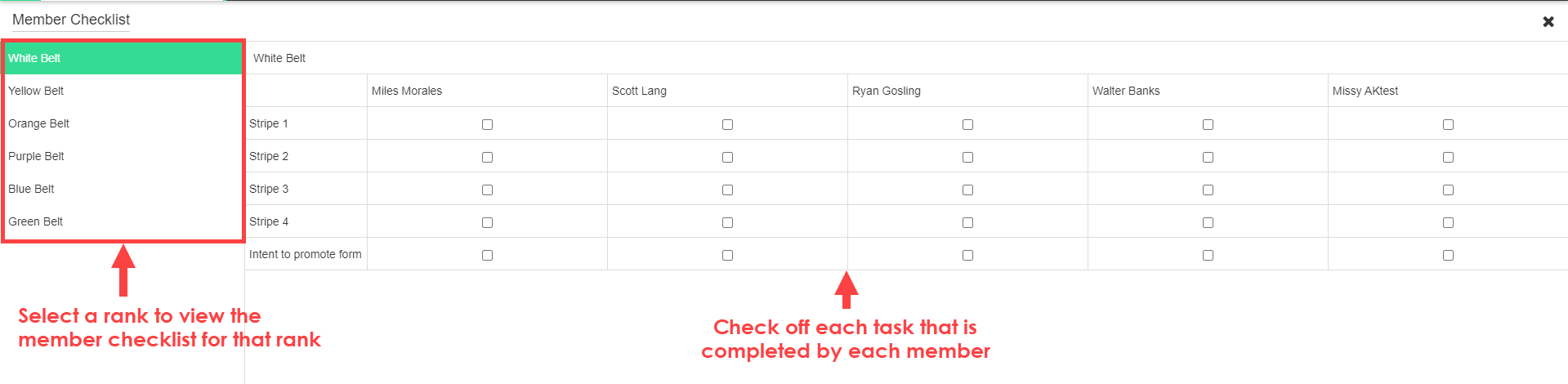
Member Checklists
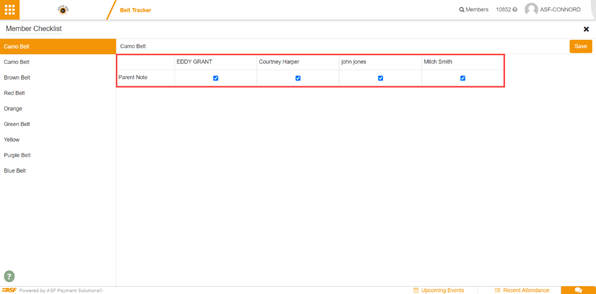
Member Checklists document milestones and tasks students must complete before becoming eligible to test. Items appear under Member Checklist in the Belt Tracker menu for any member associated with the relevant rank.
Programs, levels, and ranks #
Programs
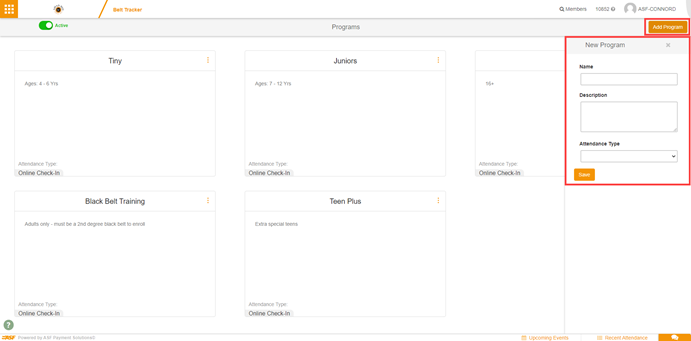
Programs are the primary organizational structure in Belt Tracker. They should align with your facility's actual martial arts or belt-based offerings. For example, if you operate Tiny Tigers, Adult, and Black Belt classes, create a separate program for each.
To create a program:
- Open Belt Tracker from the My Apps page.
- Click Add Program.
- Enter the program name and description, then select an Attendance Type:
- Online Check-In: Tracks attendance through general check-ins.
- Scheduler Check-in: Tracks attendance via event check-ins in My Scheduler.
- Click Save.
After saving, select the program to begin adding levels and ranks.
Experience levels
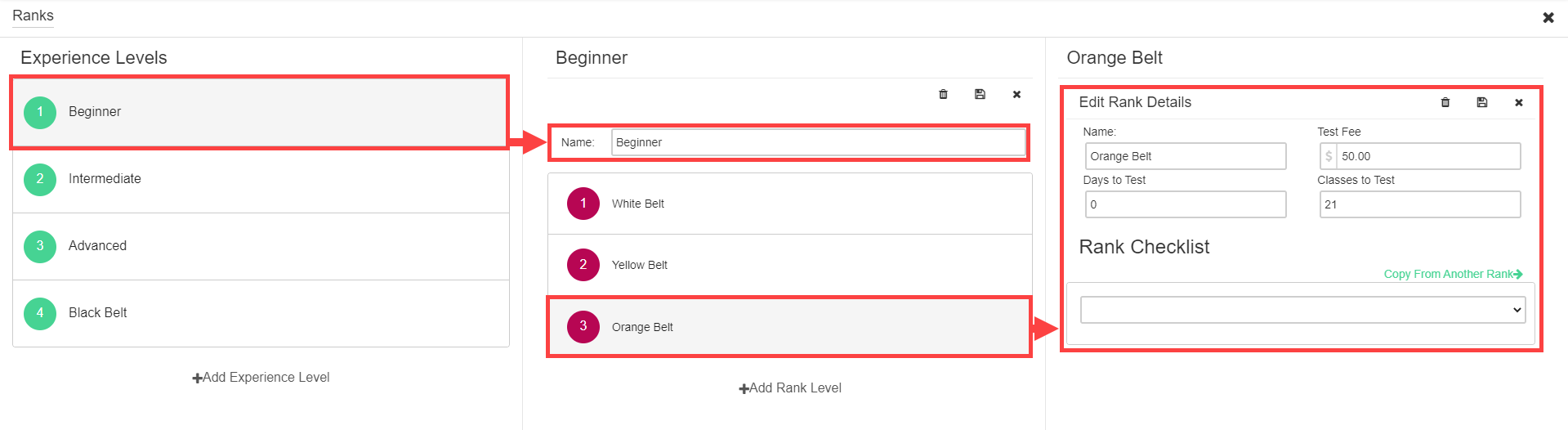
Experience levels logically organize your ranks within a program. To add an experience level:
- Choose your program from the Programs page.
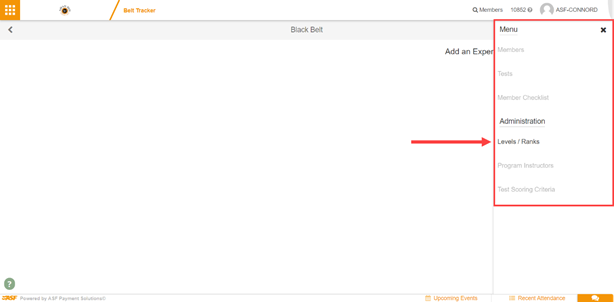
- Select Levels/Ranks under Administration.
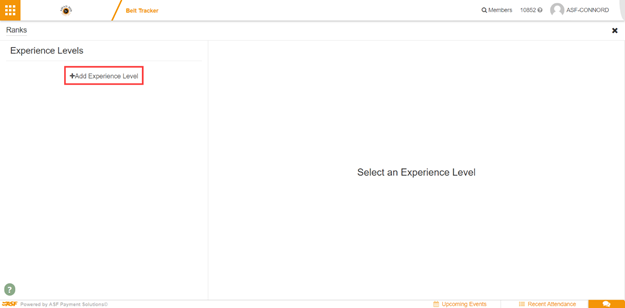
- Click + Add Experience Level.
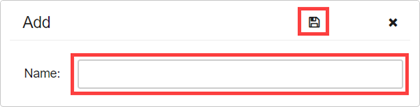
- Enter a name and select the save icon.
Ranks
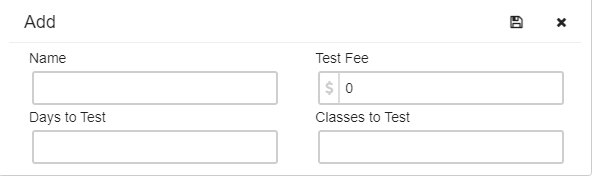
Ranks represent the actual belt achievements members pursue within an experience level. To add a rank:
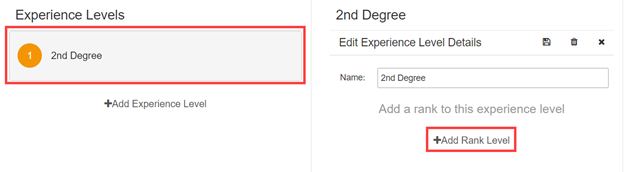
- Select an experience level, then click + Add Rank Level.
- Configure the four rank settings:
- Name: The rank designation.
- Test Fee: The cost to attempt advancement.
- Days to Test: The required waiting period since the last test.
- Classes to Test: The required number of class attendances.
- Click save to store the rank.
You may use either or both of the Days to Test and Classes to Test requirements. Both levels and ranks remain editable at any time.
Navigating the Belt Tracker dashboard #
The Dashboard is the primary view in Belt Tracker, shown immediately after selecting a program. It displays a complete list of members enrolled in that program, with tools to filter and sort the list.
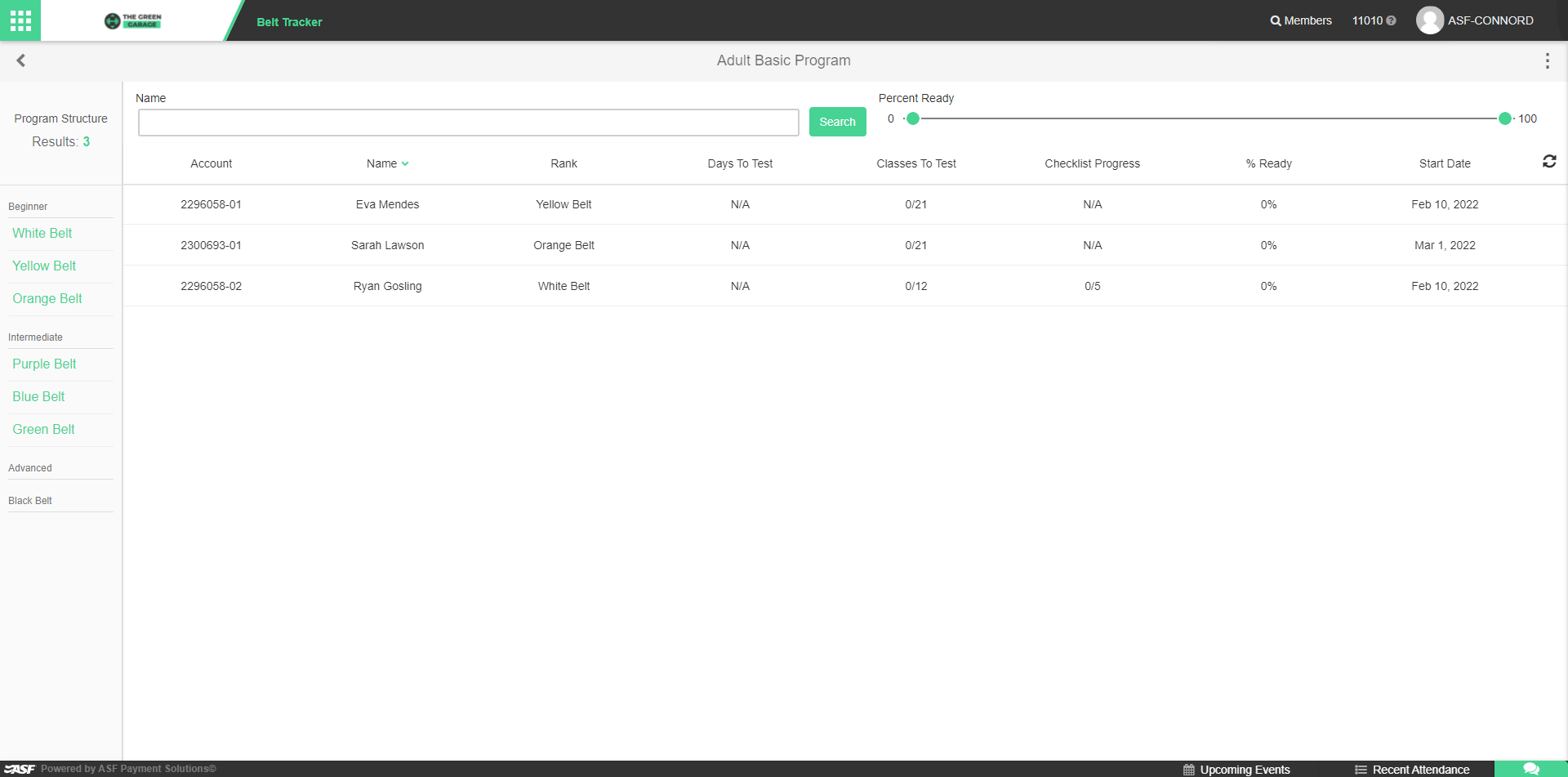
Program structure sidebar
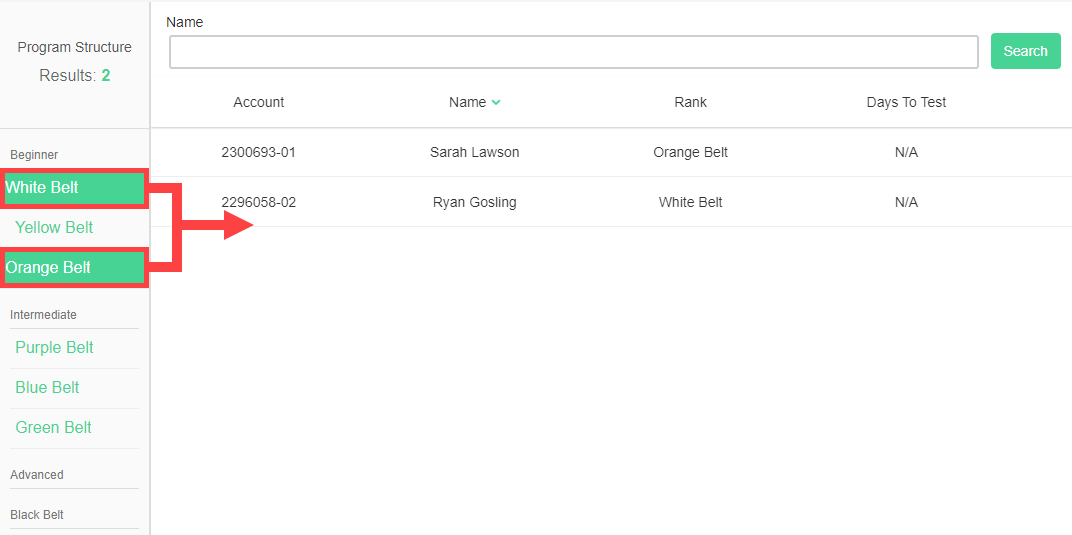
The left sidebar shows the rank experience levels and ranks for the selected program. Selecting a rank in the sidebar filters the student list to show only students at that rank.
Name filter
The name filter at the top of the list allows you to filter students by name. You can filter by multiple names simultaneously.
Percent Ready slider
The Percent Ready slider filters students based on their Days to Test and Classes to Test values. The system automatically calculates a Percent Ready value for each student, reflecting how close they are to being eligible for their next test. Use the slider to display only students who meet a minimum readiness threshold.
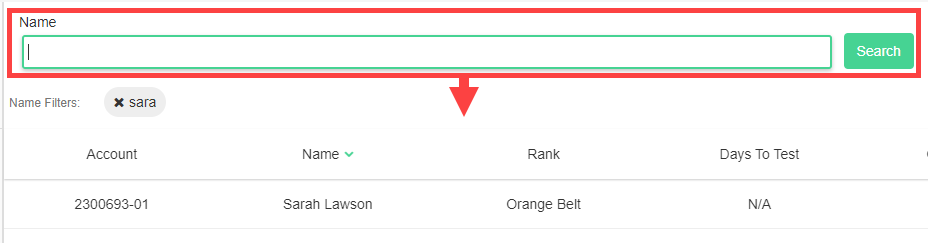
Data columns
Each student entry in the list includes sortable data columns. Click a column header to sort the list by that value. Selecting a student opens their individual Profile.

Setting up testing criteria #
Testing criteria define the scored elements that are evaluated during a member's belt test. Once created, criteria appear in the Score Members section during a test, where each field can be edited to record each student's score.
Access Test Scoring Criteria
Navigate to the Administration section of the Belt Tracker menu and select Test Scoring Criteria.
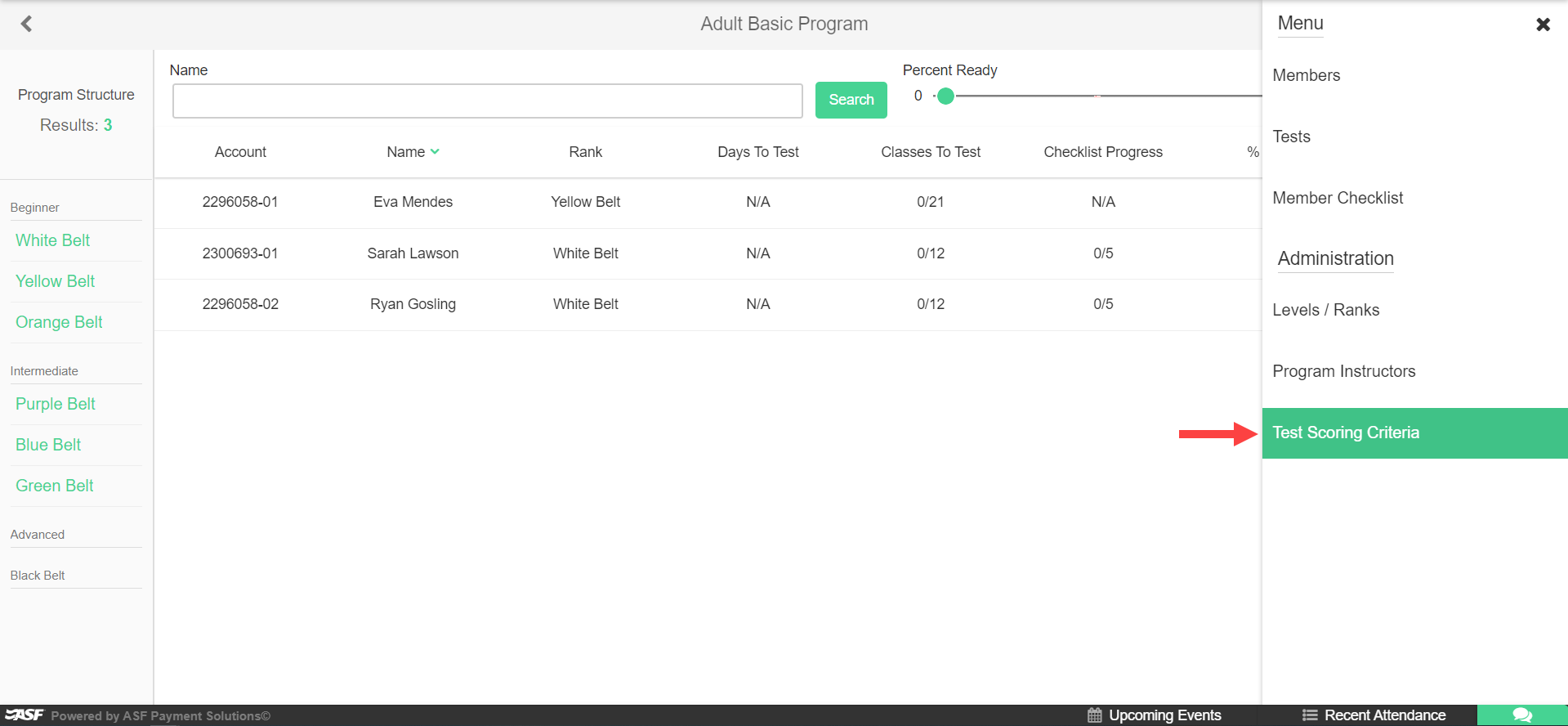
Create or import criteria
The Test Scoring Criteria screen has two sides:
- Left side: Enter new criteria names and click the + button to add each entry.
- Right side: Copy existing criteria from another program. This is useful for maintaining consistent scoring standards across multiple programs.
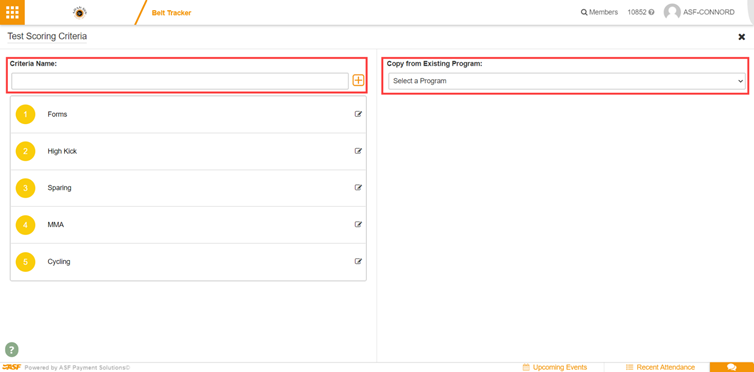
Criteria during scoring
During a test, all configured criteria appear in the Score Members section. Each field is editable so you can record each student's individual score for every criterion.
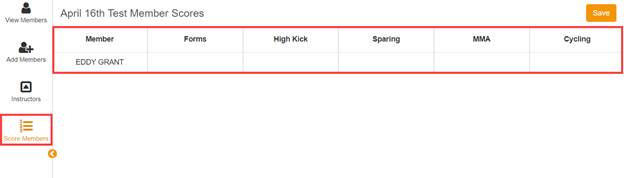
Rank checklist #
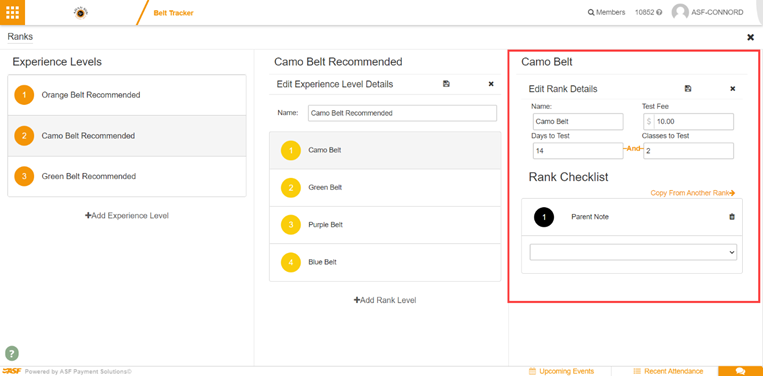
The Rank Checklist feature lets clubs define supplementary requirements for each rank level, such as academic performance standards or required practice forms. Checklist items created at one rank are accessible across all rank checklists in the system.
Setting up a rank checklist
- Select the desired rank from the experience level options.
- Access the Rank Checklist section on the right panel.
- Choose one of the following options:
- Copy a checklist from another rank.
- Select existing checklist items from the dropdown.
- Click Add New to create a new checklist item.
How checklists appear for members
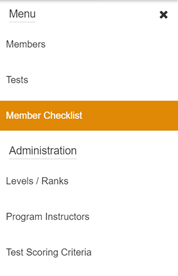
Any members associated with a rank that has a configured checklist will have those checklist items shown under Member Checklist in the Belt Tracker menu. Staff can use this view to track completion of each requirement before a student tests.
Need help? #
Contact your ASF account manager at clientsupport@asfpaymentsolutions.com.