
This guide covers the five areas you control when setting up MyClubAccess for a club: branding and logos, the mobile app icon, calendar settings, barcode and social links, and the Club Info shown to members. Most of these settings live inside Client Preferences in Member Management.
App branding and logos #
You control the colors and branding that members see after they sign in to the app. To change logos or brand colors:
- Go to Client Preferences > Mobile App > Brand Settings.
- Set the logo and color values for this location.
- Save.
Changes apply to the selected location and to any reciprocal clubs associated with it, and they update in real time. Members already signed in may need to close and reopen the app to see the new branding.
Mobile app icon #
The system supports custom app icons on Android and iOS, so the icon on a member's home screen can show your club's logo instead of a generic mark. To add this for your club, contact your customer success manager or ASF support; this is set up on your account rather than from inside the back office.
Calendar settings #
Two preference paths control how classes look and behave in the app calendar.
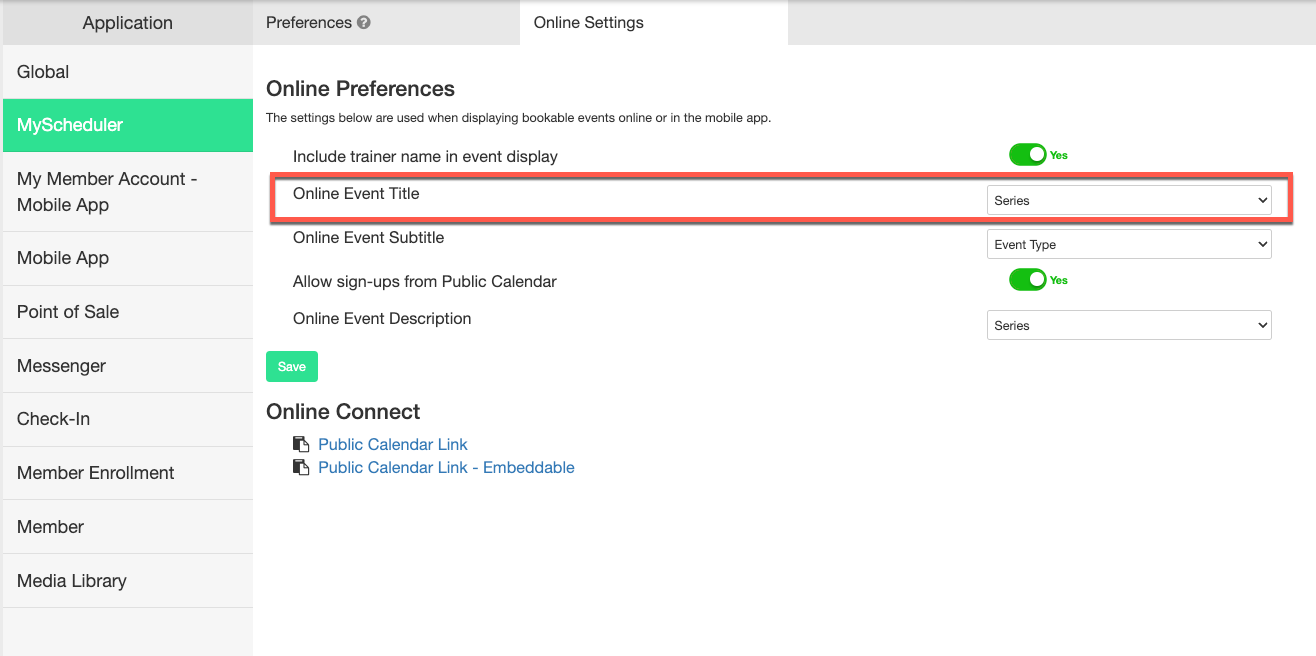
Class names and event details: open Client Preferences > MyScheduler > Online Settings. The Online Event Title value is the name that appears on the class tile in the mobile app calendar; the subtitle controls the secondary line.
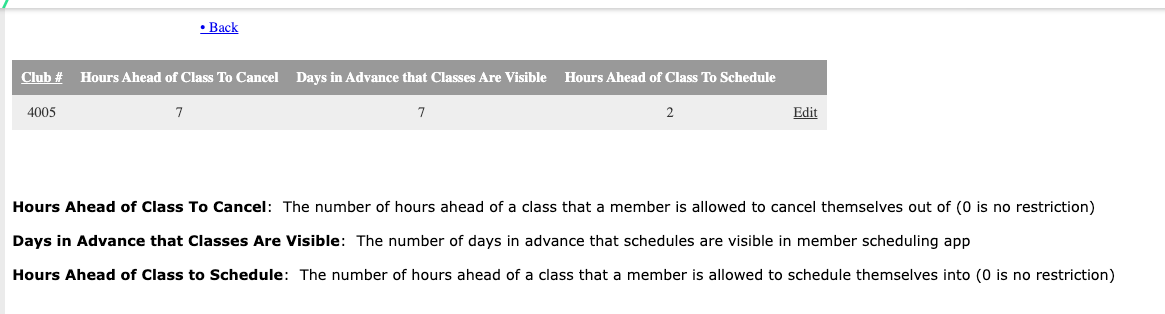
How far ahead members can book: open Client Preferences > Setup My ASF > Schedule ahead. The same settings cover both the online scheduler and the mobile app, including how close to an event a member can still cancel. When an event is inside its cancellation window, the app prompts the member to call the club instead of canceling.
Barcode settings and social links #
The digital barcode that members scan at your facility, plus the social links that show on the Club Info screen, are configured together.
- Go to Client Preferences > Mobile App > Location settings.
- Configure the barcode format and any per-location barcode rules.
- Add the social URLs (for example, Facebook, Instagram, LinkedIn) that should appear on the Club Info screen.
- Save.
Club Info shown to members #
The Club Info screen displays high-level information about the club. Each field has its own configuration path:
- Club Name: uses the Display Name from Client Preferences > Global. We recommend using a location-style name (for example, Philadelphia, Austin, Denver) so members on multi-location memberships can tell clubs apart.
- Email, Phone, Address: updated by ASF support. Open a ticket with the values you want shown.
- Club Hours: set in Scheduler > Settings > Hours of Operation.
Where to get help #
If a setting is missing in your back office, or you want to enable the custom app icon, contact your ASF account manager at clientsupport@asfpaymentsolutions.com.